bartonlew
Legend
December 21, 2021
Answered

image won't print at specified size in photoshop

  • December 21, 2021
  • 1 reply
  • 11422 views

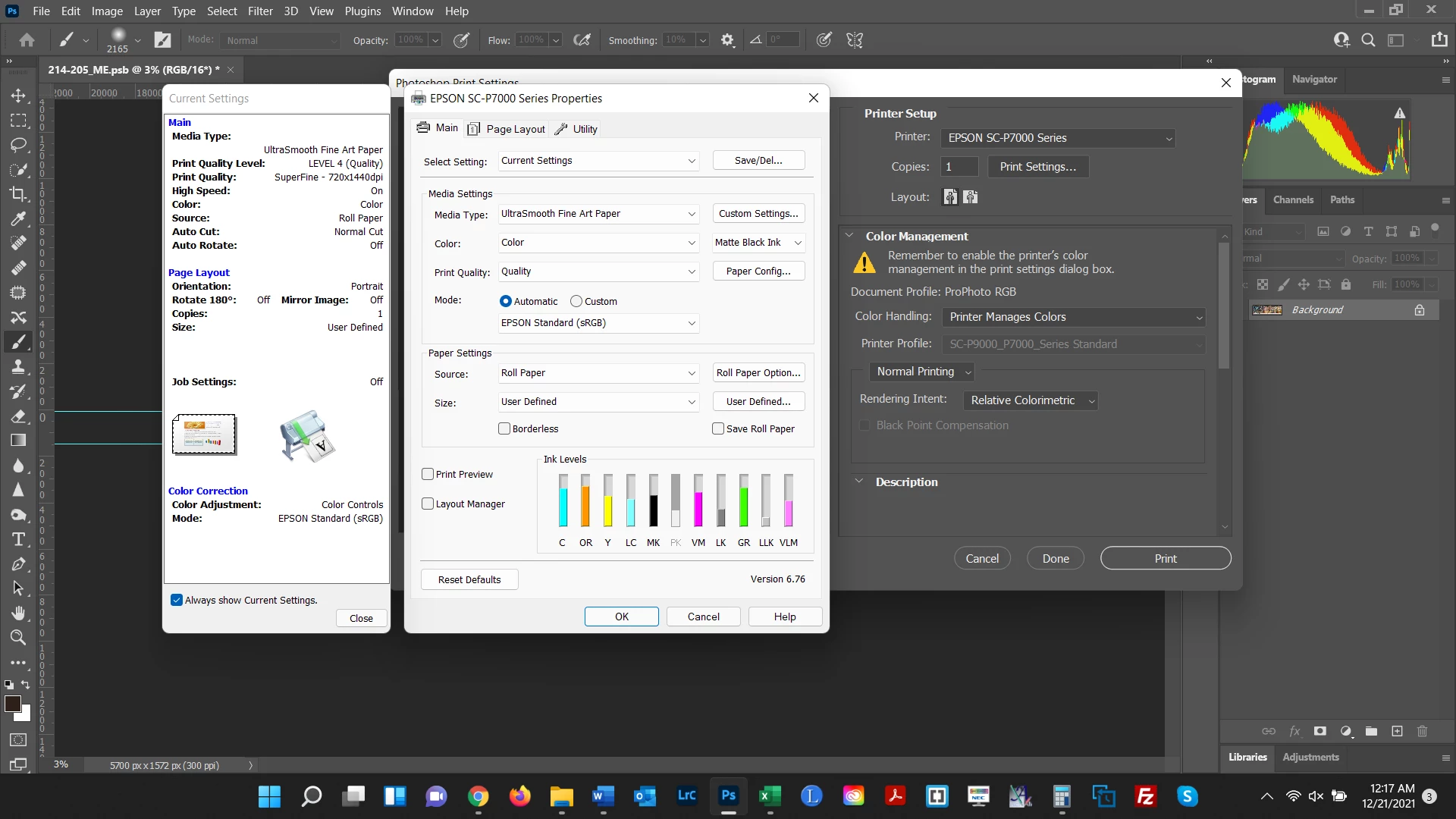
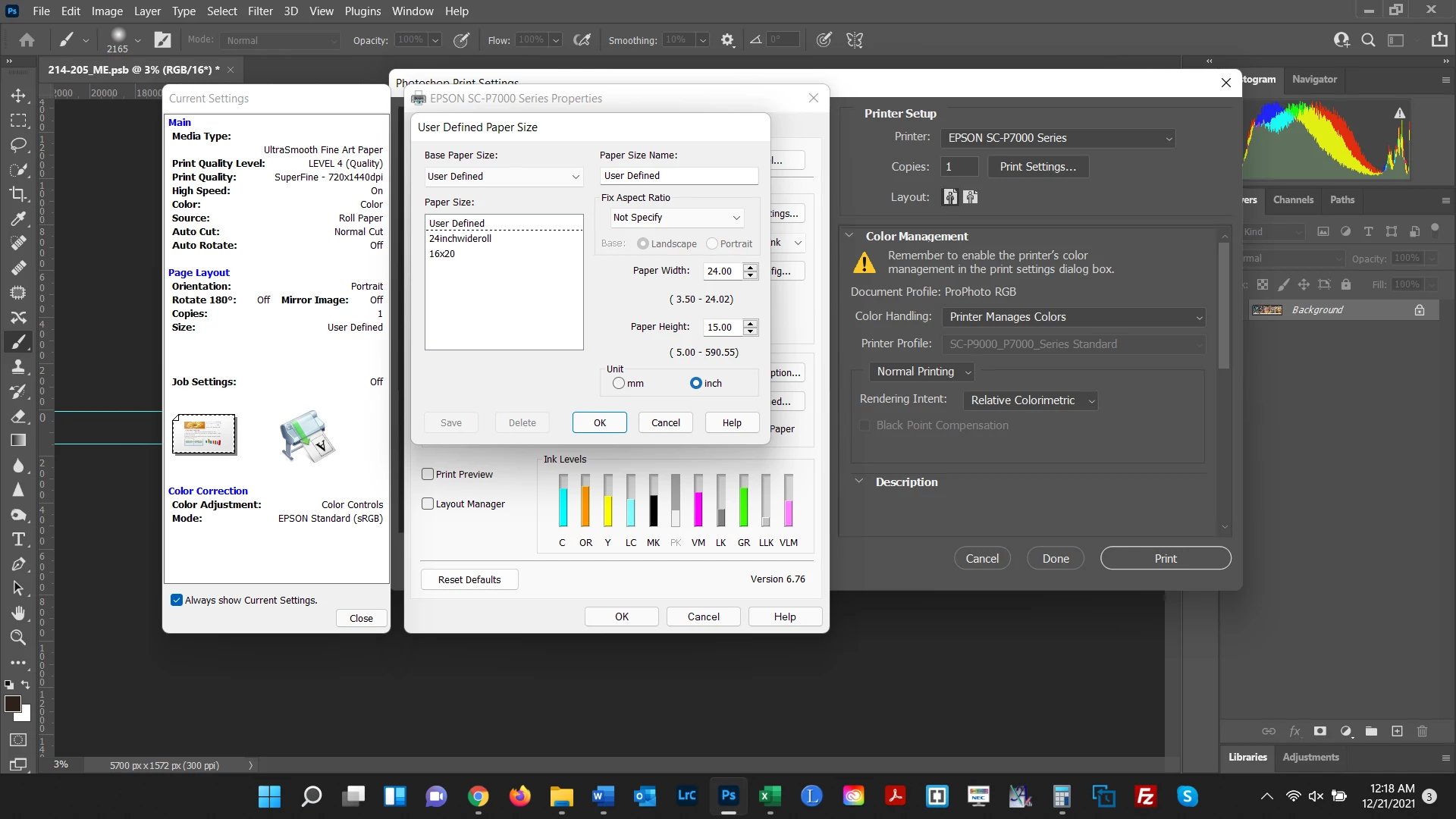
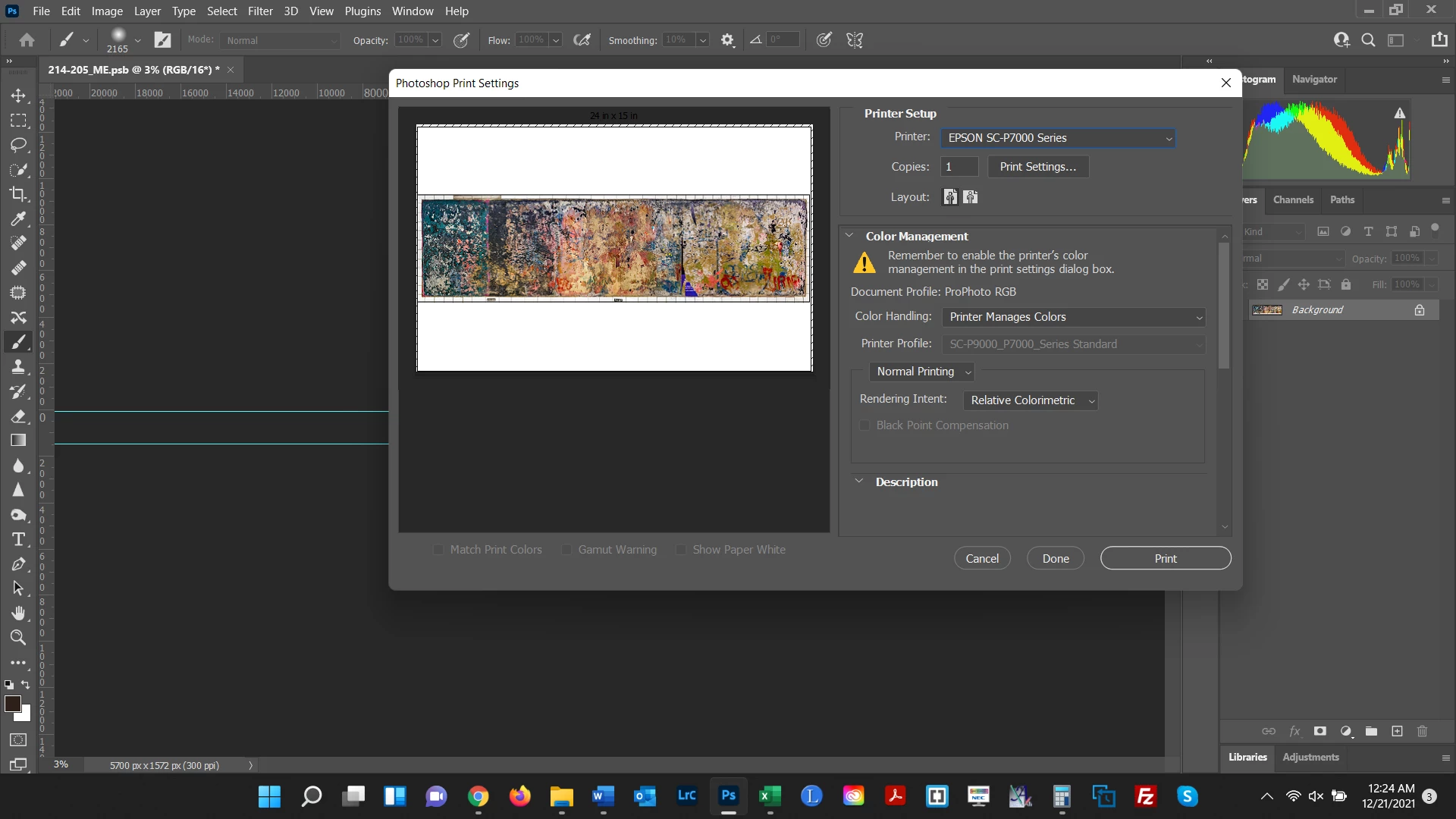
I have an image that won't print at the designated size in Photoshop.  I am printing on an Epson P7000 printer on a 24" x 50 ft. roll.  I am giving the Image Size as 19" W which yields a Height of 5.23" for this image.  In Print Settings>Paper Settings I am clicking on User Defined and selecting a Paper Width of 24" and a Paper Height of 15" (for some reason, Photoshop adds an inch to the specified height and in this case I want a paper cut of 16" H).  But Photoshop is ignoring the Image Size width of 19" and is stretching the image to the width of the 24" paper.  This is not happening in other files and I have compared the settings and they are identical as far as I can tell.  Why is this happening?


This topic has been closed for replies.
Correct answer Conrad_C

The latest picture seems to indicate the problem. In the Position and Size section, you will notice that the setting “Scale to Fit Media” is selected. That means the image size, whatever it is, will be enlarged or reduced to the printable area of the selected paper size. Which is not what you want, you want the document to print at the exact dimensions you set up in Image Size.


Notice that Scale says 125% and Width says 23.777 inches, and those values are dimmed (not editable). That is because “Scale to Fit Media” is enabled. Disable “Scale to Fit Media,” which will allow Scale, Height, and Width to be edited. Make sure Scale is set to 100% (which should also correct the Height and Width in that section), so that the document prints at the size you set up.


Because you said other documents printed at the expected size, “Scale to Fit Media” was probably not enabled in those documents.


The settings in the the Position and Size section in the Print dialog box in Photoshop are in addition to the Paper Size setting in the printer driver (the earlier pictures you posted). The Scale, Height, and Width values in this section are basically the dimensions that Photoshop sends to the printer driver. It’s always a good idea to check Position and Size to make sure they are coordinated with the printer driver Paper Size settings.

1 reply

Conrad_C
Community Expert
Community Expert
December 21, 2021

Regarding the first picture, please capture one where it’s scrolled down to the Position and Size section of the Print dialog box.

bartonlew
bartonlewAuthor
Legend
December 22, 2021

Thank you.  I have never scrolled down to that part before.  Here it is.  I'm not currently connected to my Epson but all the settings are showing up as if I were so hopefully this tells you what you need.  


Conrad_C
Community Expert
Conrad_CCommunity ExpertCorrect answer
Community Expert
December 22, 2021

The latest picture seems to indicate the problem. In the Position and Size section, you will notice that the setting “Scale to Fit Media” is selected. That means the image size, whatever it is, will be enlarged or reduced to the printable area of the selected paper size. Which is not what you want, you want the document to print at the exact dimensions you set up in Image Size.


Notice that Scale says 125% and Width says 23.777 inches, and those values are dimmed (not editable). That is because “Scale to Fit Media” is enabled. Disable “Scale to Fit Media,” which will allow Scale, Height, and Width to be edited. Make sure Scale is set to 100% (which should also correct the Height and Width in that section), so that the document prints at the size you set up.


Because you said other documents printed at the expected size, “Scale to Fit Media” was probably not enabled in those documents.


The settings in the the Position and Size section in the Print dialog box in Photoshop are in addition to the Paper Size setting in the printer driver (the earlier pictures you posted). The Scale, Height, and Width values in this section are basically the dimensions that Photoshop sends to the printer driver. It’s always a good idea to check Position and Size to make sure they are coordinated with the printer driver Paper Size settings.