Participant
December 17, 2023
Answered

Importing text from Word into Photoshop and exporting it as a .png - Text is pixelated

  • December 17, 2023
  • 2 replies
  • 6376 views

Hello!

I am new to PS.

I created a tribute page for my senior daughter's HS yearbook using Microsoft Word.

After sending my page to the yearbook dept., I was told that all of my photos were blurry, even after converting them to 300 dpi (using a free online dpi converter).

So I purchased PS, converted the original photos to 300 dpi using that and fixed that problem.

I naively thought that I could do the same thing with the 500-word text box I created in Word (I did not use WordArt), but that is proving to be way more complicated.

I have tried many methods:

- Copying the text, pasting it into a new Word .doc, saving the new .doc as a .pdf and then opening that in PS,

- Copying the text, pasting it as a picture into a new Word .doc, then saving the new .doc as a picture (tried both .jpg and .png), then opening those in PS,

- Using the screen clipping tool and saving that as an image,

- etc., etc.

The problem is not with getting the Word .doc text imported into PS; I actually did that.

The issue is that when I view the text in PS after importing it , the text is very pixelated.

I tried using the sharpening and softening tools, but that didn't help.

Exporting the text from PS as high quality .jpg or .png didn't fix the problem either.

I would prefer not to have to retype all of the 500-word text into PS if I don't absolutely have to, because the text I want to copy/paste was created in Word to fit around the photos I'd already fixed on the page, and I really don't have more time to spend learning how to manipulate text around images in PS.

Is there an easy solution to my text pixelation problem, or am I just going to have to bite the bullet and retype the text in PS, potentially sacrificing the word wrapping I was able to get in Word?

Or is it actually easier to manipulate text around images in PS than what I believe?

Any guidance/advice would be appreciated, but keep in mind that I'm a total "newbie" to PS and I won't understand much of the lingo and/or shortcuts that many of you experts might already be accustomed to.

Thank you so much!  🙂
 

Correct answer Trevor.Dennis

We can tell you up front that the text shouuld be the sharpest thing on the page, so something has gone a wee bit wrong.


One thing to do before copying the text in Word is to select it all (Ctrl A) and clear all formatting with Ctrl Space Bar.  That gets rid of all the weird formatting that Word may have applied, as it tends not to play nicely when pasted into another app.


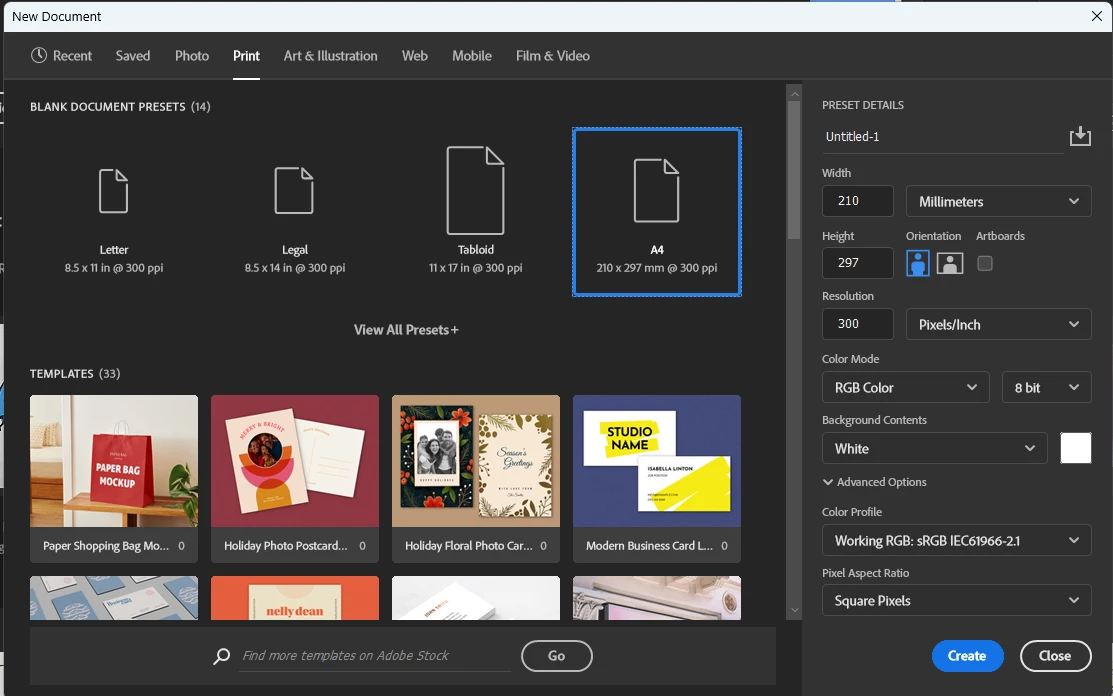
The important thing is to start with an appropriate document size, so I have used the Print tab and selected A4 and 300dpi.  That gave me a pixel size of 2480 x 3508


I then dragged out a good size Text Box, set the font to 14pt, and pasted in the text from your post.

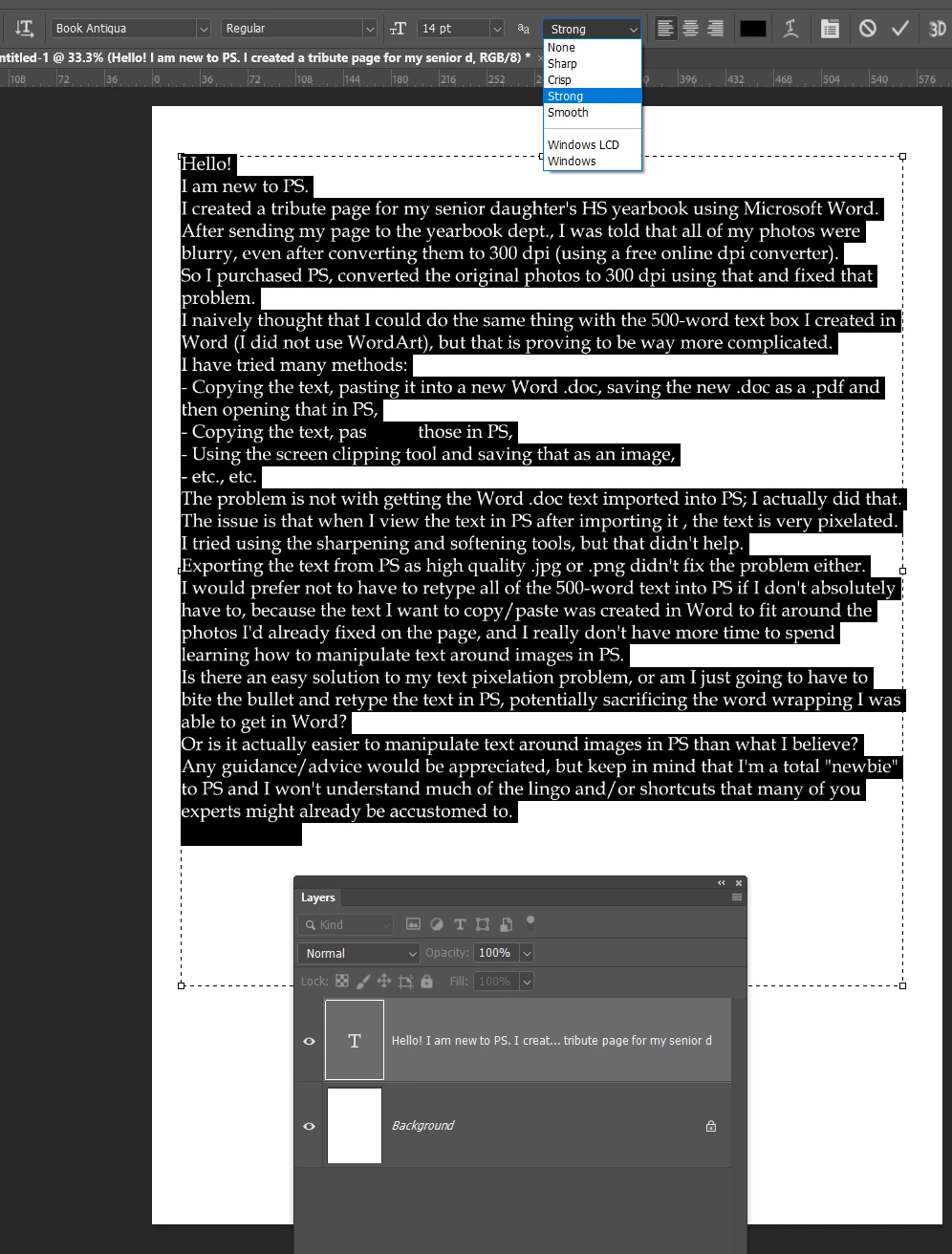
Note that it is crucial to set the text anti aliassing to something other than none.  That might be your issue in fact.-


To demonstrate the effect of anti aliassing (aa) the screen shot below shows the same text, one with aa set to Strong, and theer to None, and zoomed in to 400%.

2 replies

Participant
May 18, 2024
WhatsApp_Image_2024-05-17_at_04-55-48_18b52c2f.jpg
Trevor.Dennis
Community Expert
Trevor.DennisCommunity ExpertCorrect answer
Community Expert
December 17, 2023

We can tell you up front that the text shouuld be the sharpest thing on the page, so something has gone a wee bit wrong.


One thing to do before copying the text in Word is to select it all (Ctrl A) and clear all formatting with Ctrl Space Bar.  That gets rid of all the weird formatting that Word may have applied, as it tends not to play nicely when pasted into another app.


The important thing is to start with an appropriate document size, so I have used the Print tab and selected A4 and 300dpi.  That gave me a pixel size of 2480 x 3508


I then dragged out a good size Text Box, set the font to 14pt, and pasted in the text from your post.

Note that it is crucial to set the text anti aliassing to something other than none.  That might be your issue in fact.-


To demonstrate the effect of anti aliassing (aa) the screen shot below shows the same text, one with aa set to Strong, and theer to None, and zoomed in to 400%.

Participant
December 17, 2023

Thank you so much!

I appreciate your insights, and especially your easy to follow screen shots - I will give this a try and let you know how it goes!