
Participant
July 30, 2024
Question

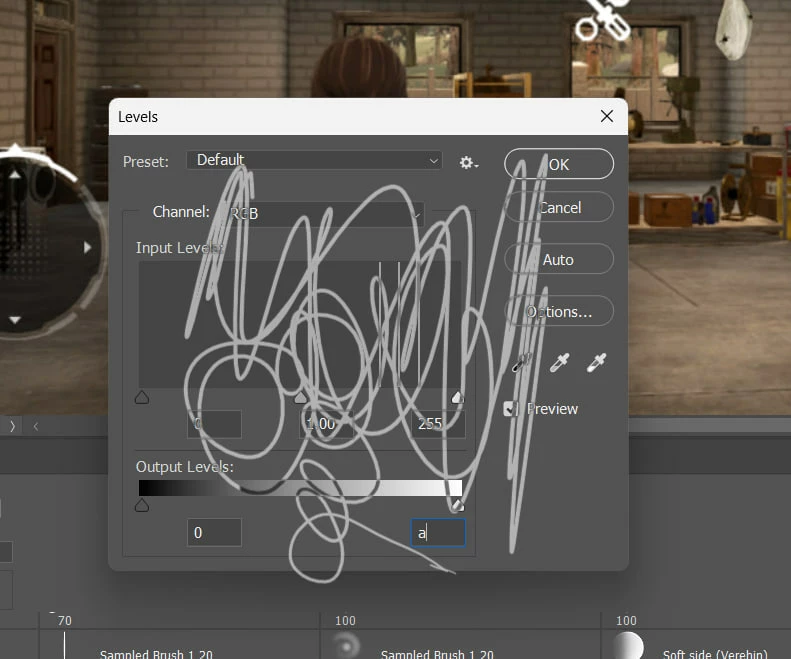
Incorrect wacom work: drawing on top of the interface Photoshop menu

  • July 30, 2024
  • 4 replies
  • 397 views

Incorrect wacom work: drawing on top of the interface Photoshop menu

I don’t understand how this happened, but for several weeks I’ve been drawing on top of the interface menu (see attachment) of Photoshop instead of changing the values ​​in them. It's infuriating, I have to switch to the mouse every time. I don't know how to fix it. Can you help me?

Wacom Intuos Pro PTH-600, driver - WacomTablet_6.4.4-3
Photoshop 25.9.1
Windows 11
This topic has been closed for replies.

4 replies

AxelMatt
Community Expert
Community Expert
August 11, 2024

I've no problems with Photoshop (25.11), Wacom on a Windows 11 machine. So I don't believe that's a bug. It seems to be a problem on your installation.


In a first step you should try to reset the preferences of Photoshop using the steps described here:

https://helpx.adobe.com/photoshop/using/preferences.html#reset-preferences

It's recommended to backup the settings before resetting the preferences. Please see here:

https://helpx.adobe.com/photoshop/using/preferences.html#backup-photoshop-preferences


Try also to disable the option to "Use Graphics Procesor" from Photoshop by going to Preferences, then Performance. Once done, quit & relaunch Photoshop to check if that helps.

If it helps, you can check out the steps suggested here:   https://helpx.adobe.com/photoshop/kb/troubleshoot-gpu-graphics-card.html

Take a look especially point 7 in the "Troubleshoot GPU and Graphics driver" section.


Try to update your Photoshop to the recent version 25.11.


If this doesn't help check your system if it's up-to-date. Do you have installed all recent updates and patches for the operating system and the device drivers, especially the graphic driver. If you have a NVidia graphic card installed, make sure that you are using the recent Studio version of the driver, not the Game Ready version.

Please also provide a copy of your 'System Info'. This can be get from the Photoshop menu item Help > System Info. There's a copy button in the System Info dialog. Press this button and paste the info into your next forum post.


My System: Intel i7-8700K - 64GB RAM - NVidia Geforce RTX 3060 - Windows 11 Pro 25H2 -- LR-Classic 15 - Photoshop 27 - Nik Collection 8 - PureRAW 6 - Topaz Photo AI
Participant
August 11, 2024

I don’t know if it made him feel better reseting preferences or unchecking "Graphic Processor", but now everything works! Thank you so much!!!!

AxelMatt
Community Expert
Community Expert
August 12, 2024

I think the resetting of the preferences does the trick.

You can check this by reactivating GPU support again and check if it's work.


My System: Intel i7-8700K - 64GB RAM - NVidia Geforce RTX 3060 - Windows 11 Pro 25H2 -- LR-Classic 15 - Photoshop 27 - Nik Collection 8 - PureRAW 6 - Topaz Photo AI
Participant
August 10, 2024

No, guys, Wacom support wrote me the same - clean uninstall prev.wacom driver and download 6.4.6 - 2. But it didn't help me (see attached pic). Maybe this is an adobe bug? Cz wacom works as usual with other soft

AxelMatt
Community Expert
Community Expert
August 9, 2024

There'S a new uptdate for the Wacom driver to version 6.4.6-2 available.

Download and install the driver and check again.


My System: Intel i7-8700K - 64GB RAM - NVidia Geforce RTX 3060 - Windows 11 Pro 25H2 -- LR-Classic 15 - Photoshop 27 - Nik Collection 8 - PureRAW 6 - Topaz Photo AI
Kevin Stohlmeyer
Community Expert
Community Expert
August 9, 2024

@Kindhearted_Gleam98A6 that appears to be a driver issue. Check for updates or uninstall/reinstall the Wacom driver.