
Participant
February 22, 2021
Answered

Increasing Text Thickness - Simple Steps

  • February 22, 2021
  • 3 replies
  • 45455 views

Hey all,

I'm a novice Photoshopper and hoping a kind soul can help. I have searched for this answer but cannot get it right. I believe this is simple - and hope someone can describe clear steps to solve the issue!


1) I have a text box. It is a three letter acronym. I have selected size/font etc.

2) I wish to make the text itself thicker - not bigger, or further spaced apart - simply, thicker.


Can anyone tell me how to do that?  It's just a text box with 3 letters in it. Which I need to make thicker.


Thanks!
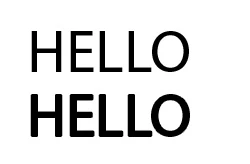
Correct answer Derek Cross

If you want to thicken a font you can use Stroke in Layer Styles.


3 replies

Trevor.Dennis
Community Expert
Community Expert
January 6, 2025

While using an outside Stroke definitely works, it is better practice to use a different font that is designed to look the way it does without modification.  When searching for a font to fit your needs, start typing Bo (bold) Bl (black) He (heavy) into the font field with Type tool selected.


You can do the same thing with other font atributes, like wide, narrow, light, italic, com (comic — Hey, I like comic fonts!).  You can combine those shortcuts. i.e. bo it (bold italic).  

Derek Cross
Community Expert
Derek CrossCommunity ExpertCorrect answer
Community Expert
February 22, 2021

If you want to thicken a font you can use Stroke in Layer Styles.


Tim5CE2Author
Participant
February 22, 2021

Fabulous! I had tried that earlier but through random trial and error I have gotten to what I needed!


Thank you both for helping!


Tim5CE2Author
Participant
February 22, 2021

For any complete newbs like my stumbling onto this, follow these steps:


1) Double click the text box in the layers area

2) This brings up a menu, including "Stroke" - click on that

3) In this, select "Outside" from "Position", choose your fill colour (same as text) and select Size - 1pt did the job for me.


c.pfaffenbichler
Community Expert
Community Expert
February 22, 2021

Could you please post screenshots with the pertinent Panels (Toolbar, Layers, Character, Options Bar, …) visible? 

What is the font you used? 

Does the font have other Styles (light, roman, bold, black, …)? 

Tim5CE2Author
Participant
February 22, 2021

Thanks for your reply. I've kept this very simple but hopefully you can see - the font is Arial, the size is 16pt and it is in bold, with Smooth style. It is a text box on a background which is a rectangle filled in green. That's it.