
Inspiring
March 1, 2017
Answered

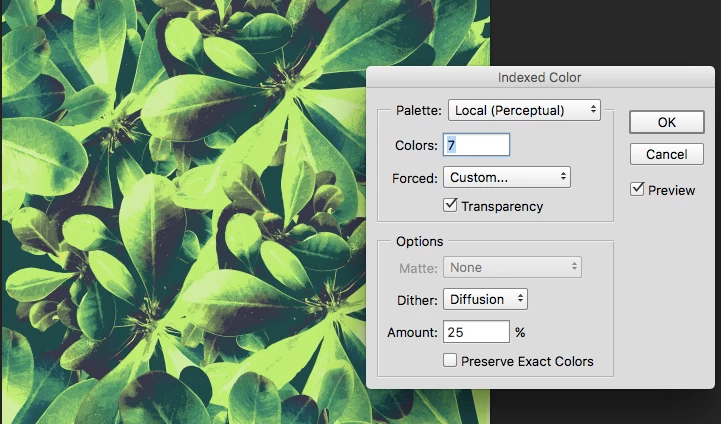
Indexed Color does not look like preview.

  • March 1, 2017
  • 3 replies
  • 2955 views

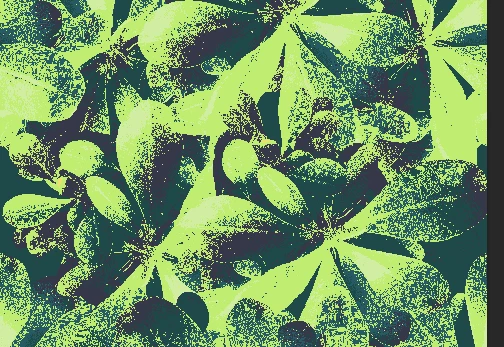
I am having a problem with the indexed color option, which used to work great for me. When the indexed color mode option is up and I have preview clicked, the picture looks great, but when I apply the indexed color the picture looks very pixilated.  I cannot find any information about this. Thanks!
This topic has been closed for replies.
Correct answer saraf33087454

I found the answer in a different forum- once you switch the color mode back to RGB the pixilation will go away.

3 replies

saraf33087454AuthorCorrect answer
Inspiring
March 1, 2017

I found the answer in a different forum- once you switch the color mode back to RGB the pixilation will go away.

davescm
Community Expert
Community Expert
March 1, 2017

saraf33087454  wrote

I found the answer in a different forum- once you switch the color mode back to RGB the pixilation will go away.

But you are no longer using indexed colour, in which case - why make the round trip?

Dave

Inspiring
March 1, 2017

It still indexes the color, it makes it look like the preview, and eliminates the pixilation. I am using indexed color to lower and the number of colors used, and input my own colors, and this achieves that. Thank you for your time!

Derek Cross
Community Expert
Community Expert
March 1, 2017

Presumably you only want to have seven colors (from the choice of up to 256) in your image.

davescm
Community Expert
Community Expert
March 1, 2017

Try zooming to 100% and compare preview to actual. They should both look the same at that zoom.

At zoom levels less than 100% you are viewing a preview of the image with any effects not the actual image.

Dave

Inspiring
March 1, 2017

Thank you, I am trying to get rid of the grainy effect, I want it to look like the preview image.

davescm
Community Expert
Community Expert
March 1, 2017

Hi
I am not sure if you misunderstood me.

You have to zoom in to 100% - then adjust the parameters for indexed colour while looking at the preview. That way you will get an accurate preview and no surprises when clicking on OK. The preview and rendered version will look the same.

Once done accuracy only applies at 100% . If you then zoom out you will see an inaccurate render. That is the way Photoshop works. For many images the zoomed out view is close enough to the actual that you notice no difference but in some cases (such as yours ) it looks very different.

Note - with only 7 colours (as set in your screenshot) it is going to look somewhat posterised.

Dave