
Inspiring
June 30, 2019
Question

Inversing selection

  • June 30, 2019
  • 2 replies
  • 1164 views

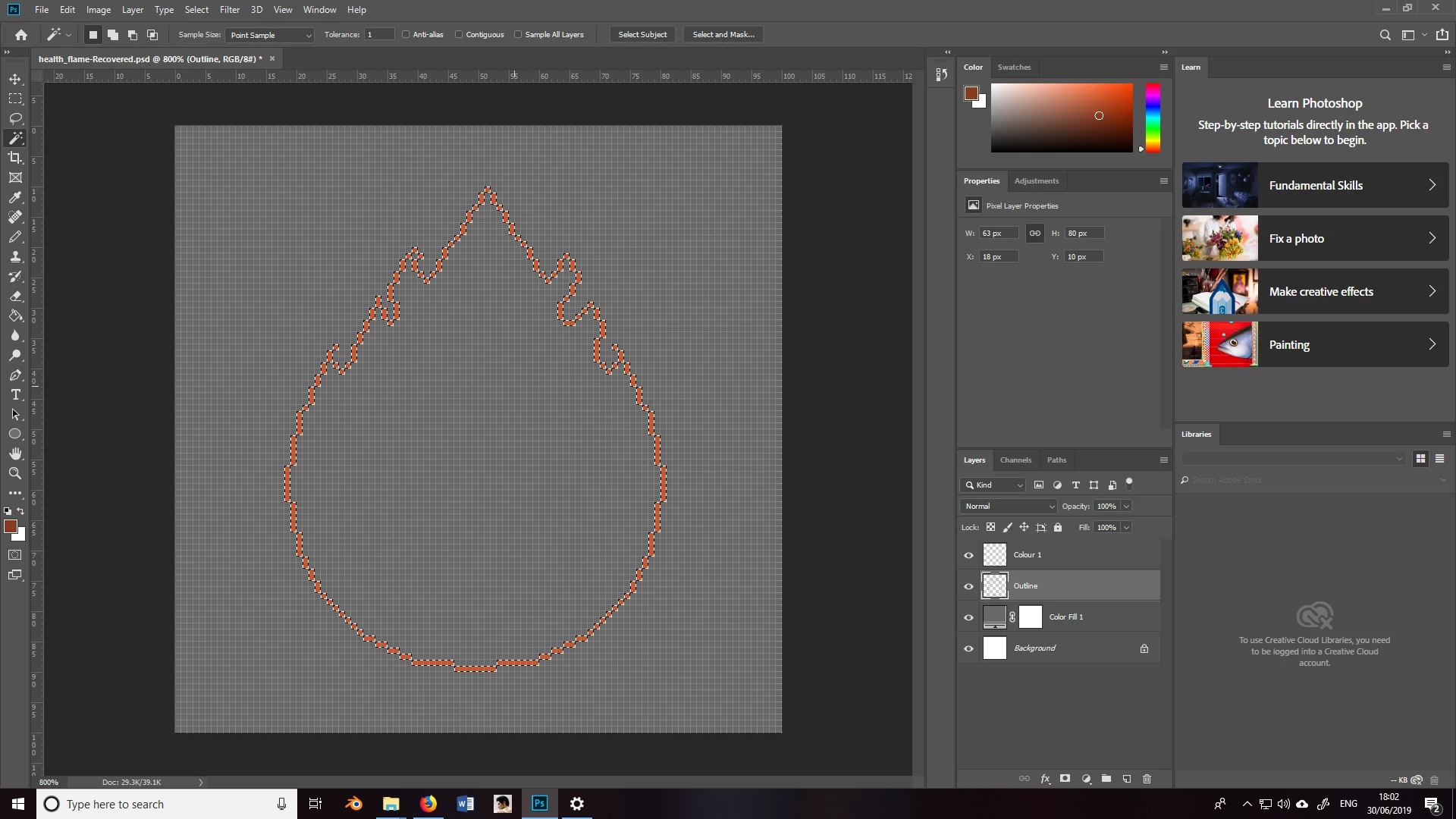
I swear I've done something along these lines before, but I can't for the life of me remember how. I'm after the selection of my pixels to be inversed so the selection appears on the inside of my flame. This way, I can quickly fill the centre in with the Paint Bucket Tool. How would I do this?
This topic has been closed for replies.

2 replies

jane-e
Community Expert
Community Expert
June 30, 2019

Hi Dusty,

I'm wondering if you are trying to change the color of the "Outline" layer? Another method is to lock the layer for transparency (click the first of the five lock icons or press the keyboard shortcut of / .) Then fill or paint on the opaque pixels.

~ Jane

Inspiring
June 30, 2019

Thanks for the reply. I'm trying to make the inside of the shape a different colour. When I go to Select > Inverse and then I try to fill the centre with a different colour, the whole the background changes colour instead of just inside the shape.

Kenneth Kawamoto
Community Expert
Community Expert
July 1, 2019

Yeah, I‘m using the magic wand tool. Whenever I select the Outline layer, click the inside, it just keeps selecting the pixel outline and the entire canvas.


Can you try contiguous option enabled?

jane-e
Community Expert
Community Expert
June 30, 2019

Select menu > Inverse