Hi!
I checked the file and now it's readable properly in photoshop and elsewhere. Is there a way I can contact you in private I would love to have that solution and can pay for the time you worked on this, I really appreciate!
Thanks!
Hi Morphart– I included the ExifTool command in the instruction metadata of the sample image:
exiftool -overwrite_original -addTagsFromFile @ '-Subject<IPTC2:Keywords' '-IPTC:Keywords<Subject' -r (< notice the space after the -r)
________________
Or this variation may be a little better and is now my preferred command:
exiftool -overwrite_original -addTagsFromFile @ '-Subject<IPTC2:Keywords' '-IPTC<IPTC' '-IPTC:Keywords<Subject' -r (< notice the space after the -r)
________________
Perhaps you only need something simple, without adding the legacy iptc:keywords to the modern dc:subject tag – just a rebuild of the IPTC data:
exiftool -overwrite_original -addTagsFromFile @ '-IPTC<IPTC' -r (< notice the space after the -r)
________________
Windows OS users would swap the straight single quotes ' for straight double quotes ".
Whether using Terminal.app on the Mac or the CMD/Command prompt on Windows, you can drag a folder or file into the window to populate the path. So put in the command string into the command line window (ensuring a space between the command string and the file/folder path string) and then drag the file or folder in to complete the command. Then hit return/enter to process.
Start with a single file until you know what you are doing. Then graduate to a folder. The example above uses the -r recursive command, so it will process ALL applicable files in all subfolders under the top level folder path. Notice that there is a word space after the -r to separate it from the path to the file or folder.
Original files are overwritten, use with caution and work on duped files or first backup the entire collection. Otherwise remove the -overwrite_original argument from the command and ExifTool will create automatic _backup files (consider your disk space).
If you only wish to process TIFF files ignoring other image files, you can add an argument such as -ext TIF or -ext TIFF etc.
It is also possible to -i or -ignore processing of a specifically named sub-directory under the top level directory path… That being said, it is probably safer to dig into sub-folders and process one sub-folder at a time at the lowest level, working back up to the highest level.
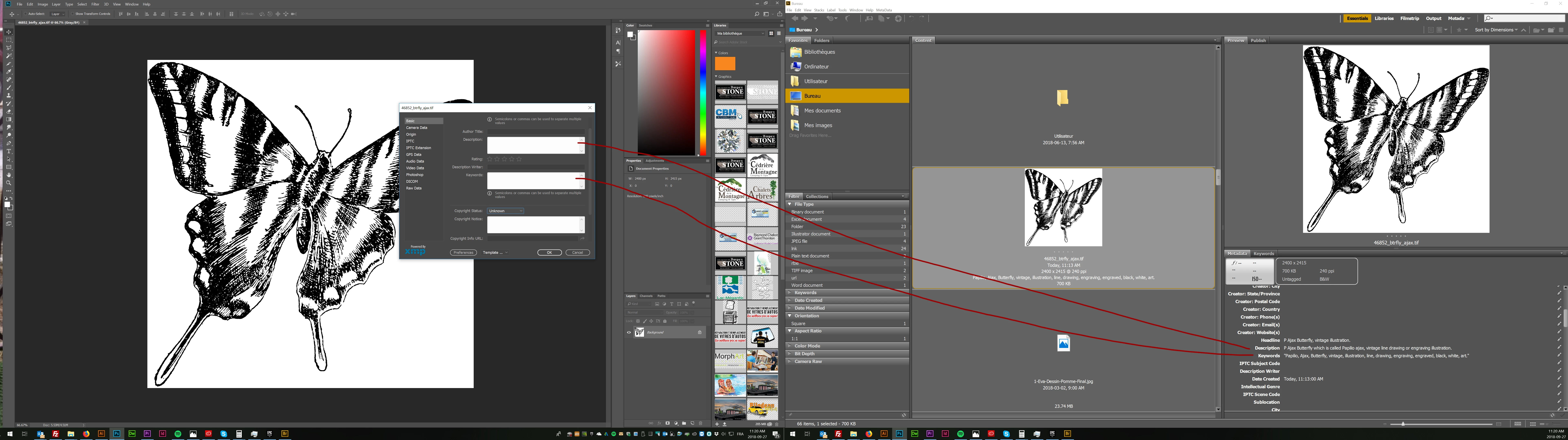
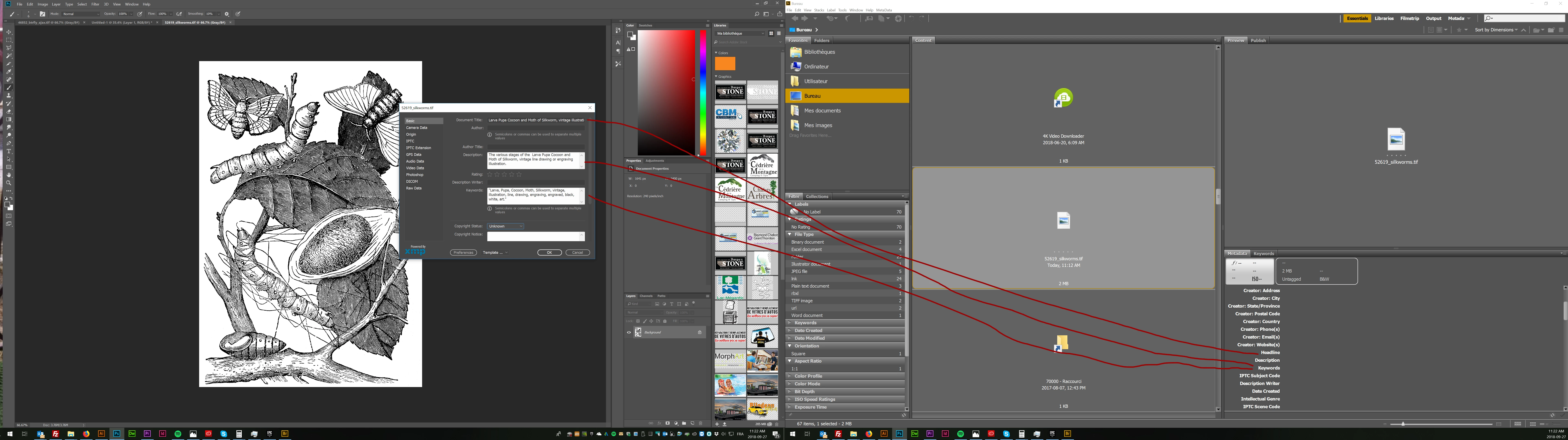
P.S. In my tests your IPTC data appeared to be non-standard, there were too many characters in the legacy iptc:keywords tag. The good news is that the current dc:subject tag will accept and hold more characters. The downside is that the legacy iptc:keywords tag will be edited and the extra characters will be lost.
This is only addressing the keywords, I still have concerns and would update the other metadata mentioned in my earlier posts. Good luck!

 AdChoices