Dandelion222
Known Participant
January 3, 2019
Answered

Is it possible to save a selection tool shape to use in other files?

  • January 3, 2019
  • 3 replies
  • 3496 views

I thought there was a way to save a selection area - am I wrong?

For example, I select a rectangle of a specific width and height from an image - because all images will need to be cropped to the same size for a gallery or something. Now that I have my perfectly sized rectangle, I wish I could save that selection shape, so that when I move on to the next photo I can just position the already drawn shape instead of careful dragging it out every time to an exact width or height.

This is such a common thing to have to do when producing documents and websites, especially galleries, that I'm very surprised it isn't an option.

Even to batch process thing, I need to crop them to the right size and I have to do that individually in order to be selective about what appears in the frame.

Is this even possible?

Thanks!

This topic has been closed for replies.
Correct answer jane-e

Dandelion222  wrote

I thought there was a way to save a selection area - am I wrong?

Is this even possible?


Yes, it is possible to save a selection. Here is how:

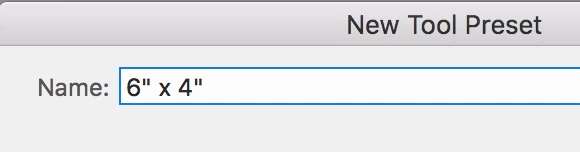
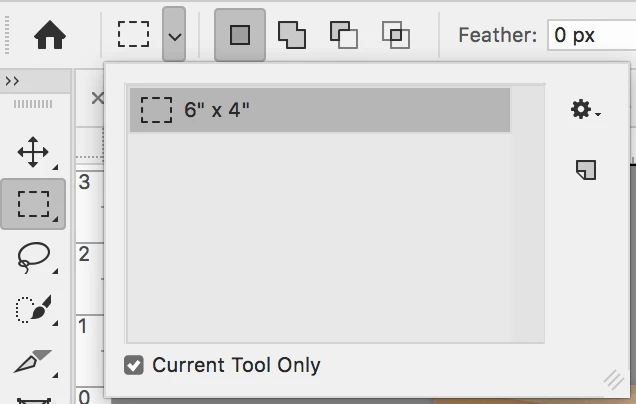
  1. The easiest way for what you are doing is to make the selection in a fixed size, then save it as a new preset from the dropdown so it can be selected and used in other files.

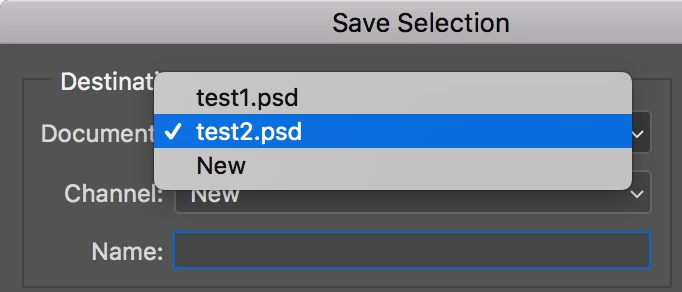
  2. When you go to Select > Save Selection, you can save the selection to a different file if the files match in size and pixels.
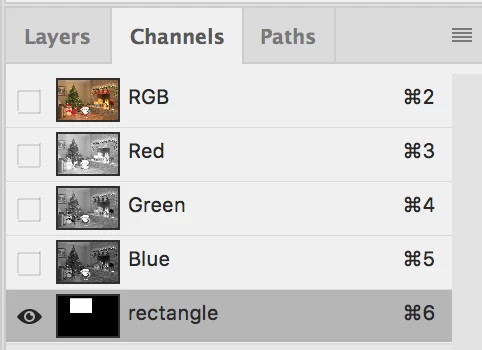
  3. You can drag and drop the saved selection from the Channels panel to the new document. Holding Shift will center it.

Does this answer your question?

~ Jane

3 replies

jane-e
Community Expert
jane-eCommunity ExpertCorrect answer
Community Expert
January 3, 2019

Dandelion222  wrote

I thought there was a way to save a selection area - am I wrong?

Is this even possible?


Yes, it is possible to save a selection. Here is how:

  1. The easiest way for what you are doing is to make the selection in a fixed size, then save it as a new preset from the dropdown so it can be selected and used in other files.

  2. When you go to Select > Save Selection, you can save the selection to a different file if the files match in size and pixels.
  3. You can drag and drop the saved selection from the Channels panel to the new document. Holding Shift will center it.

Does this answer your question?

~ Jane

Dandelion222
Known Participant
January 3, 2019

Thank you for all those screenshots! I think this is a solution, but I think the tool presets option might be easier (less steps) to use in my workflow. But I'll give them both a try.

Thanks!

jane-e
Community Expert
Community Expert
January 3, 2019

Actually, nope, saving the crop tool won't work because I can't get it to be a specific size. The fixed selection is a great start and really useful to know in general. I'm trying the other steps now submitted by Jane-e. So far I don't get how to reuse a saved Marquee Tool preset.

I see it on the list - but how do I apply it to the image? Dragging doesn't work, the marquee tool doesn't give me the option. It's one thing to be able to even save it - but how do I use it for the next image?


Hi Dandelion,

That's my favorite wildflower, by the way, even though some people hate them.

If you want to use the Crop tool, you have to change it from Ratio (1:1 or 1:2, etc) to W x H X Res if you want to be able to enter a W and H.

But you asked how to "save a selection", so I didn't mention "crop". For your use, set a fixed size, make the selection, then go to Image > Crop.

Optionally, save a preset for reuse. To use it you can drag or click the selection. I usually click, then drag using a selection tool or use the arrow keys to adjust, then Image > Crop.

Remember that what you choose will be sticky until you change it, which can catch you off guard another day. So be sure you know how to Reset the Selection tool from the panel menu!.

You can ignore the other ways of "saving a selection". You don't need them for what you are doing. Unless you want to have fun — then try them!

~ Jane

Semaphoric
Community Expert
Community Expert
January 3, 2019

You can make a  Tool Preset for the Marquee tool, using Fixed Size, but it seems to me that you have to get the width and height from the Info panel.

You could also save the selection in a new document, but that doc would have to be open to use. However, you could store may selections as separate alpha channel in it.

jane-e
Community Expert
Community Expert
January 3, 2019

You were faster!

Sahil.Chawla
Adobe Employee
Adobe Employee
January 3, 2019

Hi there,

You can save the selection as paths, so that you can use them later. Please have a look at this article to know more: Save Selection as Path in Photoshop | Pixel Street Studios

Regards,
Sahil