
Roger Breton
Legend
October 4, 2024
Question

Is it possible to use the new Gradient tool on a Shape layer?

  • October 4, 2024
  • 2 replies
  • 1021 views

I'm struggling to recreate this simple Gradient design:
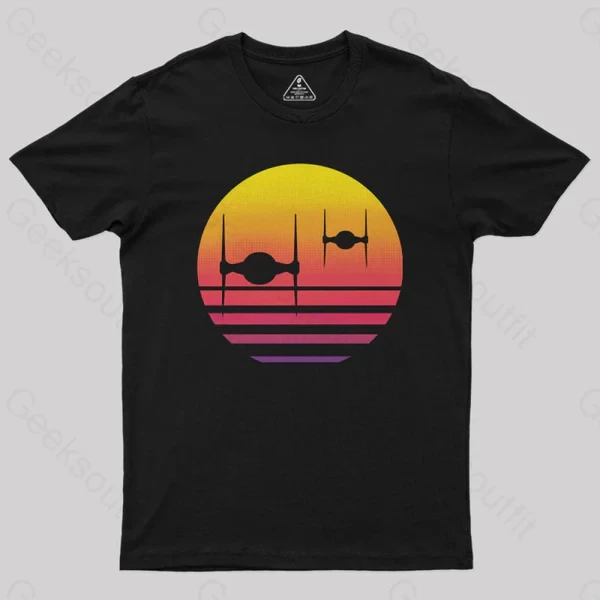
I want to recreate the linear gradient that's inside this cirlcle in Photoshop. 

I first draw a circle with the Ellipse tool (U) as a Shape layer.

In the Properties panel, I select on the Fill icon where I get to the Gradient editor.
Then I edit the Starting and End colors using the Picker. So far so good.
But, I don't seem to see the color change much in the circle?
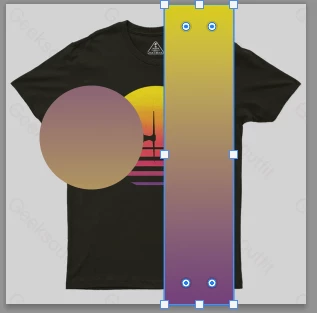
After a while, I reasoned it's because the Gradient is calculated (behind the scene, AFAIK) to the "Entire canevas", and not only, as it's done in Illustrator, on the object itself. To demonstrate this, I drew another shape, a rectangle, on a new Shape layer, that extends to the whole canvas and got this:
What would be my options?
I thought I was going to get around this by using the new Gradient tool but it does not seem to work inside a shape?


Any help is appreciated.

2 replies

Conrad_C
Community Expert
Community Expert
October 4, 2024

I’m able to apply a circular vector mask to a gradient shape layer, but like Roger said that doesn’t let the Gradient tool edit it. However, you can still edit the gradient shape layer using the Appearance section of the Properties panel.


It is possible to let the Gradient tool edit a gradient inside a circle, if you apply the Gradient Fill layer as a clipping mask (Layer > Create Clipping Mask). 


Roger Breton
Legend
October 4, 2024

The new Gradient tool is a change in "culture"?
AFAI can see, it will not work inside a vector shape.
I tried creating the Gradient which extends to the whole layer and then to add a Vector Layer mask but that brought me back to a "regular" shape layer gradient?

The only way I found to get what I wanted was to 1) draw a circulare selection then, with the selection active, 2) use the new Gradient tool to fill the selection. 

Funny thing is when I try to edit the color stops, I moved the filled layer object to the left, so that I would still be able to see the image I try to recreate, so that I could use the picker on the gradient tab stops but the Gradient "Line" remains centered?

BTW, I have not figured out how to change the new Gradient color BEFORE applying it, as I'm used to do it with the "Classic" gradient.

Semaphoric
Community Expert
Community Expert
October 4, 2024

I would use a Gradient Shape layer with an angle of 90°. Then, double-click on its thumbnail in the layers panel to bring up the Gradient Fill dialog. From there, click the bar that shows the Gradient, but NOT the drop-down arrow. This opens the "Real" gradient editor.


You can also open the "Real" editor from a Gradient Fill layer this way.