
Participating Frequently
July 7, 2021
Question

is there a better auto level tool?

  • July 7, 2021
  • 9 replies
  • 3114 views

Hi 

I'm working with aerial photo's. I'm currently working on a dataset of 46300 photos. 

Some of the photos are good, some of them are washed out or suffer from haze. 

This is normal as some of the photos are made towards the sun and other ones are made in the opposit direction. Also as time progresses the lighting changes. This was a rather long flight so the photos in the beginning are 'different' from the ones towards the end.


The good news is that the biggest problem with the photos can be corrected with just the levels adjustment tool. 

The bad news is that I can only use the auto options to use in a batch operation, because I can not edit 46000 photos by hand. 


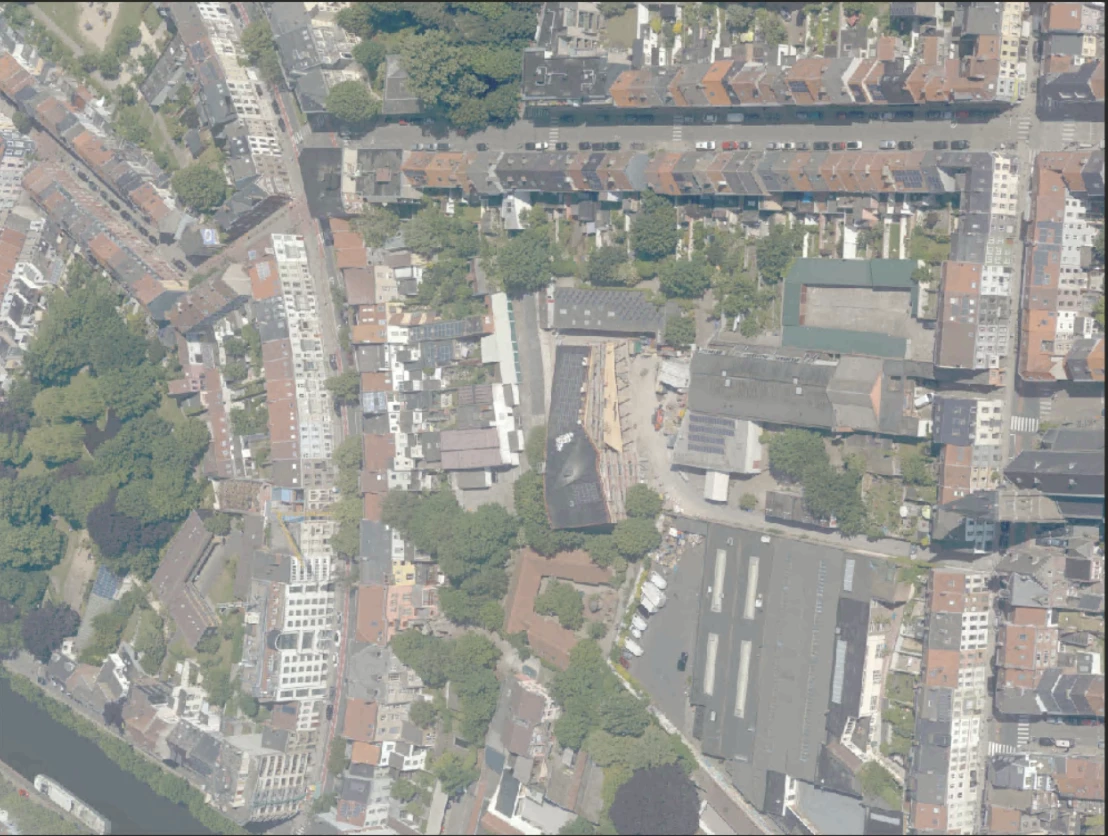
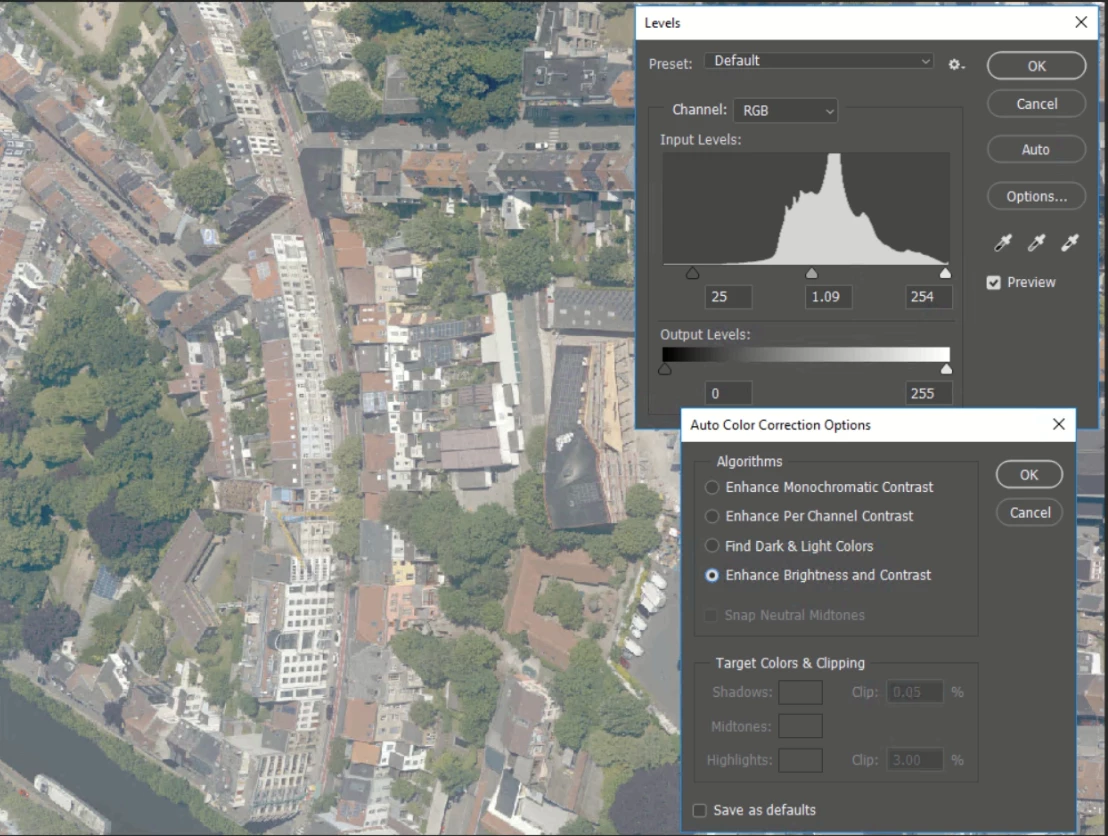
In the pictures below you can see that the auto option in the levels tools is not as agressive as i would like it to be. 

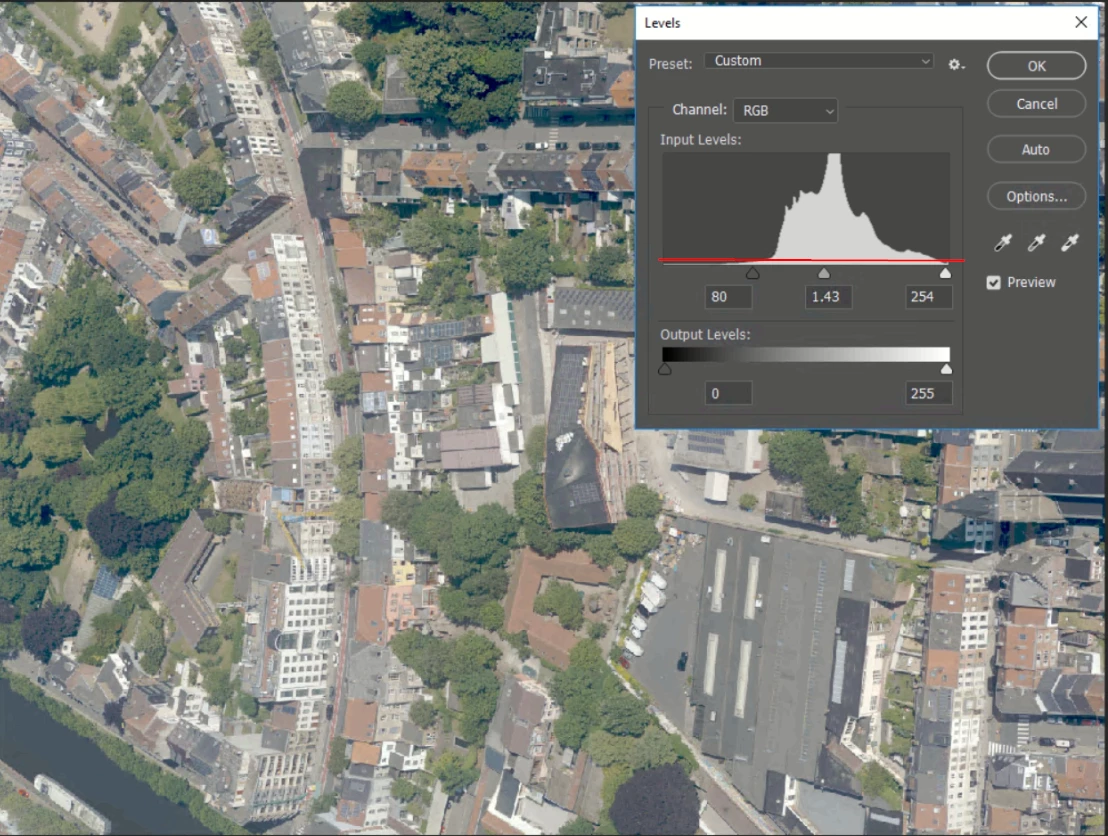
Ideal would be if you could set a level for the black pointer (red line in picture) and one for the white pointer. Photoshop moves the sliders towards the point where the level and the histogram meet...


original
 

auto
manual
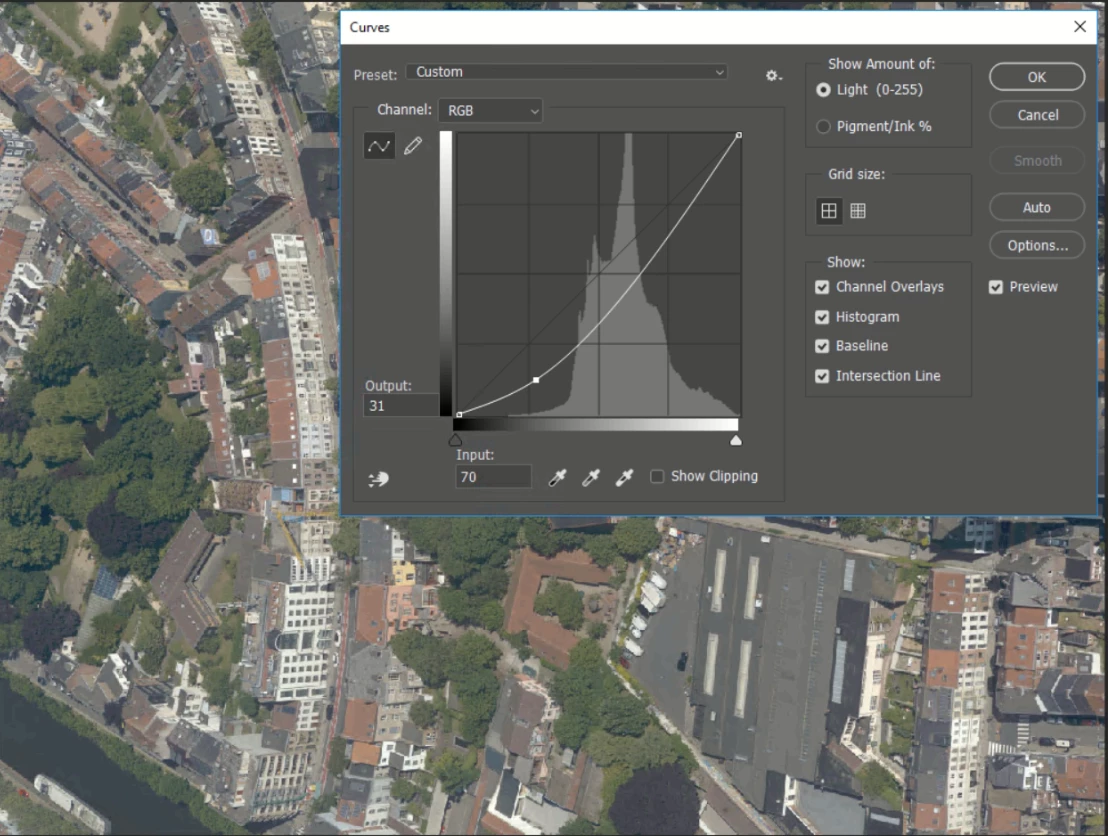
I can also do somewhat the same with the curves tool, but again this wont benefit foto's that are already good. It would make them to dark. So it's not usable in a batch operation. 
 

Are there third party addones or plugins?

Is there another way?  Am I missing something? 

All tips are welcome and remember I can only use the auto options. 


thx

This topic has been closed for replies.

9 replies

Legend
July 7, 2021


UPD. did not notice what was already suggested above. : )

koenvdwAuthor
Participating Frequently
July 7, 2021

Hi


ok the dehaze function looks promising, but it does make the shadows more dark. 


But I tried some different stuff. 


I think I'm going to have a good result with the following method. 


1- curves correction to make the shadows brighter

2- in Camera Raw set the dehaze function to +65

3- in Camera Raw press the auto button


I still have to see if opening CR and using it will slow down the process. 

It can be quicker, it can be slower...


Kukurykus
Legend
July 7, 2021

Rather not real difference if you're going to fully automate it.

rayek.elfin
Legend
July 7, 2021

I would probably just use a Dehaze tool. In PhotoLine I created an action to apply the Dehaze effect first, then auto-levels, and save the two images using the batch tool to automatically process all images in a folder.


Results with no manual intervention:


Conrad_C
Community Expert
Community Expert
July 7, 2021

The Auto Levels options in Photoshop are mostly threshold-based (just math), but you don’t have to rely on the three buttons alone; you can tune how they process your image sets using the detailed advice in this article:

Don’t Underestimate Photoshop’s Auto Color


Some are suggesting Lightroom/Lightroom Classic/Camera Raw (Lr/CR) which share a processing engine that’s different than in Photoshop, and that’s worth exploring. The Auto correction feature in Lr/CR was recently revised to be based on machine learning, this tends to produce much better results than the old math-only version of the Auto feature and Photoshop Auto Levels. That’s why it’s worth an experiment; the results should be different than Auto Levels in Photoshop. What you want to find out by experimenting is if Lr/CR Auto is different in a better way or a worse way for your image sets (there’s no adjustment for it, so it either works or it doesn’t).


If Lr/CR Auto turns out to be better, that’ll save you time, because unlike Photoshop, in Lr/CR you can select many images at once, click Auto for all of them, and then all you need to do is export the edited batch. No need to open and process each image individually as in Photoshop.

koenvdwAuthor
Participating Frequently
July 7, 2021

Hi thx for the input, but as you can see from my answer to Kukurykus, I'm already doing that. 


As for Lr. I don't have any experience in it. I tried it ofcourse but it seemed to me that it was not the right tool for the job. 

You only have one button that says auto... and it didn't do a great job. I can be mistaken offcourse. 

Another solutions would be to divide the data set in photo's with similar problems and then hope you can adjust them with the same group of settings. 

As I said before, we don't want to do any selection of photo's by hand. We have 2 airplanes that constanly take pictures...  It's just to much work.


J E L
Community Expert
Community Expert
July 7, 2021

@koenvdw I know you are looking for automation. But in Lightroom, you could take one photo, make the level adjustments as needed, save that as a preset, and then copy that preset onto other images that need the same amount of adjustments. So it would be nearly auto but you would have to make that first preset, which sounds like what you need to do as not all images need the same amount of correction. You could have batches of images and presets, for example, severe correction, moderate correction, and light correction. Then apply the preset accordingly. You would only need to set up three or four presets in the beginning. Still, I realize this is not ideal and maybe better solutions are on the way to this thread!

Eugenio.NYC
Participating Frequently
July 7, 2021

Hi, in my opinion, Lightroom will be a great solution for this, or Bridge and the Camera raw plugin


J E L
Community Expert
Community Expert
July 7, 2021

Yes, I was thinking Lightroom, too. Select images that need the change and drag and apply the fix to all. There could be several presets. It's still a big sorting job though and you'd probably have to work in smaller batches if the files are large. Can't imagine the writing time for more than 100 images at a go. @koenvdw this is a great discussion you started and let us know what ultimately works!

koenvdwAuthor
Participating Frequently
July 7, 2021

I managed to make an action that corrects the washed out images and leaves the good ones alone. 


90% is the enhance monochromatic contrast option under the options of the curves adjustment. 

I took a little less black color for the shadows and a little less white color for the highlights. I also do a 0.5% clip in the white. 


5% is a shadows correction under the Shadow/Highlight adjustment. I used the options: A 30 T 30 R 30.


5% is a bump in vibrance and saturation.


washed out image before:

washed out image after:

normal pictutre before:

normal picture after:


Please keep in mind that I'm aware that these pictures can be a lot better if you treat them individual. 

Also these are screenshots of the actual pictures. 


@Jef Bracke 

This option colorized some of the pictures very red. I don't know why, but this was ruled out very soon. 

On other pictures it worked really well.


Kukurykus
Legend
July 7, 2021

Due to your instructions that was easy for me to add 5 values to vibrance and 5 values to saturation from 'Vibrance and Saturation'. I used the 30 & 30 & 30 for Amount, Tone and Radius in Shadows of Shadows/Highlight. Do you mean these values are 5%? But I'm lost with Curves Adjustement. I know where is 'Enhance Monochromic Contrast', but how to set it to 90%? I found a 0.5% clip in the White, but what do mean by 'taking a little less black color for the shadows and a little less white color for the highlights'? How much?

koenvdwAuthor
Participating Frequently
July 7, 2021

Hi 


No the percentages are my own estimations on what impact each tool had on my original file. 

So if I had only used the curves correction, the picture would already be enhanced for 90% of the end result. 

The other tools had less impact so I estimated them both for 5%.


In the picture below you'll see what I ment by taking a little less white.

If I didn't do that then some of the white objects (red arrow) would become to bright, as in completely (255) white, thus losing detail. 


But this is a solution for a very specific task and I wouldn't recommend it. 

I'm not a professional. I only thought myself the things I need to know for this specific task.


koenvdwAuthor
Participating Frequently
July 7, 2021

Wow 3 replies under the hour that's impressive. 

I will try your tips and come back to you. 


I can already tell that I resetted my preferences... That made the auto option much better. 

If we automaticly could sort the photo's that would be the greatest achievement, but it's still a work in progress. 

We have our Python guy looking into it and we have an FME workflow, but either of them is ready. 


I'll will try Davinci as I heard good things about it. 

I will try the match colors workflow. 


Myra Ferguson
Community Expert
Community Expert
July 7, 2021

Instead of using Auto levels, try using Image > Adjustments > Match Color...  in your action and use one of the images that has the color set the way you want it as the Source. 

Mylenium
Legend
July 7, 2021

As a start try free image viewers like XnView. Adding some options to the processing stack like Autolevels and a Gamma Adjustment may already take care of a good chunk of these problems. Other than that you can always try video processing software like After Effects or DaVinci and the color correction tools that come with them. Lumetri has an auto mode as does DaVinci and they allow batch processing either directly (DV) or by ways of importing image sequences on the timeline. Depending on how strong the changes are, even the latter might only require a bunch of keyframes on some effects to account for slight variations across the sequence. I guess, though, the real trick would still be to find an elegant way of pre-sorting the images and group them into similar batches/ sequences so you don't work your fingers off... Otehr than that I would imagine that there is soem specialized aerial photo software somewhere or you could creatively use Google Maps'/ OpenStreetMap's image editing and stitching tools, but that of course may conflict with the privacy and usage conditions of your images...


Mylenium

Inspiring
July 7, 2021

Hey Koen

In the Auto Color Correction Options... 


  1. switch your auto color correction options to "Enhance Per Channel Contrast"
  2. play with "Target Colors & Clipping below" until happy
  3. check "Save as defaults"
  4. Hit "OK"
  5. hopefully, smile 🙂