
Samuel 3s3s3
Inspiring
January 11, 2019
Answered

Is there a shortcut to change out the transparent grid to a solid colour background for a better viewing when editing the image?

  • January 11, 2019
  • 4 replies
  • 4246 views

Yup, the title said it all.

Every time i was editing de-background the image, i have to add a new layer and use the paint bucket(G) tool to fill the new layer background a solid colour for better seeing the edge of the mask layer or whatever.

And i am thinking about is there a better way to viewing the edge of the mask layer or the image?
This topic has been closed for replies.
Correct answer Eugenio.NYC

A few options

1- hod down CMND or CNTRL and create a new layer from the icon next to the trash can on the layer panel, you will create a new layer underneath your layer, do not release the COMND or CNTRL and press the key DELETE, you will fill that layer with your background color

or

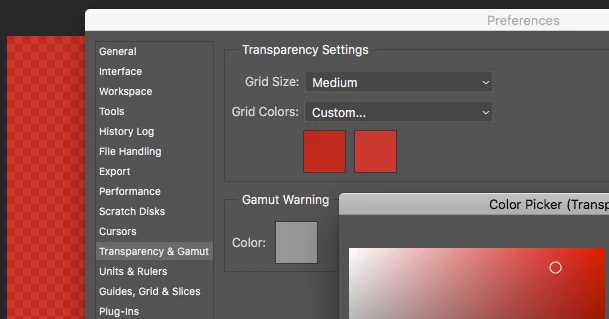
2- change the colors of the transparency settings

or

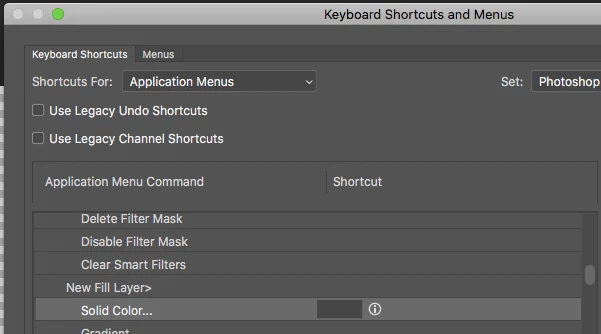
3- change the shortcut for the new solid color layer

4 replies

Eugenio.NYC
Eugenio.NYCCorrect answer
Participating Frequently
January 11, 2019

A few options

1- hod down CMND or CNTRL and create a new layer from the icon next to the trash can on the layer panel, you will create a new layer underneath your layer, do not release the COMND or CNTRL and press the key DELETE, you will fill that layer with your background color

or

2- change the colors of the transparency settings

or

3- change the shortcut for the new solid color layer

Samuel 3s3s3
Inspiring
January 11, 2019

no.1 is the best way to do with, thanks you all awesome guy!

jane-e
Community Expert
Community Expert
January 11, 2019

https://forums.adobe.com/people/Samuel+3s3s3  wrote

i have to add a new layer and use the paint bucket(G) tool to fill the new layer background a solid colour 

Use Chuck's method or this:

  • Cmd + click New button on Layers panel to create new layer underneath
    (Windows: Ctrl + click New)
  • Cmd + Delete to fill with background color
    (Windows: Ctrl + Backspace)
Chuck Uebele
Community Expert
Community Expert
January 11, 2019

You could create an action that creates a fill layer and pits it at the bottom of the layer stack.

Chuck Uebele
Community Expert
Community Expert
January 11, 2019

I don't think there is a shortcut, but I use a solid fill adjustment layer rather than making a new layer and filling it.

Samuel 3s3s3
Inspiring
January 11, 2019

ohhhh! a good way to do with! thanks!
But i am not sure am i doing it wrong or there is a faster shortcut way to do with,

I have to create the "Layer" on the top menu bar and choose new fill layer and choose the colour to.


Is there a shortcut of create new fill layer?

And thanks again!