Participant
July 9, 2018
Answered

Is there a way to make the Paint Bucket Tool actually fill a selection witout leaving an outline?

  • July 9, 2018
  • 14 replies
  • 93602 views

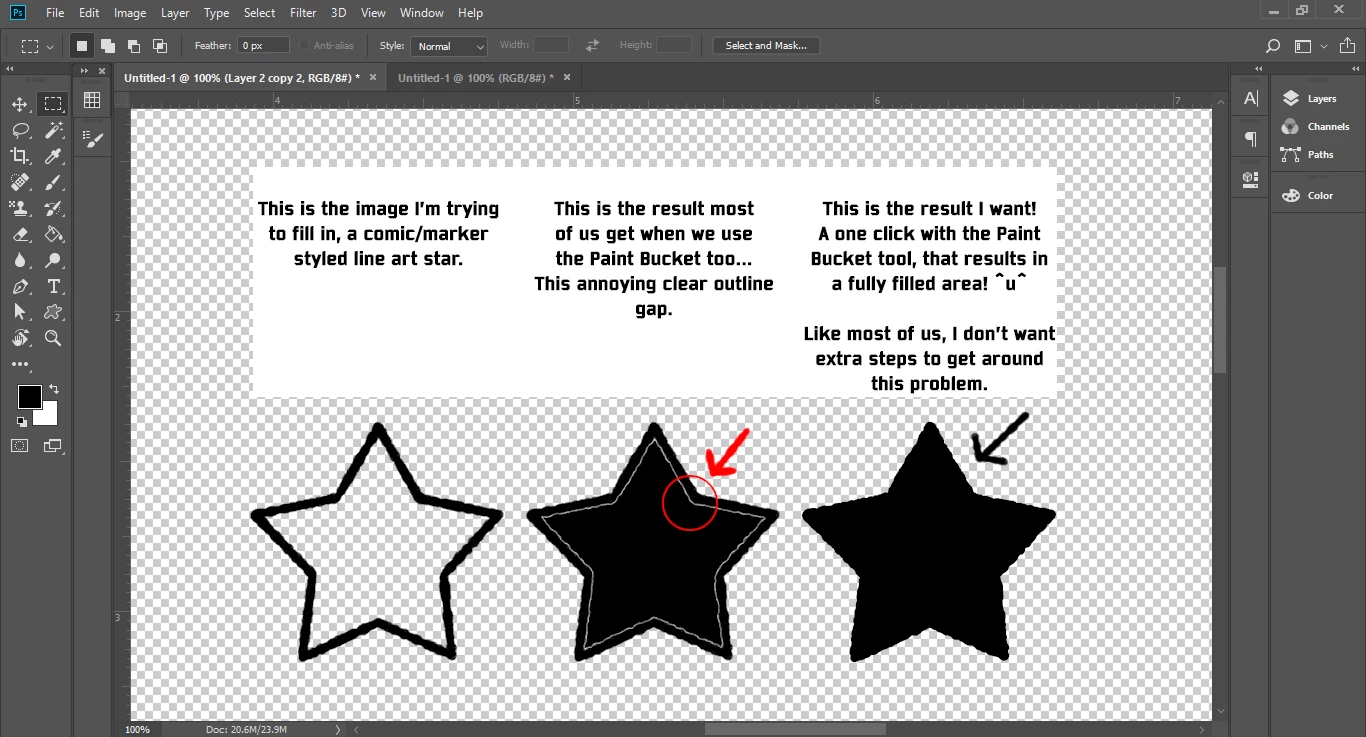
Tired of filling in a closed area with the Paint Bucket tool, and it leaving a small thin outline around the area you wanted to fill in! ME TOO! That's why I'm here asking around, lol.... I'm being silly, but in all seriousness, I have had this problem for a few years now and have never actually found an answer to this problem.

(Look at Image above for example) I want to use the bucket tool in Photoshop(2018) and with ONE CLICK, have it fully fill in a selection without leaving those annoying outline gaps.

I've asked people on many occasions on how to fix this and no one has found a solution so far. Now people have found multiple ways to fill in a section without just clicking once with bucket tool, but it requires more steps and more steps equals a waste of time. Especially when you draw comic's or commissions for fun like I do.
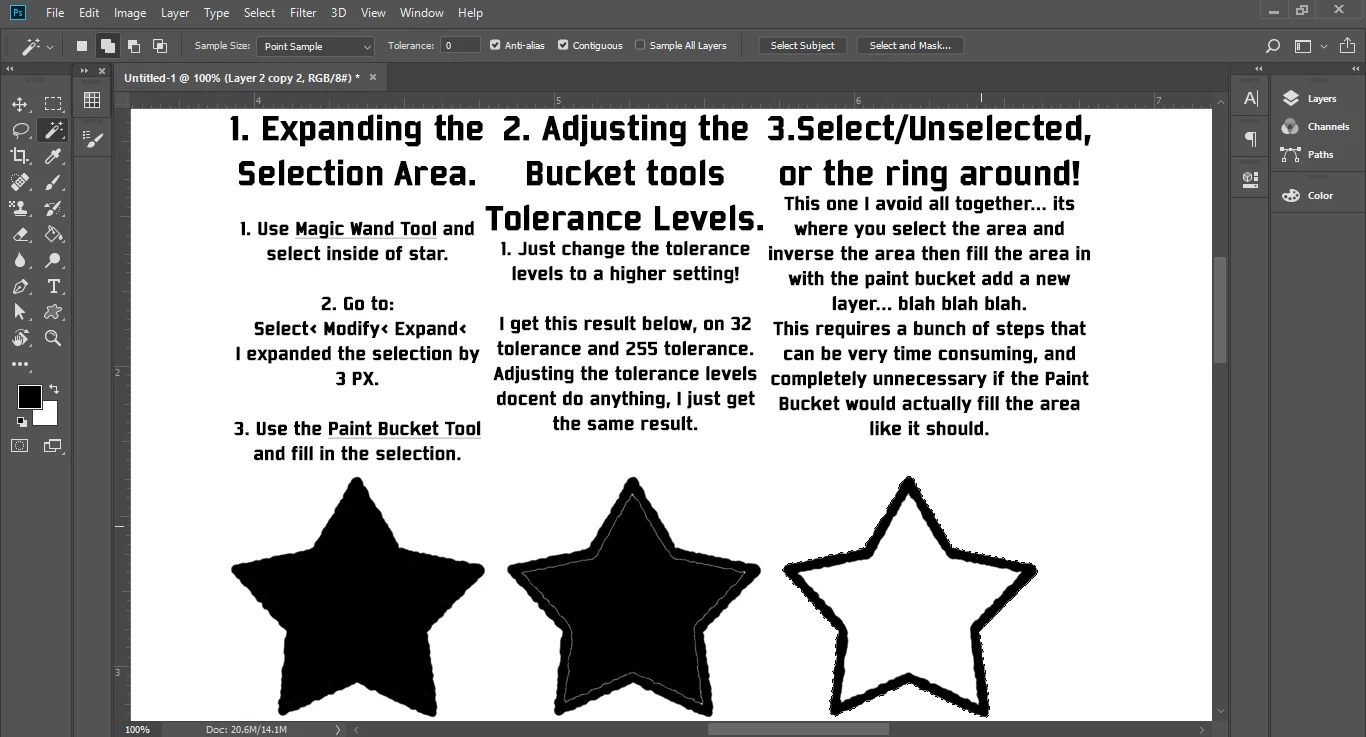
The examples above are the 3 most common ways people have avoided the Bucket problem, but I have also been told to:

- Color it in by hand.

- Color it in illustrator or a different program.

- Double click on with the Paint Bucket tool. (which docent' work because it messes up the line art, by making it blocky/pixelated)

- Photoshop's Paint Bucket can't do that.

and many more odd, time consuming, unhelpful, ways to color in an area. These are not solutions, these are extra steps and answers that are avoiding the question I'm asking...

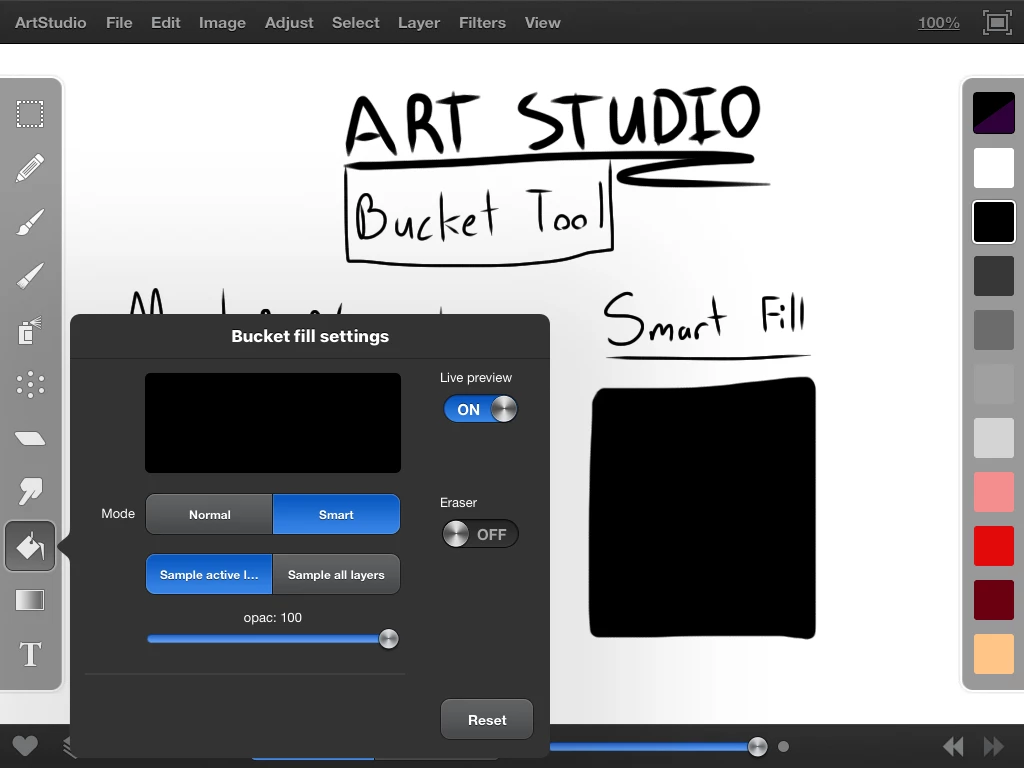
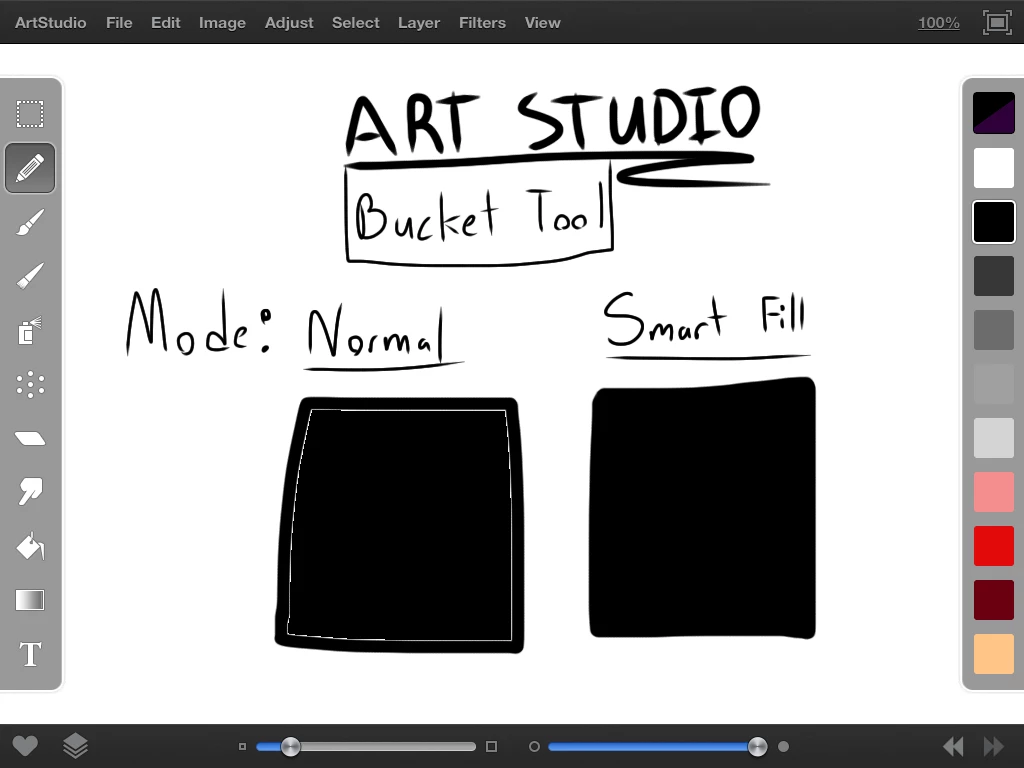
I know Photoshops Bucket Tool should be capable of this, because on my crappy 1st gen. iPad mini I have a program called ArtStudio. It's a travel sized art program that has about 1/4th the capability of Photoshop, and it... it has masted this "One click with the Bucket tool, and an area is filled!" problem!!!

In ArtStudio the "Normal Mode" setting on the Paint Bucket creates the same effect as the Photoshop Paint Bucket. If the "Smart Mode" setting is selected in the Paint Bucket settings, it creates a solid color fill... IN ONE CLICK! 

I love Photoshop, its one of my favorite art programs, but I feel like if this little travel sized IOS art program can do this, then Photoshop should be more then capable of this too. Please if you know how to fix this "Filling in the area WITH ONLY the Bucket Tool, IN ONE CLICK" problem please.... PLEASE share your wisdom and let me know. This is my biggest and only complaint with Photoshop and fixing this/know this would make my day!

    Correct answer D Fosse

    Yes, stop using it. Do it the proper way: make your selection, modify it as needed, then fill with the desired color.

    Paint bucket is really quick and really dirty. The precision level is zero.

    14 replies

    SRM12345
    Participating Frequently
    March 7, 2020

    I found the magic trick! It takes a couple steps of setup on your image, but after that, you can just bucket fill after bucket fill!

    This works in Photoshop CS6 and later. Later versions might have something easier, but I don't like having my tools licensed instead of owned, so I still use CS6. 


    I assume you start with a line art image... the lines are black and they have some aliasing around them. Ok... here we go:


    1. Apply a new Adjustment Layer to "Black and White"... this guarantees that all the pixels really are shades of gray. A lot of art programs or scanners throw in other subtle colors that look gray to human eyes. 
    2. Use the Magic Wand tool. Turn OFF the "contiguous pixel" setting and turn OFF the "anti aliasing" setting. Now select the WHITE area of your image. 
    3. Invert the selection. Now you have every non-white pixel in your image selected. 
    4. Create a new layer by COPY.
    5. Now set the Blend Mode of the new layer to be Multiply. 
    6. Go back to your original lower layer, which is underneath the outline layer.
    7. The steps in purple are OPTIONAL, useful on some line drawings that have lots of stray gray lines that you don't want the bucket tool to stop at.
    8. (Optional) Use Magic Wand (same settings) on the orignal layer to select the BLACK areas.
    9. (Optional) Invert the selection
    10. (Optional) Shift-delete to replace with White. 
    11. Now start coloring with the fill bucket tool.


    Perfect coloring achieved!

    Jammer 3
    Participant
    September 10, 2020

    This is annoying for me too!!

    Quickest way I get rid of it is to do the 'expand fill' method but record it as an Action bound to a function key.

    So you use the magic wand to select your area and hit the function key to fill as the 'Paint bucket' function.

    It's one more click but handy


    Action steps

    Select>Modify>Expand - Expand fill by 3 pixels (Maybe this would need to change depending on line work)

    Image>Fill>Foreground colour

    Select>Deselect


    You can set function key to use from the action options - not through the keyboard shortcuts as far as I could see


    Participant
    July 9, 2018

    Someone just told me:

    Have your line art layer on top, Locked.

    Have your color layer below that and make sure your selected to draw on that layer.

    While using Bucket Tool use make sure the:

    Anti-alias Box is Checked (Can be uncheck, but not recommenced)

    Contiguous Box is Checked

    All Layers Box is Checked

    Then adjust the tolerance to what is needed! (around 100 is where I put it)

    Then fill in color to your hearts content.

    _______________

    I'm enthralled! I've been playing with this for a little bit and it seems to be working. I will keep testing this and see if this is the best solution! ^u^

    Also, thank you everyone who has posted a comment helping me on this problem!

    Participant
    November 10, 2021

    This is the trick I've been using for years. You're right Amber. *thumbs up*

    This way you can create a separate solid color layer that doesn't directly fill with your line work and increasing the tolerance over 100% allows the bucket to fill beneath the lines. 

    For anyone else freaking out about the "correct" way to do it, the lasso is still there for specific selections and background fills. But this way is super fast for anyone creating comic illustrations for cartoon styled illustrations.

    melissapiccone
    Community Expert
    Community Expert
    July 9, 2018

    To fill with the foreground color, use the keyboard shorcut - alt/opt + backspace/delete

    Melissa Piccone | Adobe Trainer | Online Courses Author | Fine Artist
    D Fosse
    Community Expert
    D FosseCommunity ExpertCorrect answer
    Community Expert
    July 9, 2018

    Yes, stop using it. Do it the proper way: make your selection, modify it as needed, then fill with the desired color.

    Paint bucket is really quick and really dirty. The precision level is zero.

    asrield83339104
    Participant
    May 14, 2020

    But even Microsoft paint can do this without problems

    Participant
    December 29, 2020

    no, it can't. it will work the same ("incorrect") way if you use the Brush tool in MS paint. and it will work the same ("correct") way in Photoshop if you use the Pencil tool.