
OutDamnSpot
Known Participant
January 13, 2019
Answered

is there an easy way to keep two masks synchronized with one the inverse of the other

  • January 13, 2019
  • 3 replies
  • 1317 views

I have a huge pile of very old slides.  The colours are very wonky and often I need to use adjustments on selections.  The most common case is two layers, one called Sky and the other NotSky, with suitable masks.  Gradients work sometimes, but rarely.  But horizons often have trees and other irregular features and the selections are not easy to define, particularly when one needs to be the inverse of the other, and tiny errors create bright or dark lines at the boundary.  The obvious strategy is to load selection from one, then use select and mask with inverse to make the other.  This works if I get everything right first time, but when I don't, I end up chasing my tail trying to keep the two masks well synchronized.  Is there something easier I should be doing. 
This topic has been closed for replies.
Correct answer Stephen Marsh

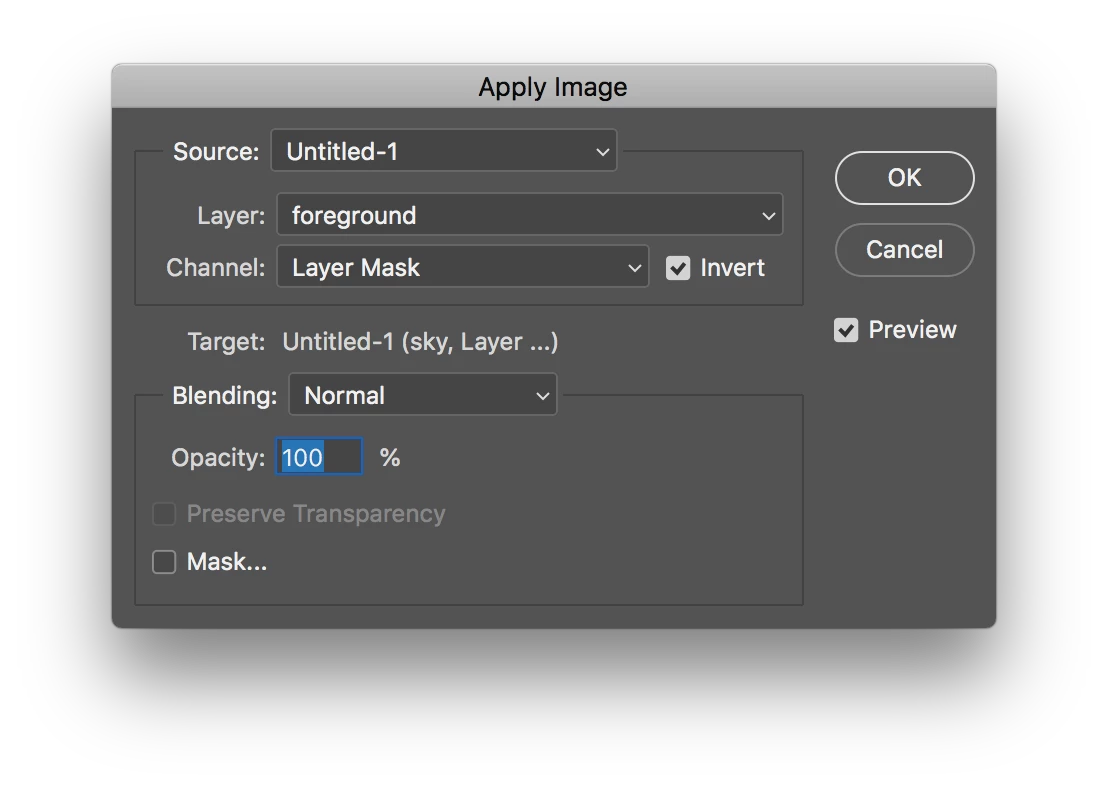
Another method is to use the Image > Apply Image command to “stamp” the inverted foreground mask into the sky layer’s layer mask channel to update the data. Simply select the sky layer mask icon in the layers panel then call up Apply Image. Source would be the newly edited foreground mask layer and layer mask channel, be sure to check the invert checkbox. Target is the sky layer and layer mask channel, normal blend at 100% opacity to replace the old data.

If you always name your two layers the same, then an action can easily update the mask without you having to select the options each time:

3 replies

c.pfaffenbichler
Community Expert
Community Expert
January 14, 2019

And a general warning:

Two Layers with inverse Layer Masks (unless they are absolutely sharp) will leave partially affected regions between them.

OutDamnSpot
Known Participant
January 15, 2019

This advice answers a question I hadn't asked: why do I still get untidy edges.  I guess this is why davescm agreed with your answer needing groups.  I'll be brave and try that.  Thanks..

Stephen Marsh
Community Expert
Community Expert
January 15, 2019

I answered your direct question regarding syncing two masks without sidetracking into best practice – however I do agree with the other forum members that you should only need a mask on the upper “sky” layer and not a mask on the lower “landscape” layer. If this was originally a flattened Background image layer, then it would not be possible to add a layer mask to the lower layer anyway.

c.pfaffenbichler
Community Expert
Community Expert
January 13, 2019

One options would be Smart Objects with Blend if-settings as the base layers of Clipping Groups, but that is not perfectly convenient as the editing has to be done in the SO.

Another would be the image as two SO instances in two Groups with only the top one Masked.

And provided the image is on the Background Layer another option would be a deep Knock Out:

davescm
Community Expert
Community Expert
January 13, 2019

I agree with c.pfaffenbichler - groups with a single mask is the way to go.

Dave

Stephen Marsh
Community Expert
Stephen MarshCommunity ExpertCorrect answer
Community Expert
January 13, 2019

Another method is to use the Image > Apply Image command to “stamp” the inverted foreground mask into the sky layer’s layer mask channel to update the data. Simply select the sky layer mask icon in the layers panel then call up Apply Image. Source would be the newly edited foreground mask layer and layer mask channel, be sure to check the invert checkbox. Target is the sky layer and layer mask channel, normal blend at 100% opacity to replace the old data.

If you always name your two layers the same, then an action can easily update the mask without you having to select the options each time: