Participating Frequently
September 15, 2022
Answered

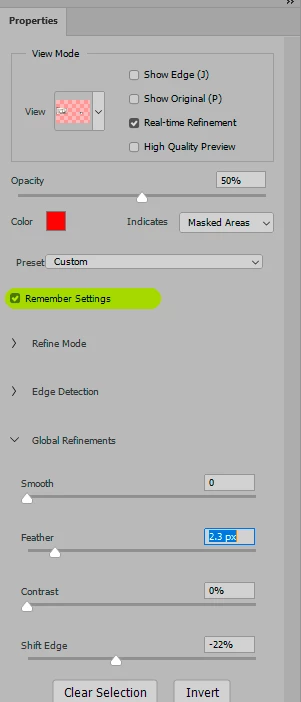
Is there anyway to save or remember my Global refinement settings in "Select and Mask"?

  • September 15, 2022
  • 2 replies
  • 417 views

I'm working with hundreds of the same types of photos.

Each photo requires me to basically quick selection the object

and then apply a blur to the background except the object.

I always go into "Select and Mask" to refine the edges, smooth,

feather etc., but each time I have to drag the sliders back to the

same numbers that I want which is usually for example: Smooth: 50

Feather: 4,  Shift edge +10%.


Every single photo is going to use the exact same setting or similar

but the fact is I always have to drag the sliders back to these numbers.


If there was a way to remember or save the settings so that each time 

I go to select and mask, it will automatically apply it, then I can just

click on OK and move on.


This topic has been closed for replies.
Correct answer D Fosse

What happened to "remember settings"? Doesn't that work?

2 replies

D Fosse
Community Expert
D FosseCommunity ExpertCorrect answer
Community Expert
September 15, 2022

What happened to "remember settings"? Doesn't that work?

Participating Frequently
September 15, 2022

Also, wondering is there a better way to use the zoom tool?  The current method and the only method I know in photoshop is it appears you have to click on the magnifying glass and then click on + for enlarge or - for reduce and then hold the left mouse button and slide the mouse horizontally to enlarge or shrink.  It seems to me this workflow is very time consuming just to zoom in and out.   I came from using an old software (paint shop pro) and in that software it's very convenient to zoom in and out. We just use the wheel scroller to enlarge or shrink, that's it!  No need to click on any icons and settings...the scroller functions as a zoom in and out 100% fully ready at any moment.


Surely PS must have something like this also?  I find it very tedious to always have to click so many buttons before I can zoom in or zoom out each time.

D Fosse
Community Expert
Community Expert
September 15, 2022

I use ctrl+ and ctrl-, or ctrl1 to go directly to 100%.


But there is "zoom with scroll wheel" in preferences.


Or you can draw a marquee with the zoom tool.


Or you can use the scrubby zoom.


Or...

Stephen Marsh
Community Expert
Community Expert
September 15, 2022

You can record many settings into an action and if you toggle on the control to show the dialog they can be fine-tuned on an image by image basis:


One can also use Presets.