MahaB82A
September 29, 2024
Answered

Issue about Keys

  • September 29, 2024
  • 2 replies
  • 1616 views

What is the different between the [Ctrl+Shift+Alt+T] key & [Ctrl+J] key. Because both are used to duplicate the layer. Here [Ctrl+Shift+Alt+T] key is used.


3D Text Effect

Time 0.40


This topic has been closed for replies.
Correct answer Trevor.Dennis

What the video you linked to did was to start with a type layer and copy it.

Change the colour of the copied text, and use Free Transform to move it one (or two) pixels down and left.

Then use Shift Ctrl Alt T (Step & Repeat) to make further copies with each moved a bit further.

Because the layers are so close to each other, it looks like a solid.

The copied layers will hide the original, so you have to move the original to the top of the stack.
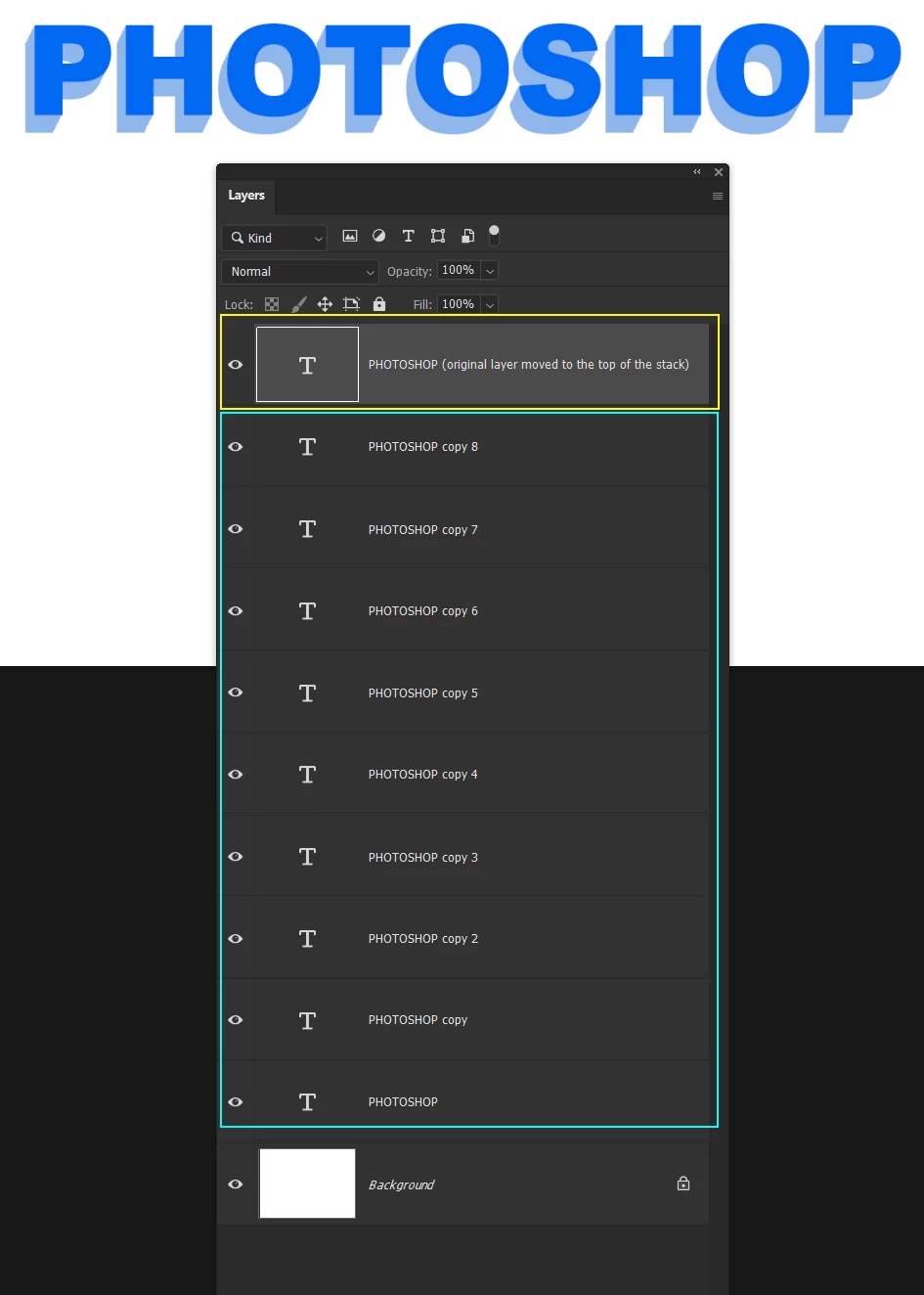


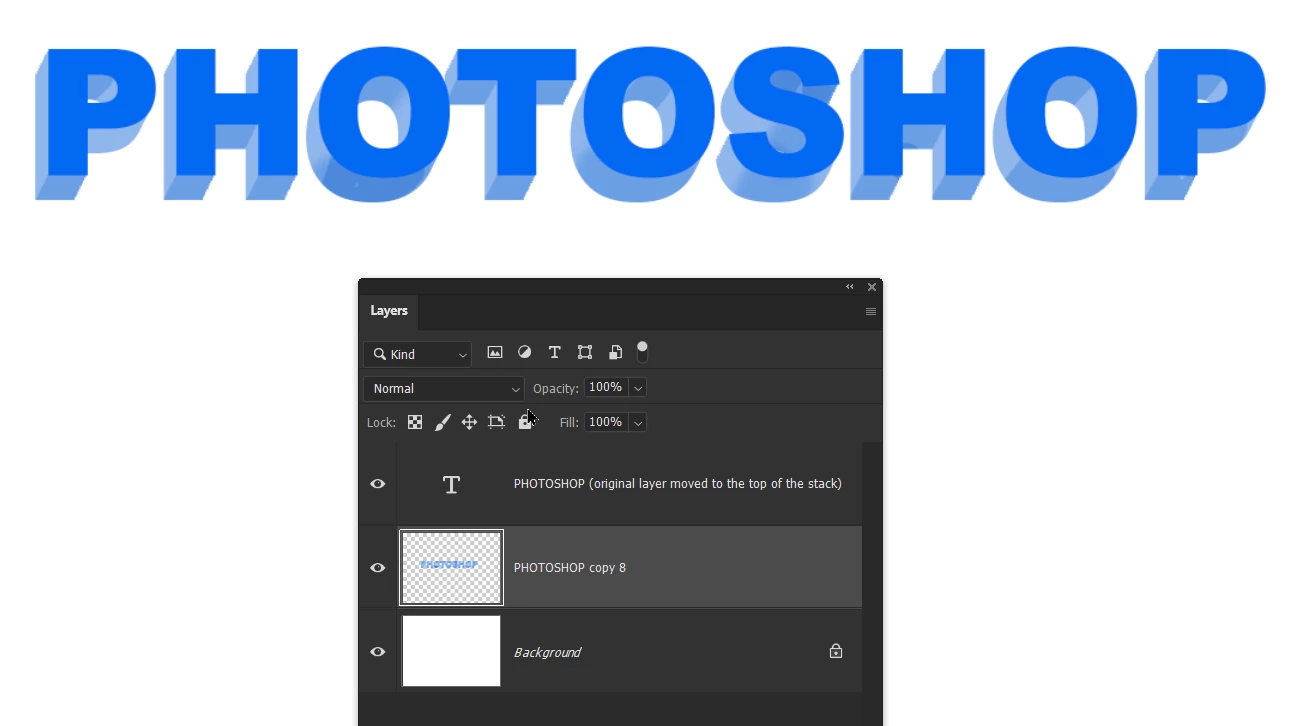
You can group or merge the offset layers, and add shading to improve the 3D effect
 

Its a useful tool for placing the numbers around a clock face, or segments on a radial dial.

2 replies

Conrad_C
Community Expert
Community Expert
September 30, 2024

The big problem with that video is that it’s teaching keyboard shortcuts first. This is a problem in multiple ways. One is that not all users like to use keyboard shortcuts (although I do). Another problem is that the viewer is not taught what the shortcut means and really does, they can only see what the shortcut did in that one example. If they taught command names first, instead of the command shortcuts, then it would be clear.


For example, the difference would be clearer if they explained it this way:

1. You want to duplicate the layer while applying the previous transformation.

2. Applying the previous transformation is the Edit > Transform > Transform Again command.

3. The Windows shortcut for that command is Ctrl+Shift+T, as shown next to the command.

4. It’s common to duplicate by adding the Alt key to a transformation, so that’s why the Alt key is added to the Transform Again shortcut, making the final shortcut Ctrl+Shift+Alt+T (or on the Mac, Command+Shift+Option+T).


Now, compared to the Windows shortcut Ctrl+J:

Ctrl+J is the keyboard shortcut for the command Layer > New > Layer via Copy.


The New > Layer via Copy command does not involve any transformations, so obviously it’s for very different situations than Duplicate and Transform Again (Ctrl+Shift+Alt+T).


It’s extremely common to teach Ctrl+J for “copy layer”, but again, that’s a problem because it doesn’t show students their full range of options. If instead they’re taught that the command is Layer > New > Layer via Copy, then when they look for that on the menu, they can discover that the command next to it is Layer > New > Layer via Cut (adding the Shift key to its shortcut), which comes in handy in other situations.


This shorthand method of teaching unfortunately carries over into the video’s comments. Not only did they teach keyboard shortcuts first, they only taught the Windows shortcuts. (On other YouTube Photoshop channels, good Photoshop trainers teach both Windows and Mac.) In the comments, a Mac user said the Ctrl shortcuts don’t work, and the reply comment by the channel said they should use Option instead, which is the wrong answer. So the user replied again saying that their advice did not work. (The correct answer is use Command instead of Ctrl).


These problems mean that channel might not be a good source of Photoshop training.

Trevor.Dennis
Community Expert
Community Expert
September 30, 2024

OK, you are getting a bit confused with how this 3D effect works. Shift Ctrl Alt T is what we call Free Transform Step & Repeat

If you have a single layer like below:


You can copy that layer (Ctrl J) and use Free Transform to move, resize, alter its aspect ratio...

Like so:


What you can then do is use Shift Ctrl Alt T to copy the last layer, and apply the Free Transform again

Like this:


Trevor.Dennis
Community Expert
Trevor.DennisCommunity ExpertCorrect answer
Community Expert
September 30, 2024

What the video you linked to did was to start with a type layer and copy it.

Change the colour of the copied text, and use Free Transform to move it one (or two) pixels down and left.

Then use Shift Ctrl Alt T (Step & Repeat) to make further copies with each moved a bit further.

Because the layers are so close to each other, it looks like a solid.

The copied layers will hide the original, so you have to move the original to the top of the stack.


You can group or merge the offset layers, and add shading to improve the 3D effect


Its a useful tool for placing the numbers around a clock face, or segments on a radial dial.

Trevor.Dennis
Community Expert
Community Expert
September 30, 2024

TextureLabs has a tool that automates this process, and gives you control of it

https://texturelabs.org/tools/3d-machine-plugin/


It's way too expensive for what it does IMO

DAMHIKIJKOK  😞
