
Participant
October 8, 2024
Answered

Issue with Rectangle Marquee Tool

  • October 8, 2024
  • 3 replies
  • 642 views

I am a teacher, teaching the adobe suite for the first time this year. I have a tutorial that my students are supposed to be following, some of which have no issues, and others that can't get past step 3. In that step they are being asked to create multiple selections with the rectangle marquee tool, however it will not do so for them. Attached to this post are the tutorial they are being asked to follow, and a video I took of myself trying to complete the tutorial but having the same issue as them. I have reset prefrences, and reset the tool on my own machine, so I don't think that is going to solve this issue. Any help appreciated!
This topic has been closed for replies.
Correct answer Lumigraphics

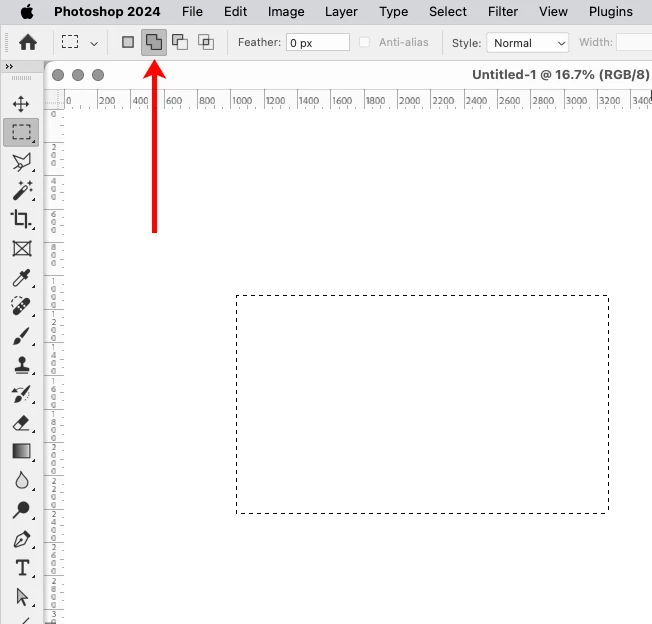
In addition to the other Dave's excellent reply, the marquee tool has controls for how it operates. The red arrow indicates four buttons which make subsequent selections interact differently, similar to holding down Alt/Option or Shift.

https://helpx.adobe.com/photoshop/using/selecting-marquee-tools.html


3 replies

Participant
October 9, 2024

Thank you both for your help!

R. Jackson
LumigraphicsCorrect answer
Legend
October 8, 2024

In addition to the other Dave's excellent reply, the marquee tool has controls for how it operates. The red arrow indicates four buttons which make subsequent selections interact differently, similar to holding down Alt/Option or Shift.

https://helpx.adobe.com/photoshop/using/selecting-marquee-tools.html


davescm
Community Expert
Community Expert
October 8, 2024

Your video shows you are not following the tutorial exactly.


The tutorial asks to draw three rectangle selections combining them together. The first on then left, then hold shift to draw the rectangle at the top and hold shift again and draw the rectangle on the right. By holding shift, each rectangle selection adds to the previous selection.


In your video, you drew a rectangle around the entire image. You then drew a second rectangle around the picture area inside it. To get that to work correctly, hold down Alt (not Shift) when drawing the second rectangle. That will subtract the second rectangle from the previous selection. The result will be the same as in the first method but with less steps to get there.


Dave