
Participant
October 29, 2019
Question

Jagged edges when rotating straight line with nearest neighbour

  • October 29, 2019
  • 3 replies
  • 2294 views

I am trying to rotate an object in photoshop, which i don't want to be anti-aliased. When I rotate it, the result is as desired
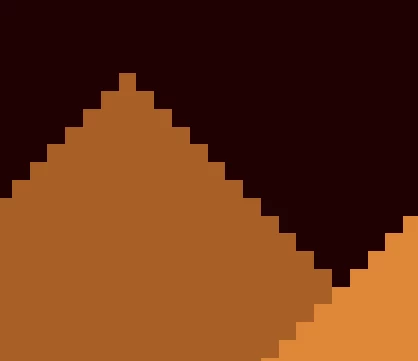
But when I press enter, it becomes jagged.
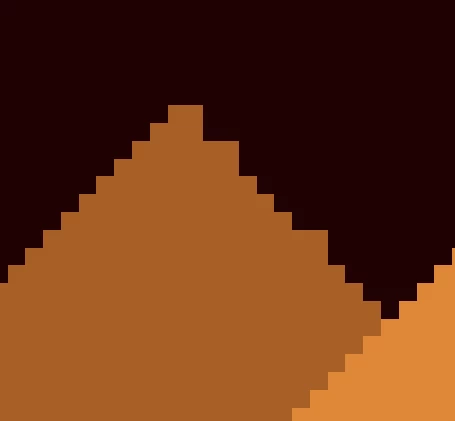
Is there a way to fix this?

    This topic has been closed for replies.

    3 replies

    barbara_a7746676
    Community Expert
    Community Expert
    October 30, 2019

    In that case, depending on what the design looks like, this would probably be better done in Illustrator. 

    barbara_a7746676
    Community Expert
    Community Expert
    October 30, 2019

    If the image is rectangular, as in your example, you could create it as a shape layer using the Rectangle tool. Then when you rotate the edges should be uniform.


    Semaphoric
    Community Expert
    Community Expert
    October 30, 2019

    However, they will be anti-aliased, which the OP wants to avoid.

    Semaphoric
    Community Expert
    Community Expert
    October 29, 2019

    That's been a problem in PS for years.


    If your objects are just a solid color, you could do this: Make a selection of your object, and go into Quick Mask mode. Rotate the Quick Mask channel with something other than Nearest Neighbor, like Bicubic.


    Still in the Quick Mask channel, Image > Adjustments > Threshold. As you adjust the Threshold slider, you will see some sweet spots where the edges aren't jagged. Commit the Threshold, and exit Quick Mask. In a new layer, fill the selection with the desired color, and hide the original object.


    You could also do the same sort of thing to the Layer Mask of a Color Fill layer.