kanem48010030
Participant
November 17, 2016
Answered

Jagged Edges

  • November 17, 2016
  • 2 replies
  • 3556 views

Hi Guys, this is my first post here and I am hoping someone can help me.

I have a problem when I am using the polygonal lasso and clone stamp tool when I am editing pictures for my website.

After using the lasso and clone stamp tool I am getting very jagged edges. I have tried all different combos of hardness and brushes and it doesn't make a difference.

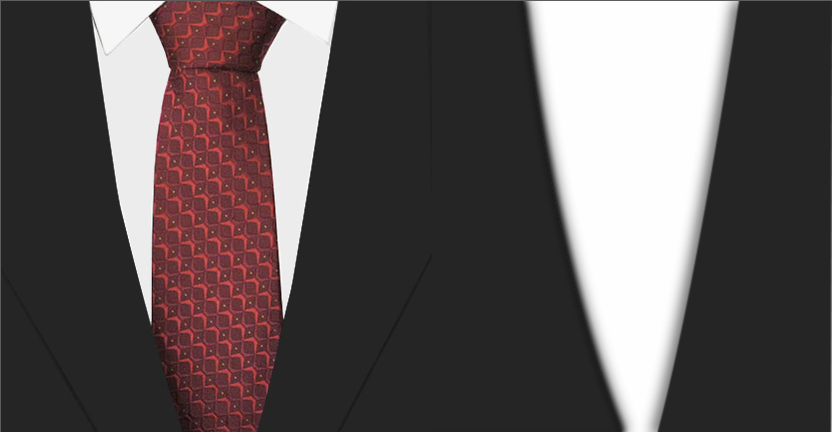
Here are some examples on my website - www.moynahans.nz/ties.html

The area I am talking about is the edge of the suit jacket and white shirt. Ideally I would want almost dead straight lines/edges but this seems impossible using the lasso tool.

Is there any way to improve this? I appreciate your help.

Thanks.

    This topic has been closed for replies.
    Correct answer Trevor.Dennis

    Jaggies and anti-alias are angle dependent, and the steep angle of your suit lapel is one of the worst possible cases.  I transformed these two layers using Nearest Neighbor which has no anti aliasing, and upresed them 100% for the same of demonstration.  The steeper anger is clearly more jagged.

    Plus you have the lapel against a hard white, fully contrasting background, which is making a bad situation worse.  So I would help it out a wee bit.  A soft drop shadow adds a layer of faux anti aliasing, and applying a low value blur softens the hard edge without looking soft because of the slow gradient of the drop shadow.  Shadows also make things look real, because almost everything has some sort of shadow if there is light.

    If you want to add texture to the suit material, try using the texture option under Bevel & Emboss which is non destructive, and fully controllable as many times as you need to get what you are after.

    2 replies

    davescm
    Community Expert
    Community Expert
    November 17, 2016

    I can see it - when you used the lasso tool did you check Anti-Alias in the options bar?

    With anti alias

    Without anti alias

    Dave

    kanem48010030
    Participant
    November 18, 2016

    Hi Dave, thanks for your reply.

    I definitely had anti alias ticked. Still seem to get the jagged edges though unfortunately. Not sure how to avoid this.

    Thanks.

    Kane.

    Trevor.Dennis
    Community Expert
    Trevor.DennisCommunity ExpertCorrect answer
    Community Expert
    November 18, 2016

    Jaggies and anti-alias are angle dependent, and the steep angle of your suit lapel is one of the worst possible cases.  I transformed these two layers using Nearest Neighbor which has no anti aliasing, and upresed them 100% for the same of demonstration.  The steeper anger is clearly more jagged.

    Plus you have the lapel against a hard white, fully contrasting background, which is making a bad situation worse.  So I would help it out a wee bit.  A soft drop shadow adds a layer of faux anti aliasing, and applying a low value blur softens the hard edge without looking soft because of the slow gradient of the drop shadow.  Shadows also make things look real, because almost everything has some sort of shadow if there is light.

    If you want to add texture to the suit material, try using the texture option under Bevel & Emboss which is non destructive, and fully controllable as many times as you need to get what you are after.

    Derek Cross
    Community Expert
    Community Expert
    November 17, 2016

    On my (retina screen) it/they looks fine.

    kanem48010030
    Participant
    November 17, 2016

    Hi Derek, thanks for your reply.

    Yes I agree it looks perfect on IOS. The problem is when viewing it on a PC particularly on Chrome or Internet Explorer.