bastianv25993199
Participant
August 19, 2019
Answered

JPG to RAW (Not what I expected, pics attached)

  • August 19, 2019
  • 4 replies
  • 3811 views

My problem is when I convert an image from jpg. to RAW. I want to do this to have more options when it comes to editing (Pics will be below)

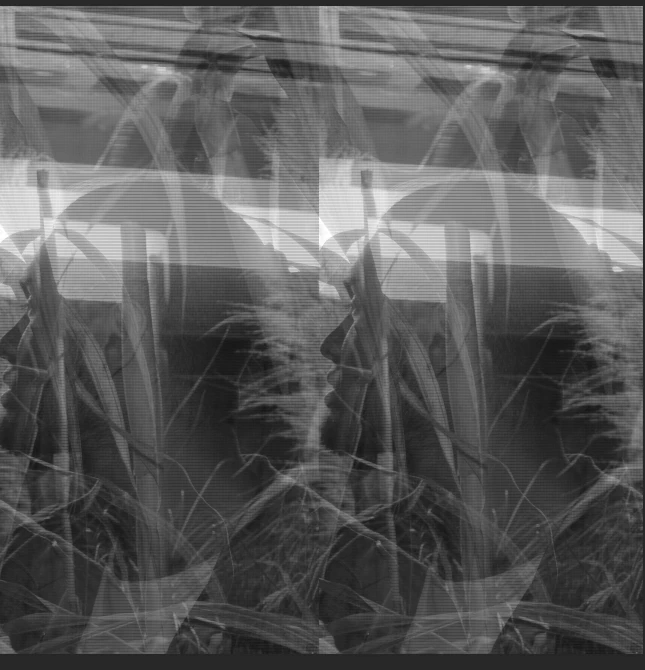
So the thing is when I do the convertion I know that the image is not going to be the same, It won't have the same color or size. But the product is way different than I expected. It seems gray, deffuse, blurry, etc...

PD: I'm just beginner.
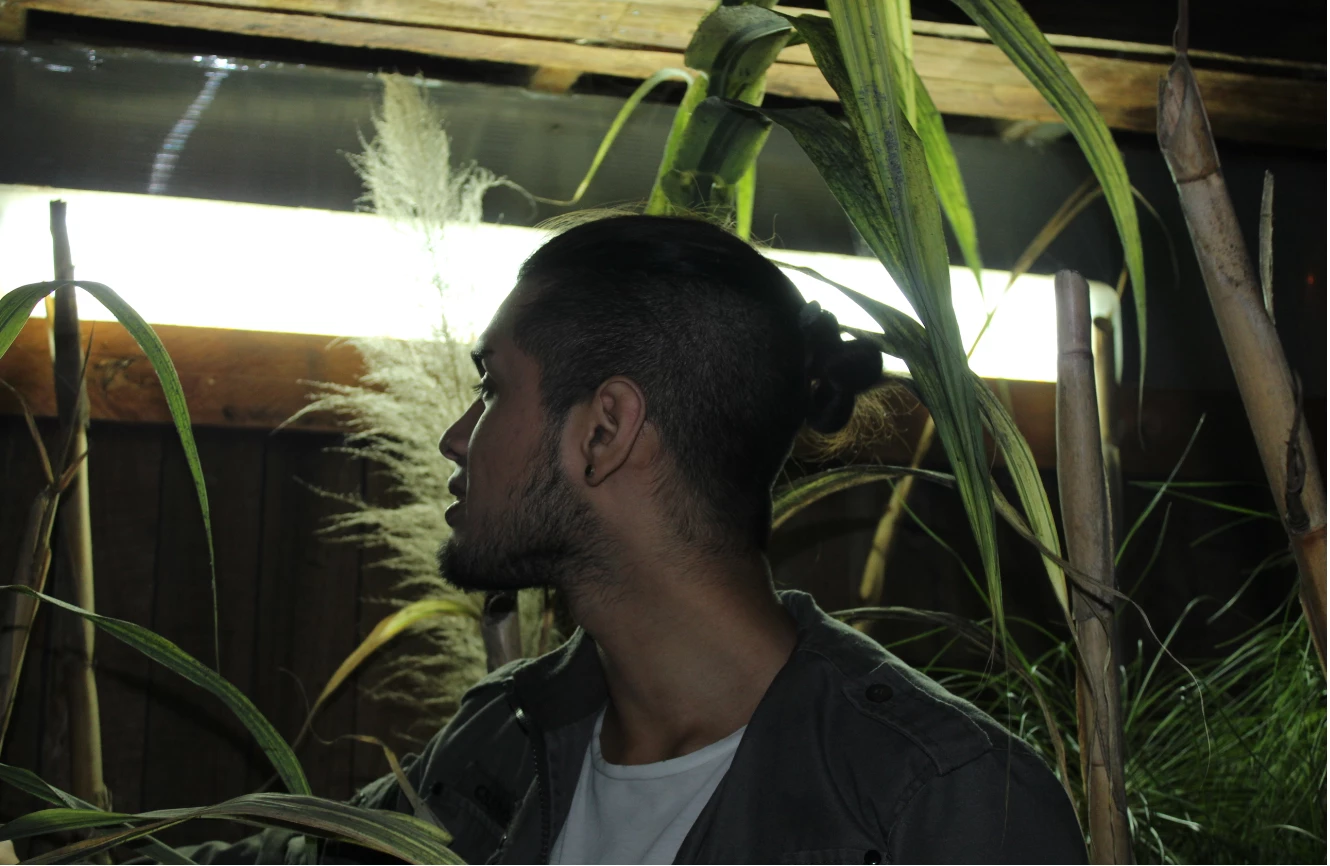
The steps followed were:

1.- Open the image

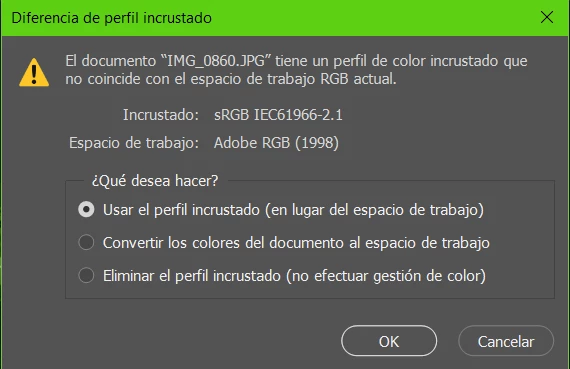
2.- This window shows up. I just pressed OK.
3.- Files>Save as>Change it to RAW

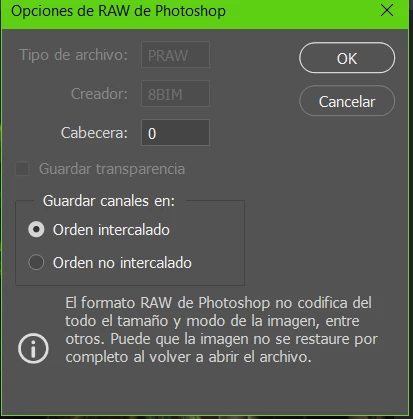
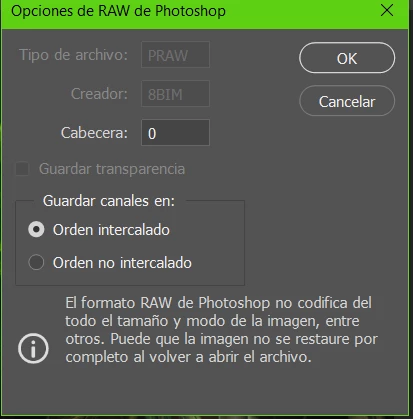
4.- Another window shows up. And again. I just pressed OK.
5.- The image gets like the one that I attached.

I hope someone can help me.

Thanks for reading.
This topic has been closed for replies.
Correct answer Conrad_C

There are multiple kinds of "raw" image files. When you chose "Photoshop raw" in the Save As dialog box, that is an old type of raw file that is not the same as Camera Raw images that come from a digital camera. That is why, when you got the dialog box below, you see the warning at the bottom. It is already telling you that you are probably not going to see what you expect. The Photoshop raw format is mostly useful for programmers.

bastianv25993199  wrote

3.- Files>Save as>Change it to RAW

4.- Another window shows up. And again. I just pressed OK.

There are two more ways to look at your request:

Open a JPEG using Camera Raw controls:

  1. Choose File > Open.
  2. Select your JPG image file.
  3. Click the Format menu (not the Enable menu) and choose Camera Raw (not Photoshop Raw).
  4. Click Open.
  5. The image opens in Adobe Camera Raw. Use the controls to edit, then click Open Image.
  6. The image opens in Photoshop.

Save a JPEG as DNG raw:

  1. Do steps 1–5 above.
  2. Click the Save Image button in Adobe Camera Raw.
  3. Set the Format to Digital Negative.
  4. Specify other options, then click Save.

Digital Negative (DNG) is the closest available format to true raw.

It is impossible to save a JPG image as true camera raw, because a JPG image does not have all of the original camera sensor information any more. A true camera raw image is the data from the camera sensor before converting to RGB.

4 replies

Conrad_C
Community Expert
Conrad_CCommunity ExpertCorrect answer
Community Expert
August 19, 2019

There are multiple kinds of "raw" image files. When you chose "Photoshop raw" in the Save As dialog box, that is an old type of raw file that is not the same as Camera Raw images that come from a digital camera. That is why, when you got the dialog box below, you see the warning at the bottom. It is already telling you that you are probably not going to see what you expect. The Photoshop raw format is mostly useful for programmers.

bastianv25993199  wrote

3.- Files>Save as>Change it to RAW

4.- Another window shows up. And again. I just pressed OK.

There are two more ways to look at your request:

Open a JPEG using Camera Raw controls:

  1. Choose File > Open.
  2. Select your JPG image file.
  3. Click the Format menu (not the Enable menu) and choose Camera Raw (not Photoshop Raw).
  4. Click Open.
  5. The image opens in Adobe Camera Raw. Use the controls to edit, then click Open Image.
  6. The image opens in Photoshop.

Save a JPEG as DNG raw:

  1. Do steps 1–5 above.
  2. Click the Save Image button in Adobe Camera Raw.
  3. Set the Format to Digital Negative.
  4. Specify other options, then click Save.

Digital Negative (DNG) is the closest available format to true raw.

It is impossible to save a JPG image as true camera raw, because a JPG image does not have all of the original camera sensor information any more. A true camera raw image is the data from the camera sensor before converting to RGB.

bastianv25993199
Participant
August 19, 2019

I get it, thank you. That answers my 2nd question which I did up there.

I'll try those options because that's exactly what I wanted to do.

JJMack
Community Expert
Community Expert
August 19, 2019

The popup you got was a Profile mismatch.  Where your Color setting are set to prompt when there is a mismatch

JJMack
Nancy OShea
Community Expert
Community Expert
August 19, 2019

JPG to RAW, what did you think would happen?

Nancy O'Shea— Product User & Community Expert
JJMack
Community Expert
Community Expert
August 19, 2019

You can convert a RAW Camera image into a RGB image and save a Jpeg Image File.  You can not make a Camera RAW file from a Jpeg image file there is no Camera RAW data in a Jpeg image file.

A Save AS RAW does not save a Camera RAW file it saves an Adobe RAW file with an extension .RAW ITs sane Adobe format file not a Camera RAW file and is most likely not a file you would want to save.

Adobe does have it own Camera RAW file format a .DGN file some cameras even produce .DGN files.  Most Camera manufactures have their own  Camera RAW formats.  These files have extensions like .NEF, .ORF,  .CR2, CR3, CRW and many others they doe not contain a RGB Image  their image are  more or less a mosaics with Red, Green and blue square tiles/. Not a a full spectrum color image.

JJMack
bastianv25993199
Participant
August 19, 2019

Thank you very much. But I still have questions based of your answer and because of english is not my native language and the translation tool is not 100% accurate.

What I want to do is have more acces on edition. I did read before that you need RAW format file to do this. Like have more details to work on temperature.

So can I change the format from jpeg. to DGN? which is the RAW format of photoshop as you said.

JJMack
Community Expert
Community Expert
August 19, 2019

bastianv25993199  wrote

So can I change the format from jpeg. to DGN? which is the RAW format of photoshop as you said.

No. There is not Camera Sensor RAW DATA in a jpeg file.  Could God do it? They write God made wine from water and God walked on Water so perhaps if you give God some water he'll bad able to do it.

JJMack