
leds2097726
Inspiring
December 20, 2017
Answered

Kyle's brushes - names are too long.

  • December 20, 2017
  • 7 replies
  • 5226 views

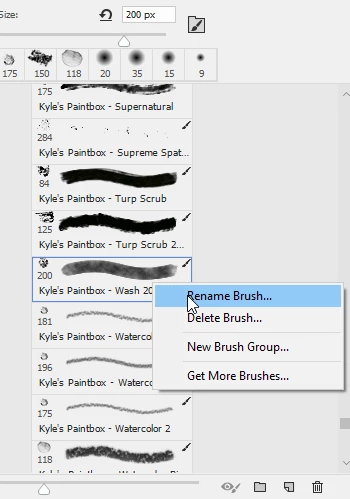
Kyle's brushes are a nice addition, but not very usable thanks to the naming convention. Can we delete "Kyle's concept brushes..." at the start of every brush name to make it clearer what the brushes are in the brushes panel? Identifying the brushes via the thumbnail isn't practical.


Screengrab in the link.
 

Imgur: The magic of the Internet

Correct answer davescm

In the brushes panel - right click on a brush then choose  rename brush

Dave

7 replies

Participant
October 12, 2023

This is still a problem 6 years after the original poster.  The links to the "easy" scripting solutions don't lead to any kind of explanations or tutorials.  I'm sure I could eventually track down a source to learn scripting and then implement it, but this should've been addressed already.  If anyone knows of any better resources, I'm all ears!

Trevor.Dennis
Community Expert
Community Expert
July 28, 2021

A really realy easy way to solve this...   Turn off Brush Name in the options

I mean it's not like knowing this preset is called Max Headroom is going tell you what it is going to look like.


On the other hand, if you did know you wanted to find Kyles Concept Max Headroom, then just use the search bar.  That has to be better than trawling through 170 presets in just one group.


BTW  He has some killer presets in his Concept group.  Check out the fur and hair brushes as an example.  He really is a genius with Photoshop's brush engine.


Participant
October 2, 2020

Replying with the slightly modified solution I ended up using, thanks to Kukurykus and PhillipBrandon for the original script (see their replies for more detailed instructions on how to run the script)! With the Photoshop-specific commands figured out I could add some extra logic to do multiple passes in one script run, though this is an unoptimized brute force solution and Photoshop actually hung for a sec and errored out of the script, I suspect because I tried to do too many at once. I just commented out (with the // marks) and edited things in the dict definition to get everything done in smaller batches and multiple runs. Maybe half a dozen at a time is probably safe?


And again, this is just what I personally used, with the renaming logic to my own tastes. I don't have every single brush pack either so you'll need to edit the dict to add lines etc. for your own purposes. The syntax should be fairly self-explanatory though, it looks for the text before the colon and replaces it with what comes after. If you want to fully remove text without replacing, you can just use the empty string "" as the replacement.

function sTT(v) {return stringIDToTypeID(v)}

(ref = new ActionReference()).putEnumerated(sTT('application'), sTT('ordinal'), sTT('target'))

lst = executeActionGet(ref).getList(sTT('presetManager')).getObjectValue(0).getList(sTT('name'))

var dict = {
	"Kyle's Paintbox - ": "KPB ",
	"Kyle's Real Oils - ": "KRO ",
	"Kyle's Dry Media - ": "KDM ",
	"Kyle's Letterers - ": "KL ",
	"Kyle's Concept Brushes - ": "KCB ",
	"Kyle's AM - ": "KAM ",
	"Kyle's FX Box - ": "KFX ",
	"Kyle's Inkbox - ": "KIB ",
	"Kyle's Drawing Box - ": "KDB ",
	"Kyle's Manga - ": "KM ",
	"Kyle's Eraser - ": "KE "//,
	// "Kyle's ":"K ",
	// "KYLE ": "K "
} 

for (var key in dict) {

	for (i = 0; i < lst.count; i++) {

		 if ((reg = new RegExp(key)).test(nme = lst.getString(i))) {

			  (ref1 = new ActionReference()).putName(sTT('brush'), nme);

			  (dsc1 = new ActionDescriptor()).putReference(sTT('null'), ref1)

			  dsc1.putString(sTT('to'), dict[key] + nme.replace(reg, ''))

			  executeAction(sTT('rename'), dsc1, DialogModes.NO)
		 }
		 
	}
	
}


Participant
October 2, 2020

(couldn't find a way to edit my post above)

Also, bear in mind this isn't a true arbitrary text replace, it assumes it's a prefix, i.e. that the text to replace is at the beginning of the brush name!

AmyUskoski
Participating Frequently
September 18, 2020

A slightly more speedy version of @davescm solution:

  1. Select multiple brushes at once (Select first brush, Shift + select last brush to select all brushes in between),
  2. Right click and select Rename Brush,
  3. Place the cursor just before the useful part of the Brush Name (and after Kyle's name),
  4. Shift + Command + Delete to delete everything before the cursor.
  5. The next brush will pop up automatically
  6. Repeat.

Asinine to have to run a script, and out of my comfort zone, so I'm trying to be as efficient as possible.

Kukurykus
Legend
April 17, 2018

Dear Adobe / Kyle. Please consider!...


If you'd like to remove "Kyle's Paintbox - " part from each item all at once just use my script with changes to lines 7th & 10th:


    if ((reg = /Kyle's Paintbox - /).test(nme = lst.getString(i))) {


          dsc1.putString(sTT('to'), nme.replace(reg, ''))

Participant
June 24, 2020

Sorry to resurrect this old topic, but I just downloaded the Kyle brush packs now in 2020 and am annoyed by the exact same thing as the original poster, and the officially marked "correct answer" would be tons of tedious work like people have already said. It's hundreds if not thousands of brushes.


The link to Kukurykus' script doesn't work anymore because of changes to the forum, (and even the numerical ID when spliced into a modern URL is some unrelated InDesign topic now, so the changes seem to run pretty deep). I would like to use the scripting solution, but couldn't find the script he was referring to (or equivalent) on the current community site.


An updated link (or an equivalent script) would be greatly appreciated, thanks!

PhillipBrandon
Participant
July 4, 2020

I found the original comment from Kukurykus: Dear Adobe / Kyle. Please consider!... and followed it this morning for PSCC2020. I had to change procedure slightly for mac (no need for the quotes in file name, had to open up document info to save as a jsx etc) but it's worked for me.
In case that link breaks, I'll reproduce his comment here:


"It's quite easy to rename them at once by scripting. You simply remove 'Kyle's Inkbox ' from each name running the script in up to few secs for thousand presets I guess. When you're decided for such move, move your topic to Photoshop Scripting


There're some examplary codes that alert you of clicked Brush Preset name, but may be modified or completely rewritten to loop over all presets and simply rename common part to empty space:


function sTT(v) {return stringIDToTypeID(v)}

(ref = new ActionReference()).putEnumerated(sTT('application'), sTT('ordinal'), sTT('target'))

lst = executeActionGet(ref).getList(sTT('presetManager')).getObjectValue(0).getList(sTT('name')) 

for (i = 0; i < lst.count; i++) {

     if ((reg = /Kyle's Inkbox - /).test(nme = lst.getString(i))) {

          (ref1 = new ActionReference()).putName(sTT('brush'), nme);

          (dsc1 = new ActionDescriptor()).putReference(sTT('null'), ref1)

          dsc1.putString(sTT('to'), 'Ink-' + nme.replace(reg, ''))

          executeAction(sTT('rename'), dsc1, DialogModes.NO)

     }

}


Copy it, open Notepad, save as "Inks.jsx" (note you have to replace *.txt in Fiie's name field to that exact name, including double quotes!) Put this script at end of: C:\Program Files\Adobe\Adobe Photoshop CC 2018\Presets\Scripts (it may be little different for you). Reopen Photoshop (if launched). Finally you should find your script in File / Scripts. ​After you click Inks, and open Brushes Panel, you will see changed names. "

Thank you to Kukurykus
 for solving this problem two years ago.

Participant
December 28, 2017

This is so frustrating. Hundreds of new brushes, and they all have the same name visible: "Kyle's Drawing Box..."

Obviously no user testing. And the only solution is for me to spend a few hours renaming them all? Ridiculous.

Participant
April 17, 2018

Derrick Barth's Brushbox is now compatible with Photoshop CC and it allows you to elongate the spaces enough to read the entire name. It's also a good organizational tool!

davescm
Community Expert
davescmCommunity ExpertCorrect answer
Community Expert
December 20, 2017

In the brushes panel - right click on a brush then choose  rename brush

Dave

leds2097726
Inspiring
December 20, 2017

Thanks but that's not at all practical for every single brush, any way to batch process the renaming?

davescm
Community Expert
Community Expert
December 20, 2017

No. It may be worth asking in the scripting forum if there is a way to script it.

Photoshop Scripting

Dave