
Participating Frequently
October 7, 2018
Answered

Large image coming in extremely blurry in web banner.

  • October 7, 2018
  • 2 replies
  • 2571 views

My client has given me a 1425 x 2025px 300 dpi image to place into a 180 x 150 web banner. I have tried saving the image and creating the banner at both 72 and 300 dpi and then saving as a jpg. I have tried Smart Sharpen. I have tried Unsharp Mask. I don't know what to do! The type and logo are not clear either but are not as bad as product image. Any suggestions would be greatly appreciated!
    This topic has been closed for replies.
    Correct answer Nancy OShea

    Once a turn the pdf into a svg can I bring it into the existing photoshop banner?


    No.  Vector graphics are different from raster images.  Photoshop is primarily a raster image editor.  Illustrator is a vector graphics editor.  Depending on complexity of your book covers, it might be possible to open image in Illustrator and trace paths but ideally your book covers would begin life as vectors and remain that way.   Then you could export as SVG for use on the web.

    2 replies

    italosan
    Community Expert
    Community Expert
    October 7, 2018

    If the file has to be on web, there's no point in saving at higher than 72dpi. If you save a 180x150px at 300dpi, the resulting image will just be bigger than 180x150 accordingly to the resolution.

    Anyway, if you downscale an image at 180x150 and then zoom in the canvas, it's normal to have a blurry result, because Photoshop works with raster images, and 180x150 contains very few informations for you to have a sharp preview.

    The same is for the website. If you have to upload such images online, they are supposed to be showed at a very little size, which will be equal to a 100% view on Photoshop. And while a vector graphics may be a good choice [as suggested] you need to check with the website manager if this kind of file is acceptable for the website.

    Participating Frequently
    October 8, 2018

    Thanks, for your input.

    The problem is that it is blurry even at 100%. I'm packing an image of a book, line of copy, burst and logo into a 180 x 150 banner — I just can't get this to look crisp. I just want to make sure I am doing all I can to give then a sharper image.

    Nancy OShea
    Community Expert
    Community Expert
    October 7, 2018

    150 x 180 is tiny. 

    I took a large image with some text and flattened it.  Dragged it into a 150 x 180 canvas.  Right clicked on the new layer and Converted to Smart Object. 

    Holding Shift + Alt keys down, I rescaled smart object to fit the smaller canvas.  At 100% zoom level, it looks OK  but not great because it's a low res image.

    Nancy O'Shea— Product User & Community Expert
    Participating Frequently
    October 7, 2018

    Thanks!

    It does look much better. It is still blurry but not nearly as bad. I am actually working in 300 dpi then exporting as jpg. It is just so tiny that when someone needs to blow it up to actually read it (it's a book cover), it's going to look terrible! But believe me this is an improvement!

    Nancy OShea
    Community Expert
    Community Expert
    October 7, 2018

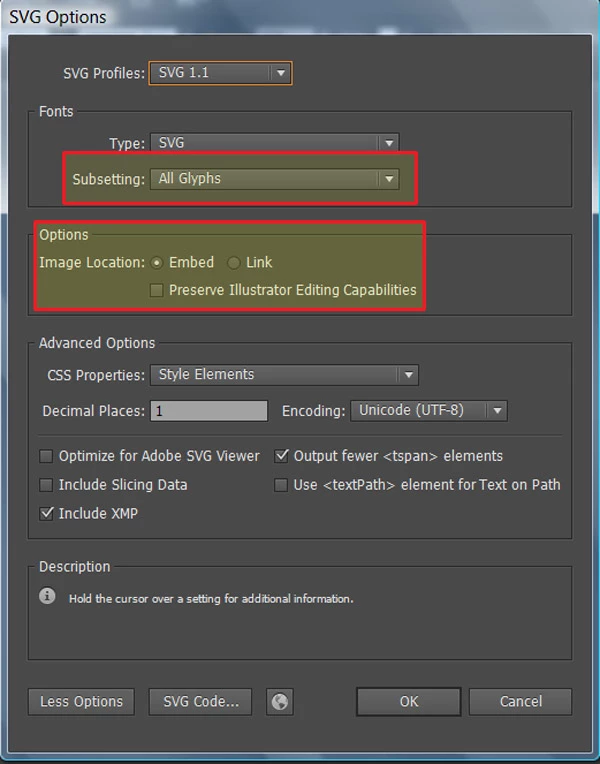
    Could your Book Covers be better served as Scalable Vector Graphics?    Unlike raster images, SVGs remain sharp and crisp at any size.   They are ideal for web logos, text and icons. 

    Tips for Creating SVG with Adobe Illustrator

    Failing that, you could make multiple raster image sizes (1x, 2x, 3x...)    The browser chooses the best one based on viewport width.

    <picture>: The Picture element - HTML: HyperText Markup Language | MDN

    Nancy O'Shea— Product User & Community Expert