
Participating Frequently
October 29, 2018
Answered

Lasso Tool Lines not showing as I'm selecting

  • October 29, 2018
  • 10 replies
  • 49628 views

I recently updated Photoshop CC to the newest version (20.0) on Friday and now every time I try to use my lasso tools the lines do not appear as I'm drawing to see what I'm about to select. It's acting the same for the lasso, polygonal lasso, and magnetic lasso tool. I've reset the tools, reset all Photoshop settings in my performance tabs and all. What am I missing? Help?
This topic has been closed for replies.
Correct answer

Hi

If you uncheck "Use Graphics Processor" you will lose some functionality in Photoshop that requires a GPU

More info

Photoshop graphics processor (GPU) card FAQ

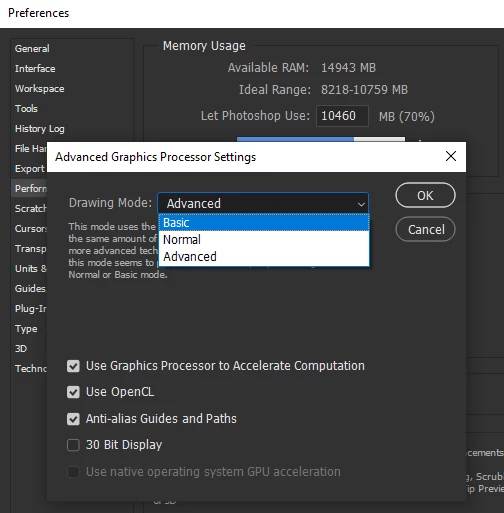
Have you tried updating your GPU driver from the manufacturers website, you could also try setting the Drawing Mode to Basic

10 replies

Participant
July 24, 2021

Hi im using Photoshop cc20 whenever i use lasoo tool Photoshop gone to crashed. Can any body help me?

Participant
February 26, 2021

I have had this problem for many years on new photoshops I have to keep reverting to Photoshop elements but I gave the new photoshop a go as I needed the new features as my projects demanded it.


I use the selection tool (the pen tool isn't a good substitute for the method I use) the most out of any tool and have the problem where I am selecting something and suddenly the next line will disappear and is very annoying. 


After trying several methods to fix it from this thread and others across the web nothing worked. 


I recently bought a Pen Graphics tablet and have found if I hold down the stylus on the screen when the error occurs it refreshes the tool and it works at least until the next time it happens then I repeat and continue with my lines. 


I hope this problem is solved soon so I don't have to use this work around but for now I can continue working with this method. 


Not the desired fix but the only work around that seems to work.

nataliew92368334
Participant
June 15, 2020

After trying ALL of these suggestions with no luck, (Lasso tool would work, but not magnetic or polygonal), I realised it was a problem with my Wacom tablet. Still not sure how to fix it, but at least it works on the normal trackpad.

Participant
November 9, 2019

I am trying to implement your fix using Edit>Preferences>Performance, but the resulting dialog box does not look like the one you posted, nor does it have the USE GRAPHICS PROCESSOR or ADVANCED GRAPHICS PROCESSOR SETTINGS control.


I took a screen shot of my dialog box, but I can't load that into this reply, either!

Participant
June 19, 2019

I unchecked "Use Graphics Processor" before reading on. When I saw that it could cause Photoshop to behave erratically I went back and rechecked it thinking that I would need to find another solution. Just the act of unchecking and rechecking the button seems to have. fixed the problem. I rebooted Photoshop in between.

Update: The problem returned. I switched drawing mode to "Basic" and that worked.

Participating Frequently
May 6, 2019

I had the same issue:

Photoshop CC (v20.0.4)

iMac 5K 27" 2017 with Radeon Pro 580 8Gb on High Sierra (10.13.6)

I found if I visited the Performance tab of the preferences, and from the Advanced Settings section of the Graphics Processor Settings Unchecked "Anti-Alias Guides and Paths" I got my marquee back.

TZW-Produktion
Participant
October 29, 2019

Keeping the "Advanced" setting but unchecking "Anti-Alias Guides and Paths" seems to work for me. Restarting Photoshop between changes. Let's see if it sticks...

Inspiring
March 21, 2019

I may have found a simpler solution.

If the first file type you open after loading Photoshop is CMYK, the marching ants and transform boundaries don't display.

But if you open up an RGB file, then any CMYK files you open after that will display ants & transform properly.

Participating Frequently
March 21, 2019

That didn't work for me. I switching anti-aliased guides and paths back on. I opened an RGB JPG to test with. No marching ants. Turned it back off and marching ants are once again marching like good little soldiers.

richardsh95490089
Participant
March 29, 2019

Perhaps try opening an RGB FILE rather a Jpeg cause opening a file definitely worked for me

Participant
March 1, 2019

I was having the same problem with the lasso tool and no marching ants, and i went through the steps you guys have outlined. then i went backward until i got to the point that with advanced on, i could untick "anti-alias guides and paths" and it showed the selection. it may or may not work for you, but if you're looking to preserve some of the GPU power in the PS you might give it a shot.

Participating Frequently
March 21, 2019

This also fixed it for me. I'd suggest the as a better "Correct" answer than switching all GPU down to basic. It fixes the issue with the least impact. Now if they would just fix the stupid perspective crop grid and it's ridiculous edges.

Participant
February 13, 2019

Basically their solutions to every bug they have in the whole CC suite are to not use any of the new features.

Participant
November 5, 2018

Yes! I am having this problem too! So frustrating. The lines only appear after I have closed the selection.

amicuspubAuthor
Participating Frequently
November 5, 2018

I was on live chat with them for a few hours and they solved it!

If you update and you have the same problem it’s a setting in Photoshop.

Photoshop - Preferences - Performance

Uncheck ‘Use Graphics Processor’ in the upper right and check ‘Legacy Compositing’ under the options section in the same window.

Then restart Photoshop and it should be working.

Correct answer
November 5, 2018

Hi

If you uncheck "Use Graphics Processor" you will lose some functionality in Photoshop that requires a GPU

More info

Photoshop graphics processor (GPU) card FAQ

Have you tried updating your GPU driver from the manufacturers website, you could also try setting the Drawing Mode to Basic