Participant
December 1, 2016
Answered

Layer click-and-drag problem

  • December 1, 2016
  • 2 replies
  • 9527 views

I've been told there is a feature in Adobe Photoshop CC 2017 where one can drag a layer directly from the layers panel in one tab into another tab simply by moving the grabbed layer over the destination tab at the top of the window. However, whenever I try this, the destination tab that I hover over with the selected layer doesn't come to the forefront, thereby preventing me from using this feature. Any suggestions?

This topic has been closed for replies.
Correct answer Nancy OShea

My girlfriend and I, on two separate systems, have this exact same problem.  Julienne Kost DOES this in her LDC PSCC ESS/Basic course but doesn't explain how.  We tried the above suggestion which created a lot of work getting back to where we were but didn't help at all.  Although various people on the net say this can't be done, it clearly can - somehow.  Anybody know what the secret is?


Which version of Photoshop do you have?

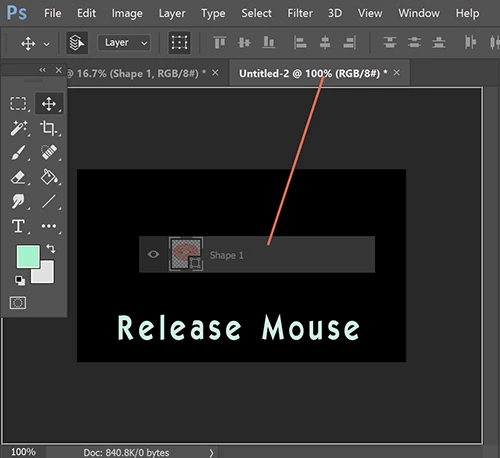
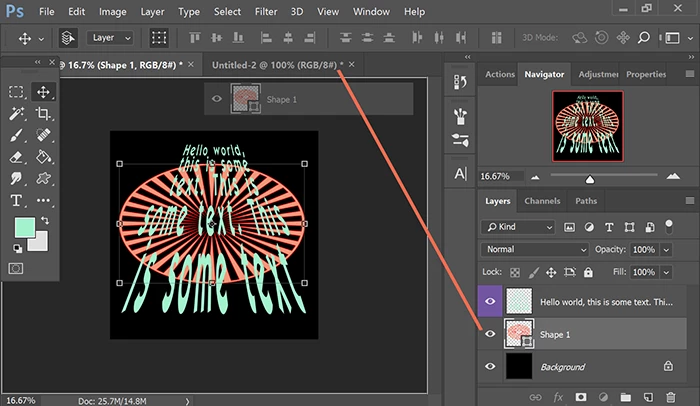
Open a multi-layered PSD file.  Click and hold the desired layer.  Drag to the target Tab and hold  a couple of seconds until the 2nd document appears.  Still holding, drag your layer over the open document and release your mouse. Voila! 

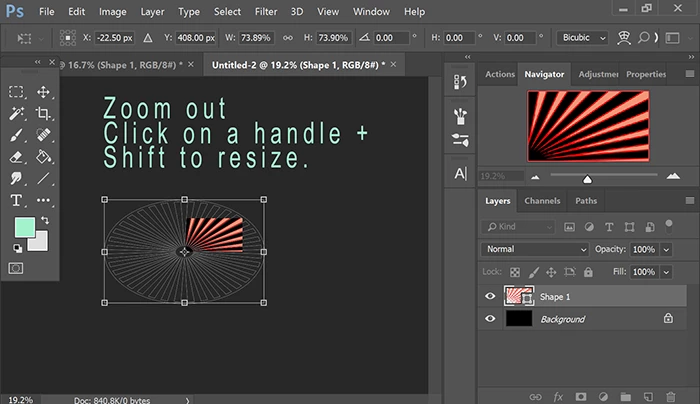
It goes without saying, you may need to resize the layer to fit your new canvas especially if they are a different size and resolution.  Use your Navigator panel to zoom in or out as needed.

Nancy

2 replies

rus5
Known Participant
April 7, 2018

Just wanted to follow up on this.  I updated my version of PS to 19.1.3 and the problem, at least for me, seems to finally be fixed.  Tried it several times over several days and it worked every time.  I hope the same is true for all the other folks who had this problem.  Much thanks to Julieanne and her co-workers for bringing it to the attention of the PS development team!

Chuck Uebele
Community Expert
Community Expert
December 1, 2016

Are you waiting long enough? I'm not having issues doing this, but there is a lag when the other tab becomes active.

Participant
December 2, 2016

Yes I've waited for over ten seconds

rus5
Known Participant
June 11, 2017

I'm dragging Shape1 layer from my Layers Panel.  It's an ordinary shape layer, not a smart object.

Which workspace are you using?  See screenshot.  You might try changing workspaces to see if that helps.


Hi Nancy,

Thanks for responding.  We've been at this for DAYS now (no kidding!), we've tried everything we can think of (as has the person who originated this post apparently, and many others on the net).  We DEFINITELY are not trying this with smart objects and we've reset the workspace (and the preferences and everything else) about a million times.  We are doing EXACTLY what you show in your screenshot - exactly!.  When we move the layer from the "LAYERS" panel over the tab of the 2nd layer just as you show in your screenshot, the 2nd layer does NOT APPEAR!  It just sits there.  We can hold it there for DAYS but it just sits there.

As an aside, we know what is SUPPOSED to happen because we can watch Ms. Kost DO it in her course, and WE can do it too as long as we don't drag from the "LAYERS" panel to a tab.  For example, if we tile the images and drag from a selected IMAGE to a tab, the tab pops up and we can drag into that 2nd image from there, just not starting from the "LAYERS" panel.  Its very weird.  We wouldn't make such a big deal out of it but we feel like we must not understand something here that's going to bite us later if we can't even follow this simple thing!!!

Thanks!

Russ