Exit
  • Global community
    • Language:
      • Deutsch
      • English
      • Español
      • Français
      • Português
  • 日本語コミュニティ
  • 한국 커뮤니티
0

Layer mask is not covering fully

Explorer ,
Jul 12, 2021 Jul 12, 2021

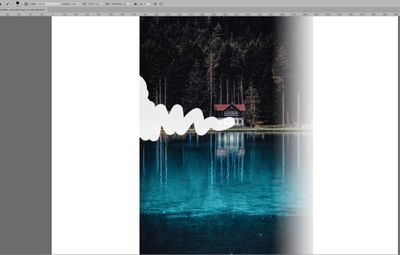
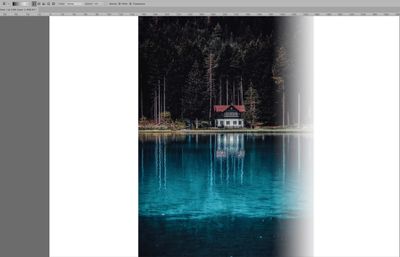
Hello, I don't know what is wrong - opacity, flow at 100%, color is black, but gradient or brush on mask are not fully covering. Wihout mask - both tools work fine. I have this problem, occuring out of nowhere for a few days now. Sometines restarting Photoshop works, but not today. Below are screen shots of my settings. Please, any suggestions?mask problem2.jpgmask problem1.jpg

2.1K
Translate
Report
Community guidelines
Be kind and respectful, give credit to the original source of content, and search for duplicates before posting. Learn more
community guidelines

correct answers 1 Correct answer

Community Expert , Jul 12, 2021 Jul 12, 2021

To make absolutely positively sure you are using black and not dark gray, type "D" (the shortcut to set the foreground and background swatches to the default black and white.)


It would also be helpful to see your Layers panel including the layer with the mask. What is on the layer underneath?


~ Jane

Translate
Adobe
Community Expert ,
Jul 12, 2021 Jul 12, 2021

Could you please post screenshots with the pertinent Panels (Toolbar, Layers, Properties, Options Bar, …) visible? 

Are you sure you are painting with black, not just dark gray? (And please don’t assume, make certain.)

Translate
Report
Community guidelines
Be kind and respectful, give credit to the original source of content, and search for duplicates before posting. Learn more
community guidelines
Community Expert ,
Jul 12, 2021 Jul 12, 2021

To make absolutely positively sure you are using black and not dark gray, type "D" (the shortcut to set the foreground and background swatches to the default black and white.)


It would also be helpful to see your Layers panel including the layer with the mask. What is on the layer underneath?


~ Jane

Translate
Report
Community guidelines
Be kind and respectful, give credit to the original source of content, and search for duplicates before posting. Learn more
community guidelines
Explorer ,
Jul 12, 2021 Jul 12, 2021

I always press D when I start doing anything with nask mask

Translate
Report
Community guidelines
Be kind and respectful, give credit to the original source of content, and search for duplicates before posting. Learn more
community guidelines
Explorer ,
Jul 12, 2021 Jul 12, 2021

OMG I guess I didn't its such a reflex, that I was could swear by it thanks, how dumb of me

Translate
Report
Community guidelines
Be kind and respectful, give credit to the original source of content, and search for duplicates before posting. Learn more
community guidelines
Community Expert ,
Jul 12, 2021 Jul 12, 2021

No worries, we've all been there 😊, and I'm glad it's working for you now!

~ Jane

Translate
Report
Community guidelines
Be kind and respectful, give credit to the original source of content, and search for duplicates before posting. Learn more
community guidelines
New Here ,
Jun 21, 2023 Jun 21, 2023

Thank you so much for this info about "press D". But I have another question: why on Creative Suite 6 it wasn't necessary to do it and now we have to press D? The 100% density should be set by default.

Translate
Report
Community guidelines
Be kind and respectful, give credit to the original source of content, and search for duplicates before posting. Learn more
community guidelines
Community Expert ,
Jun 21, 2023 Jun 21, 2023
LATEST

@Pasqualino30643653sv7t 

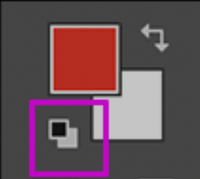
"D" is the shortcut to reset the Swatches in the Tools panel to pure black and pure white. It is only necessary when they are not pure B&W, and has been true since at least Photoshop 3.0 (1994) when I started using it. 


The 100% density is set by default, but users often change the foreground and background swatches. 


You can also reset them with the button in the Tools panel.

janee_0-1687380651939.png


Jane

Translate
Report
Community guidelines
Be kind and respectful, give credit to the original source of content, and search for duplicates before posting. Learn more
community guidelines
Community Expert ,
Jul 12, 2021 Jul 12, 2021

Perhaps you can add Porperties panel with layer mask selected to screenshot because there is slider Density which can make black less black, or grey.


Otherwise, have you tried reseting preferences what is general advice for all things weird in Photoshop.

Translate
Report
Community guidelines
Be kind and respectful, give credit to the original source of content, and search for duplicates before posting. Learn more
community guidelines