marcelc34397358
Participant
June 9, 2017
Answered

Layer mask moves all layers in group

  • June 9, 2017
  • 3 replies
  • 1011 views

Hey guys, I'm trying to create a texture with photoshop and now I'm having trouble using a layer mask.

I need to create a layer mask ontop of a group containing two layers.

Before I create the mask i make a selection of the group so only a part of the group will be masked.

Now I need to move the selection to another place but when I move it, all the layers move, too.

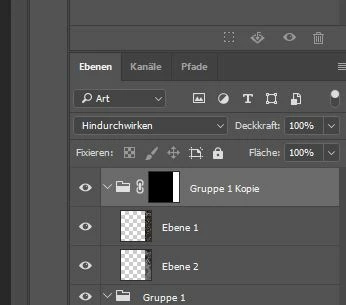
As  you can see in the picture below i moved the selection (it's the white space on the mask) from the left of the viewport to the right edge. But the other two layers also moved to the right and that shouldn't be. I know that you can remove the link on the mask but that's not how it's supposed to be since in the tutorial i've watched he has the link still on, too and it works. I tried it on my friends computer and it works there, too.

Does anyone of you guys know if I maybe have some weird settings which are causing this problem?

Thanks a lot!
    This topic has been closed for replies.
    Correct answer davescm

    Hi

    The other layers are moving.

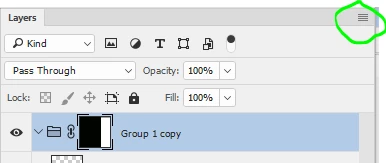
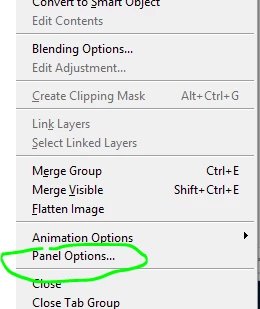
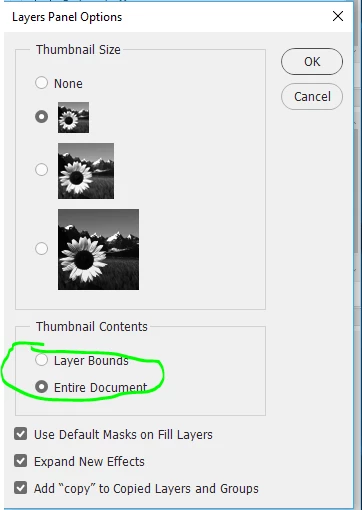
    It looks like the layers panel options are set for thumbnails to show "Layer Bounds" rather than the usual "Entire Document". This gives the impression that they have not moved

    Dave

    3 replies

    Community Expert
    June 10, 2017

    If you have a SELECTION then you must be using the MOVE tool which MOVES stuff.

    If you want to move the selection, you can select a SELECTION tool like the Rectangle Marquee, or Lasso and that will move the SELECTION only.

    Another idea is to create your first selection, then hold down the SHIFT key to add to that selection and draw the 2nd selection... and THEN you can create a Mask.

    Lastly, a third issue.. when you place objects in a Group they all move together. When the MOVE tool is selected you can see Auto-Select in the OPTIONS bar on the top. On the top left If Auto-Select is on it might move things you don't want to move. You can also keep it on and change the drop-down menu next to the check box to "LAYER" instead of "GROUP" so it will only move one layer at a time.

    Hope that helps.

    cheers!
    mark

    headTrix, Inc. | Adobe Certified Training & Consulting
    [Personal info removed by moderator]

    Consulting | Design | Development | Training

    headTrix, Inc. | Adobe Certified Training & Consulting
    marcelc34397358
    Participant
    June 10, 2017

    Hmm it doesnt work :/ I show u guy how it works in the tutorial

    How to create Tileable Textures from Photoscans for Games Tutorial - YouTube

    From 1:15 to 1:45 he moves the left part to the right. And the other layers in the group arent moving...

    davescm
    Community Expert
    davescmCommunity ExpertCorrect answer
    Community Expert
    June 10, 2017

    Hi

    The other layers are moving.

    It looks like the layers panel options are set for thumbnails to show "Layer Bounds" rather than the usual "Entire Document". This gives the impression that they have not moved

    Dave

    davescm
    Community Expert
    Community Expert
    June 9, 2017

    Hi

    It sounds like it is working correctly

    Unclick the link to move the mask independently.

    Dave

    Peru Bob
    Community Expert
    Community Expert
    June 9, 2017

    Moved to the Photoshop forum.