herebydzyn
Participant
April 29, 2018
Answered

Layer Mask Won't Disappear

  • April 29, 2018
  • 1 reply
  • 1419 views

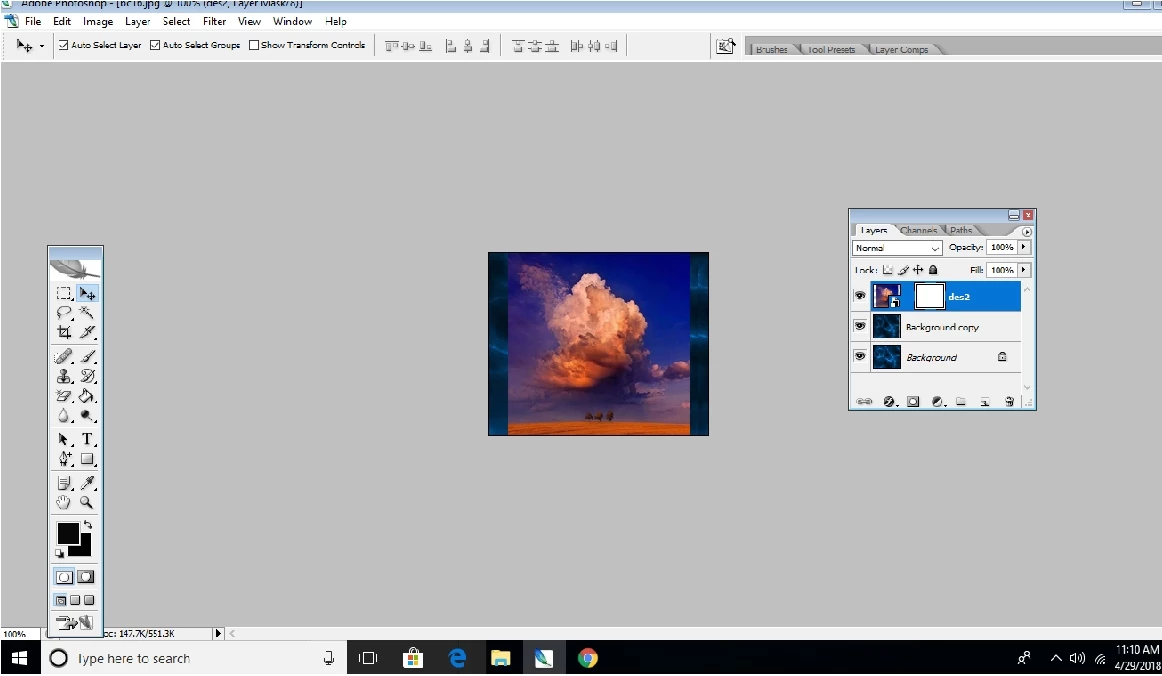
Hi,  I'm using Photoshop CS2 .  When I place a layer on top of a background and I click the Layer Mask Button, it won't disappear. I followed the Place Embedded instructions and when I click the Layer Mask button, it will show the white square next to the Layer but the Layer won't disappear.  I noticed my background was locked and I thought that might be the problem, so I made a duplicate, but the placed Layer still won't disappear.  The Layer is at "Normal" and Opacity is 100%, I've got black foreground and backgrounds.  I tried black foreground and white background in the tools area, but nothing seems to be working.  I'd really appreciate some help. Thank you!
    This topic has been closed for replies.
    Correct answer Mohammad.Harb

    the layer mask Color is White, which will reveal the entire layer, you need to fill the mask with Black, here are some tips:

    click on the layer mask and invert the color ( ctrl + i )

    Set the default colors to Black and white ( press  D )  and then fill it with white ( ctrl + Backspace )

    or

    to Hide the layer before creating the Mask, Hold down the Alt key and Click on the mask icon

    1 reply

    Mohammad.Harb
    Community Expert
    Mohammad.HarbCommunity ExpertCorrect answer
    Community Expert
    April 29, 2018

    the layer mask Color is White, which will reveal the entire layer, you need to fill the mask with Black, here are some tips:

    click on the layer mask and invert the color ( ctrl + i )

    Set the default colors to Black and white ( press  D )  and then fill it with white ( ctrl + Backspace )

    or

    to Hide the layer before creating the Mask, Hold down the Alt key and Click on the mask icon

    herebydzyn
    Participant
    April 29, 2018

    Thank you, yes, that did help!