
Inspiring
December 26, 2018
Answered

Layer masks not masking at 100%! help! only 50%

  • December 26, 2018
  • 6 replies
  • 23717 views

YES I have my density at 100% of my layer masks at 100%, and opacity at 100% on the layer.....and I have feathering at zero.
I have a nice layer mask...but since I updated to CC 20.01 I can't get ANY layer masks to block out 100%!!

it still showing about 50% of the image in the mask...
I've watch tuts and read tuts & other forums and NOTHING has helped...
I like the 20.01, but if I can't get this figured out I'm going back to a previous version...this is driving me nuts!

The only solution I have is I've been fulling erasing parts of images to get the desired affect...not what I like to do ...
Its like going back in time to the 80s to get an image to look right.....
yes I've been using Photoshop since then.  thus my complete frustration!

I know I'm missing something...but I don't know where to look.HELP!
Correct answer SSDartdept

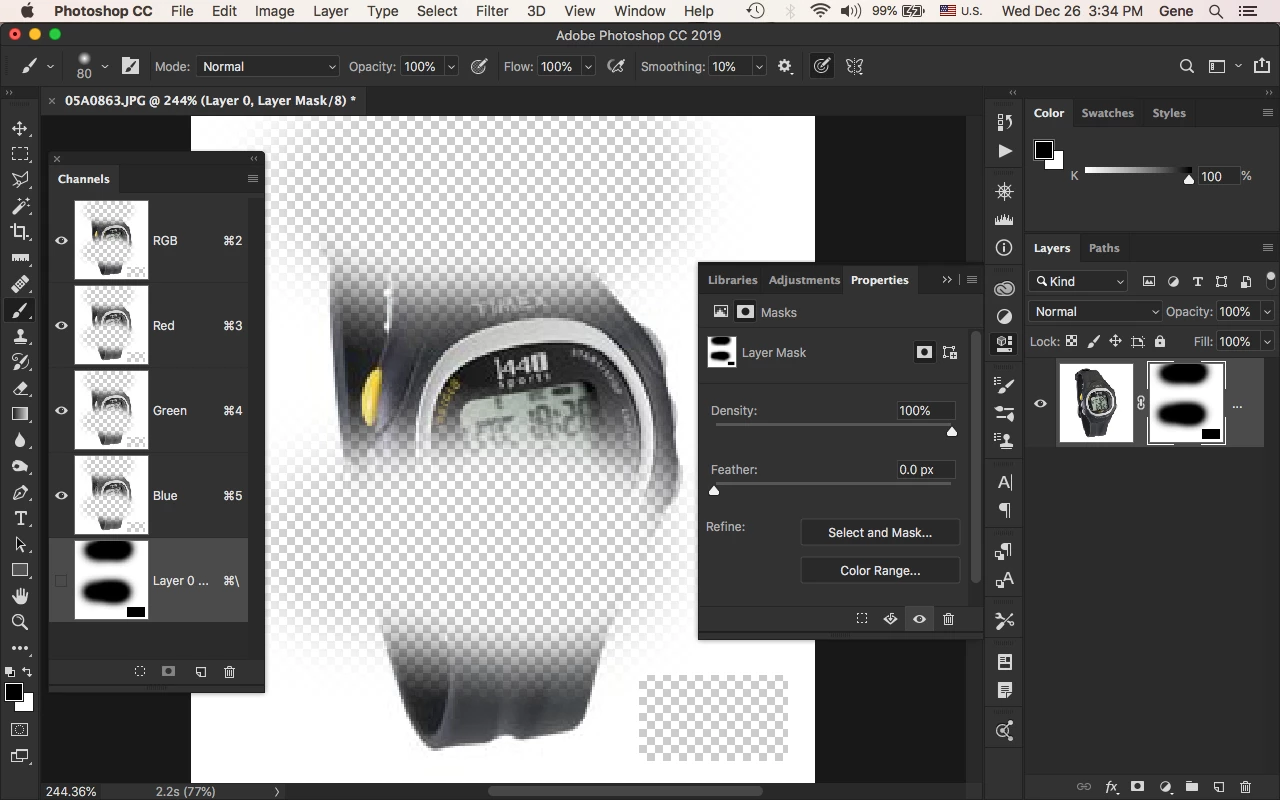
See what you can learn from this:One is a Brush with the opacity and flow like so. Look at the Color Panel


oh I want to kick myself!!!! REALLY I DO!
I was working with a grey in my colors!!!!!!

Thank you!
I saw your colors tab open and I then pushed F6 and it didn't open  .....
I was what is UP with PS!!!
closed it and opened it again F6 again ...and it popped up and I was OH WAIT THAT'S GREY!!

...closed the pallet and pushed 'D' and voila...

Yeah maybe I need to go back on Christmas break...I really really feel stupid.....agh!!!!

6 replies

Participant
October 18, 2024

Omg thank you so much,
i've had the same issue and couldn't figure out how to fix it 🙂

Participant
February 7, 2025

Where do you go to check if you are using a grey in your colours? I have this problem too and my photoshop keeps going back to masking not 100% everytime I seem to fix it. 

Participant
September 9, 2022

:)))))))) same problem drove me crazy and now I feel so stupid 

Participant
January 2, 2022

I am having the same issue I dont know what to do aftwr trying almost everythng in here, sofrustrating. 

Look at this

Participant
February 18, 2022

Were you able to find the fix for this? I've tried everything suggested and still have this issue! 

Participant
March 29, 2022

I double-clicked the mask, Mask Properties popped up, and I set Shift Edge to -100%. This is what fixed the issue for me. Try experimenting with the Mask Properties.

Participant
June 15, 2021

Just want to say thank you for this! I had the same issue and was loosing my mind. Phew! 

Participant
January 28, 2021

Oh. My. Gosh. You just solved my biggest PS headache!! I can't believe I didn't notice that I wasn't using 100% black!! I even chatted with Adobe support, more than once, who were so perplexed that they thought it was a graphics card issue....can't believe it. Thank you!

davescm
Community Expert
Community Expert
December 26, 2018

Hi

If you select the mask in the channels panel is it fully black  where it should be transparent and white where it should be opaque? It is easy to have the black almost but not fully black resulting in less than 100% transparency.

Can you show a screenshot including the layers, channels and properties panels.

Dave

Inspiring
December 26, 2018

Inspiring
December 26, 2018

this is just a sample quickie i had open to toy around with this problem