
Inspiring
November 8, 2023
Answered

Libraries panel missing and Libraries option missing from Window menu

  • November 8, 2023
  • 2 replies
  • 2535 views

As the title says - my Libraries panel is gone and the option to enable/disable it is missing under the Window menu. Library panels exist and are functioning in my other apps.


I've tried resetting preferences, using the CC Library installer, and uninstalling/reinstalling Photoshop. Any other ideas?


Photoshop 25.1.0 on Windows 11

Correct answer Joshua306184273h49

I figured out the solution!


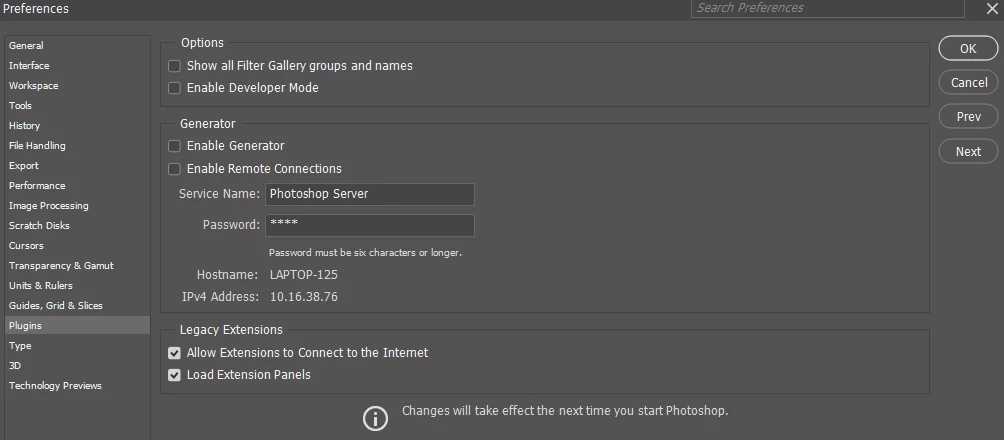
Under Edit > Preferences > Plugins, "Load Extension Panels" box at the bottom got unchecked somehow. Checking the box brought back my Libraries panel.
2 replies

Known Participant
September 26, 2024

I have the same problem and cannot find solution.

Sameer K
Community Manager
Community Manager
September 26, 2024

Hey, @bela1950. Welcome to the Photoshop Community. I'll need more info to help you figure this out. Please share the system info from Photoshop Help > System info > Copy and paste into a text document > upload and attach here. 


The original post has a solution. Did that help? If not, follow this series of steps:


1 - In the Creative Cloud app, in the Apps Tab, press CTRL + ALT + T (Win) to launch Creative Cloud Troubleshooter. Select 'Close Creative Cloud and related processes' > click on Go.

2 - Check the Task Manager for any Adobe-related processes & force close them.


3 - Windows - Press Windows + R to open the Run Window. Type in %temp% and delete files or folders with 'NGL' in their names.


4 - Restart the computer.

5 - Sign in to Creative Cloud first & let it update first before you launch Photoshop.


Let me know if the error persists. Thanks!

Sameer K

(Use '@mention' to tag me when you reply)

Known Participant
September 29, 2024
quote

Hey, @bela1950. Welcome to the Photoshop Community. I'll need more info to help you figure this out. Please share the system info from Photoshop Help > System info > Copy and paste into a text document > upload and attach here. 


The original post has a solution. Did that help? If not, follow this series of steps:


1 - In the Creative Cloud app, in the Apps Tab, press CTRL + ALT + T (Win) to launch Creative Cloud Troubleshooter. Select 'Close Creative Cloud and related processes' > click on Go.

2 - Check the Task Manager for any Adobe-related processes & force close them.


3 - Windows - Press Windows + R to open the Run Window. Type in %temp% and delete files or folders with 'NGL' in their names.


4 - Restart the computer.

5 - Sign in to Creative Cloud first & let it update first before you launch Photoshop.


Let me know if the error persists. Thanks!

Sameer K

(Use '@mention' to tag me when you reply)


By @Sameer K

Thank you for your help. My libraries are syncing and up to date.

I wasn't able to delete "ngl" files.  Message stated folder was open and could not delete.

I still do not have library panel in photoshop. I do have new "%DL_libraries _panel__ name " option available in drop down menu. When I drag it over where library used to be it is empty.  Am I still able to use library in photoshop? I'm a personal user and I read that cloud syncing has ended in 2/24. Does that apply to me? Please advise. Thank you

Joshua306184273h49AuthorCorrect answer
Inspiring
November 8, 2023

I figured out the solution!


Under Edit > Preferences > Plugins, "Load Extension Panels" box at the bottom got unchecked somehow. Checking the box brought back my Libraries panel.

Known Participant
October 3, 2024

Thank you I tried but it didnt help me.