
Participant
May 21, 2021
Answered

Lighting Effects not working

  • May 21, 2021
  • 6 replies
  • 19941 views

I use Windows 10.

Ever since I updated to 22.4.1, my Render > Lighting Effects isn't working. There's no guide to move the light and I keep getting two baffling errors.


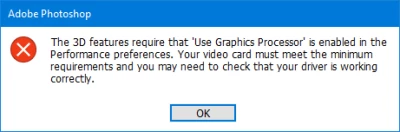
The first error insists that "Use Graphics Processor" should be checked... It is checked. I've even unchecked and rechecked it.
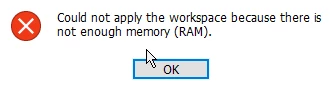
The second error insists I don't have enough RAM... I have 32 gigs of RAM.
 

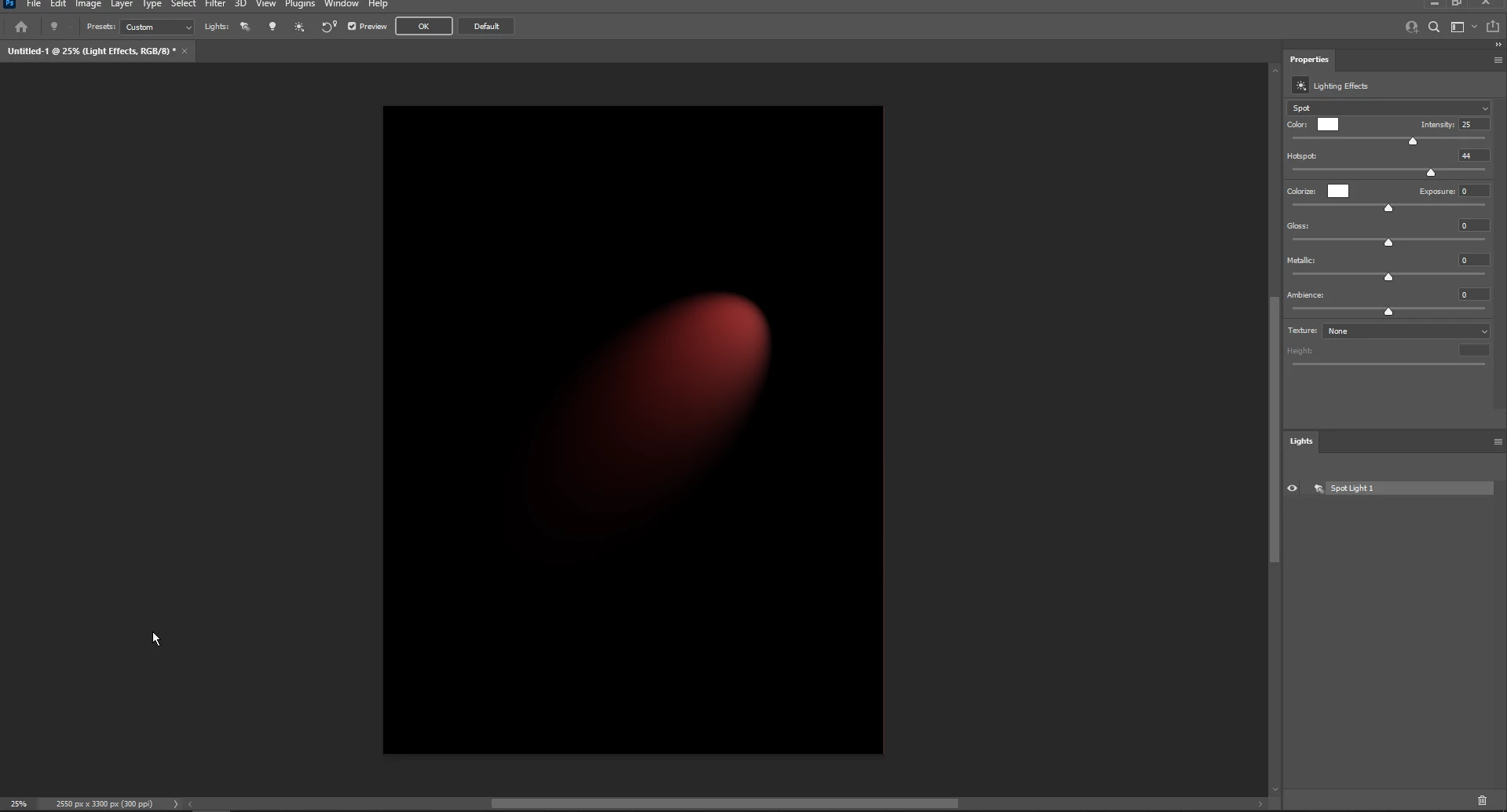
When those two errors pop up it outright refuses to open the Lighting Effects workspace altogether but sometimes it WILL open it... only I won't be able to make any changes on the image. It'll show that there's some kind of spotlight out but there's no way to move it and the sliders do nothing to change it.


Repair attempts I've made:


1 - I've made sure that my video card driver is up to date. It is.

2 - I've selected View > Show > All to see if the UI was hidden. The controls still refuse to show up and the sliders still don't work. They move, but the light doesn't actually change.

3 - I've uninstalled and reinstalled Photoshop altogether. Still getting the errors and inability to manipulate the spotlight in any way.


I am a graphic designer that uses photoshop practically daily. I took a couple days for myself and when I came back it updated to 22.4.1 and now this is happening. Please help, I need to be able to use lighting effects for my job!
This topic has been closed for replies.
Correct answer Ged_Traynor

Hi

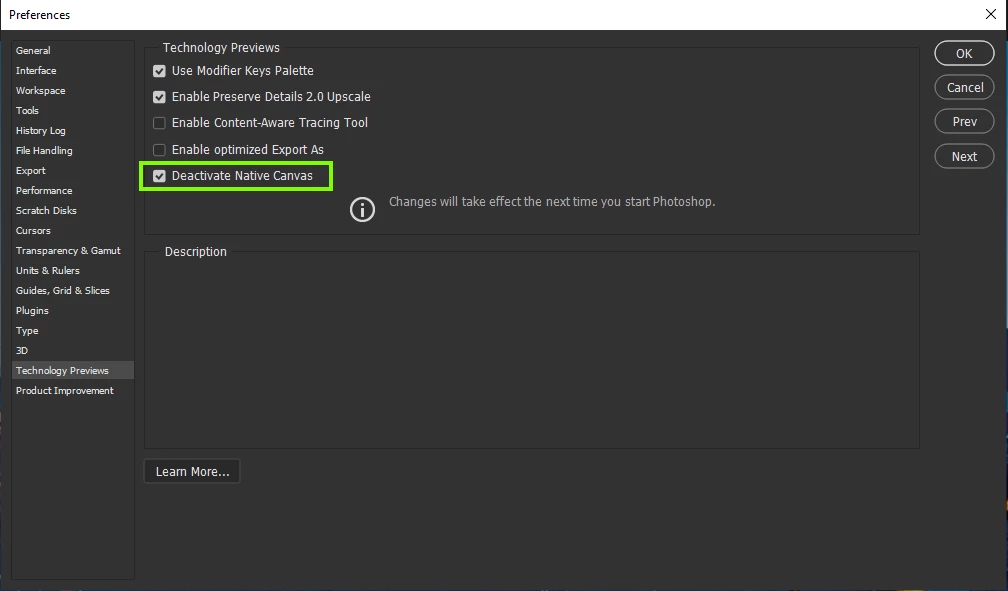
Try enabling this option in preferences and restarting Photoshop to see if it helps

6 replies

Participant
January 23, 2023

Checking "Deactivate Native Canvas" may be the first step, but it hasn't helped. Now the Render>Lighting Effects is not greyed out, but I'm only getting one "spotlight" filter and can't do anything to adjust it. Where are all the other settings?

artistic_nature98BC
Participating Frequently
November 14, 2022

Do not why adobe disable some features but they still implemented in program and do not work. Also what 3d in this filter it's just mask to bright areas what we can make manual but take more time, is it so hard to make it work without 3d things? Another reason to migrate on Affinity or other products

Participant
October 3, 2022

Hi,


I've the same problem on Photoshop 23.5.1 : no control tools to manage the light parameters are available. I've only some slidebars on the right panel, but it's not that I need.

I tried all the given solutions, but the problem is still not solved.

Does somebody have another suggest ?

Thanks

Inspiring
July 2, 2022

I have the same problem. In addition to the error message you got I´ve got several others after trying out sollutions found on Google. This did not work either. 

I´m actually getting a bit annoyed. I was supposed to do a project today that really neaded this feature. Instead Im surfing the web for a sollution to a problem that I see so many others have.

I´m paying for PS, but not able to get payed using it.  

Participating Frequently
August 10, 2021

I combined different suggestions from this forum and found a solution that worked for me:

1) [Edit > Preferences > Performance]
🗹 Use Graphics Processor
Click in Advanced Settings below: 
🗹 Drawing Mode: Advanced
🗹 Use OpenCL
 
2) [Edit > Preferences > Technology Previews]
🗹 Deactivate Native Canvas

3) Close and restart Photoshop -- don't skip!

4) Make sure [Image > Mode] is 8 Bits/channel, otherwise Lighting Effects will be disabled. 

5) Let's check the effects quickly with [Filter > Render > Lighting Effects] 

6) Finally, I clicked on [View > Show > All] and disabled Grid and Slices

7) Don't forget you can find the Reset button by holding Alt

All these steps combined worked for me. I hope it helps! 🙂
__ 
Microsoft Windows 10 64bit 
Adobe Photoshop 2021 22.4.3
NVIDIA GeForce GTX 970
Memory: 16GB

Inspiring
August 10, 2021

Thanks for these detailed steps. On my Windows 10 machine I got the Lighting Effects to work simply by checking  Deactivate Native Canvas.


The issue is with MAC OS.


Also, disabling Grid and Slices would take away functionality to make another function work -- that would be another Adobe flaw. 🙂

Participating Frequently
August 10, 2021

I had to try different suggestions to make it work, but it finally worked. Yay! ~ I'm glad you solved the problem on your side too.

Turning off the Grid and Slices view isn't a requirement to make the control handles appear -- I just wanted to keep  the view as clean as possible and that's what worked for me at that particular moment 🙂

Thanks for your reply! ^-^ 

Ged_Traynor
Community Expert
Ged_TraynorCommunity ExpertCorrect answer
Community Expert
May 21, 2021

Hi

Try enabling this option in preferences and restarting Photoshop to see if it helps

Participant
May 26, 2021

All this has done is grey out lighting effects. Any other suggestions would be welcome. I am using Mac with Big Sur 11.3.1 with an intel chip Macbook Pro 16" 6 core with 32gb Ram

Inspiring
June 3, 2021

Me too. Sigh.