melissapiccone
Community Expert
Community Expert
October 25, 2018
Answered

Lighting Effects Weirdness

  • October 25, 2018
  • 13 replies
  • 13720 views

PS 20 (2019)

Mac Mojave

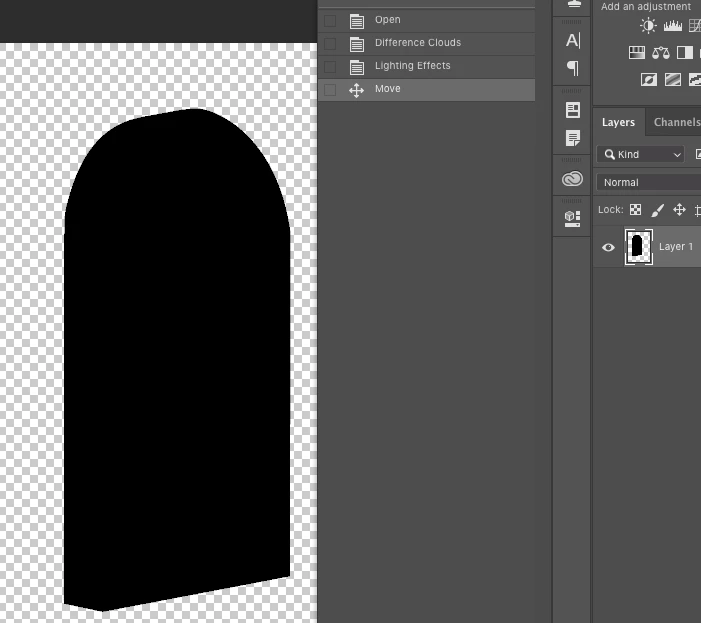
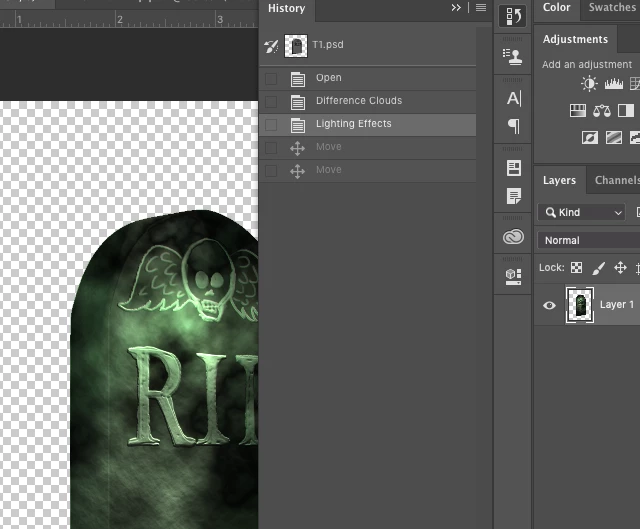
While teaching this morning I used the lighting effects and all seemed just fine. Went to move the object and it turned black... so weird. Wondering if anyone can reproduce the problem...

Result after using Lighting effects
    This topic has been closed for replies.
    Correct answer gener7

    Reported as fixed in the now released v 20.0.2

    Fixed issues in Adobe Photoshop CC

    13 replies

    Participating Frequently
    February 23, 2020

    I've been on the phone six times with Adobe CC 2020, each time I explained the same problem. Each tech took me through a number of fixes that did not work. Adobe finally told me that the lighting filter does not work and they are working on it. I also repeated myself six times explaining that the same thing happened with the release of CC 2019 which you are using. They could save customers time and trouble by simply stating they are attempting to fix the lighting filter. I have found one way to get the filter to work: Save your file, then quit and RESTART Photoshop. No tech told me this. You will loose your history however. 

    PECourtejoie
    Community Expert
    Community Expert
    March 28, 2020

    Hello,  21.1.1 release notes lists the black lighting effects as being fixed: https://helpx.adobe.com/photoshop/kb/fixed-issues.html#photoshop-desktop-fixed-issues

    Participating Frequently
    March 28, 2020

    Thank you. I finally have the ability to use lighting effects with my students. It is a critically important tool for theatre and design people. I commend the developers of this filter. However, I do believe Adobe should inform customers of problems with software in a more public way or, at least reply earlier to users who experience the same issues. As stated earlier, I was on the phone six times and I explained that the same problems occured when I updated to cc 2019. 

    Participant
    February 2, 2020

    This problem may have been reported fixed but as of today (1Feb20) it's still a problem. After much frustration, on a hunch,  I renamed the source file before attempting to add lighting effects and this worked. 

    RRKing
    Inspiring
    February 3, 2020

    It was not fixed as you witnessed in 20.0.3 and when you said rename the source file are you just talking about the actual psd file?  have you clicked on the trasform control check-box and tried?  I can get it to "work" if i un-check transform control and restart PS but the second i click on transform conrol so i can resize objects the lighting effects no longer work.  I have opened two tickets with Adobe and after they got on my computer (two different ones) both cases ended with them saying we will get back to you after a senior tech looks at the problem.


    whats your specs?


    -King

    PECourtejoie
    Community Expert
    Community Expert
    March 28, 2020

    Hello,  in the version 21.1.1 release notes lists the black lighting effects as being fixed: https://helpx.adobe.com/photoshop/kb/fixed-issues.html#photoshop-desktop-fixed-issues

    Participant
    December 27, 2019

    I had the same issue. I reset my preferences, quit Photoshop, restarted, and lighting effects works as expected.

    musings1234
    Participant
    January 3, 2019

    Have been so frustrated with this.  When they originally launched 2019, I had no lighting effects. Then I guess they did the fix but was coming up with it crashing when I said "ok".  Started using 2018 but am paying for 2019.  Annoying.

    Anyway did a quickie "duplicate layer" and then converted that to "smart object" and it seems to work so far.  Good luck.

    gener7
    Community Expert
    gener7Community ExpertCorrect answer
    Community Expert
    January 15, 2019

    Reported as fixed in the now released v 20.0.2

    Fixed issues in Adobe Photoshop CC

    Christian~F
    Participating Frequently
    November 19, 2019

    Photoshop 21.0.1 here and this issue is definitely NOT fixed! It's even messing up documents I made a year ago with PS20 and tested today with PS21. When I try to apply Lighting Effects, either nothing happens or it turns the layer (smart object) black.

    Participant
    December 7, 2018

    Same for me, sadly Adobe seem unable to help on this matter, I have tried the 'not moving it' to no avail. This problem is erratic and I have experienced it on all formats PNG, JPEG, Tiff, CR2.

    Had no problem with one Jpeg file then it occurred on another Jpeg file for no reason. I have reinstalled the most recent version of Mojave, uninstalled Photoshop CC, deleted the preferences from the Library and reinstalled everything. Nothing doing...

    Participant
    November 26, 2018

    Same problem here, on Windows 10 with Geforce 680M (granted it's old, but it works great).

    I add a spotlight to a layer, then OK it. Back to the main view, if I zoom in a little the image dims. If I save the image back to lightroom it dims AND doesn't display the spotlight. If I export the image as a new file, it's also dim. The brightness drops a lot when zooming or exporting.

    Also if I zoom in to say 2:1 or maybe a little less, I can adjust the layer opacity and it becomes completely black. There's no blending.

    Original image converted to 8 bit to allow lighting effects.

    A little annoying to say the least.

    Mohammad.Harb
    Community Expert
    Community Expert
    November 14, 2018

    Photoshop update 20.0.1 has been released today,This update includes fixes to some of the top customer reported issues among other bug fixes ( including

    more fixes in the link below:

    Fixed issues in Adobe Photoshop CC

    Participating Frequently
    November 14, 2018

    UPDATE CC 20.0.1

    Many issues when applying Lighting Effect as a standard Filter on a Layer/Background Layer are not resolved in update 20.0.1

    1. The preview of the Lighting Effects is not always accurate. After applying the filter in some cases the result looks different than in the preview.

    2. When applying the Lighting Effect on a (non background) layer, the image can turns black after flattening or after conversion to a smart object ( especially  large images).

    3. The image turns totally black after saving.

    When applying Lighting Effects as a smart filter several issues are now resolved:

    It's now possible to apply more than 1 Lighting Effect on a layer. The preview is accurate. The temporary 3D layer has been disappeared. As far as I can see now it works  without any problem. The CC 2019 files which contains a Lighting Effect as a smart filter are now fully compatible with Photoshop CC 2018.

    My advise:

    Don't use Lighting Effect as a standard filter in CC 2019, but only as a Smart Filter, until Adobe has resolved all above mentioned issues!

    Participant
    December 17, 2018

    I had the same problem. Tried applying lighting effects as a Smart Filter and it crashed PS. After a bit of research, tried changing some settings under Preferences>Performance, to no avail. Finally, on a hunch that trying to apply the smart object filter with the other project layers was overloading the GPU, I nested another smart object within the first one, then applied the filter to THAT. It worked, computer didn't crash, and I no longer got the black image.

    Participating Frequently
    November 1, 2018

    In the mean time I found a workaround. You can avoid this problem by applying Lighting Effects as a Smart Filter.

    Participant
    November 1, 2018

    Thank you for this. I ran into the very same issue and the Smart Filter fix worked great.

    Participant
    October 31, 2018

    I'm so glad it's not just me. The work around helps but this is really killing my work flow for certain things.

    Dramenon
    Inspiring
    October 25, 2018

    Thank you for reporting this, I have filed a bug on this problem.

    /end of line/
    Dramenon
    Inspiring
    October 25, 2018

    The workaround:

    1. Immediately save the file after applying a Light FX filter. (don't move it)
    2. Re open file and it works ok.
    /end of line/
    Known Participant
    October 29, 2018

    Trying to find out how to do that workaround, but doesn't seem to work. Photoshop is remembering my last four saved lighting effects (downward spotlights) from Friday (when it worked fine), which, to me is great, because I actually do want the same lighting, I just want to remove a couple of the downlights and move the remaining two.

    I even tried the workaround just now (created a separate layer specifically for the workaround, since I won't be able to move any of my lights), but anytime I hit the "OK" button to apply it, PS crashes. I can't save the file after applying because I can't even apply it.

    Will try resetting PS prefs next.