
ChemistX
Participant
February 25, 2019
Answered

Lineart problems

  • February 25, 2019
  • 7 replies
  • 2977 views

Hello I run photoshop cs6 (will be upgrading to cc soon) I have run into a problem that I have googled, youtubed, and read tons of forum post with no satisfactory answers. And hope the community here can help.

Its a pixelated line problem with my lineart, but seems to be very different from all other posts on the topic I have found. Let me start off by running through my set up ect. I use a Parblo a610 Tablet, I am new to digital artistry but not new to drawing (pen and pencil work mainly) I set my canvas to a size of either 3000x3000 or 5000x5000 with a dpi of 300. I use the first two brush presets (soft and hard) with the spacing set to 1% smoothing on and shape dynamics on.

Now the problem, on my usual pc screen which is hd around 28 inch the lineart (anime) looks flawless no stutter, jitter or pixelation. However when I view it on my larger screen also hd but around 40 inch I notice a serious amount of pixelation on my lines as do my friends who have viewed the image (three different rigs and screens) when viewing the image at size or zoomed in on any of these screens the pixealtion goes away (weird huh) yet when I zoom out to fit page or change image size to what the finished product size should be (1280) the pixelation is terrible around certain edges.

Usually I will sketch an image out in a light colour and then use the pen tool to create the finished black lines on a separate layer, I have also tried this free hand (yes my hand is quite steady) and get the same results of pixelated lines/edges, I have gone slow and methodical and done quick stroke lines all with the same results. I feel I must be missing something here and any help on resolving this would be great. Now my lineart and digital art is not up to scratch on what I can do in real life with a pen and paper as I am new and still learning but this is driving me insane and feel I can't progress until I have resolved this pixelation issue (yes I am OCD as hell) I will also post said image that has given me the worst results to date.
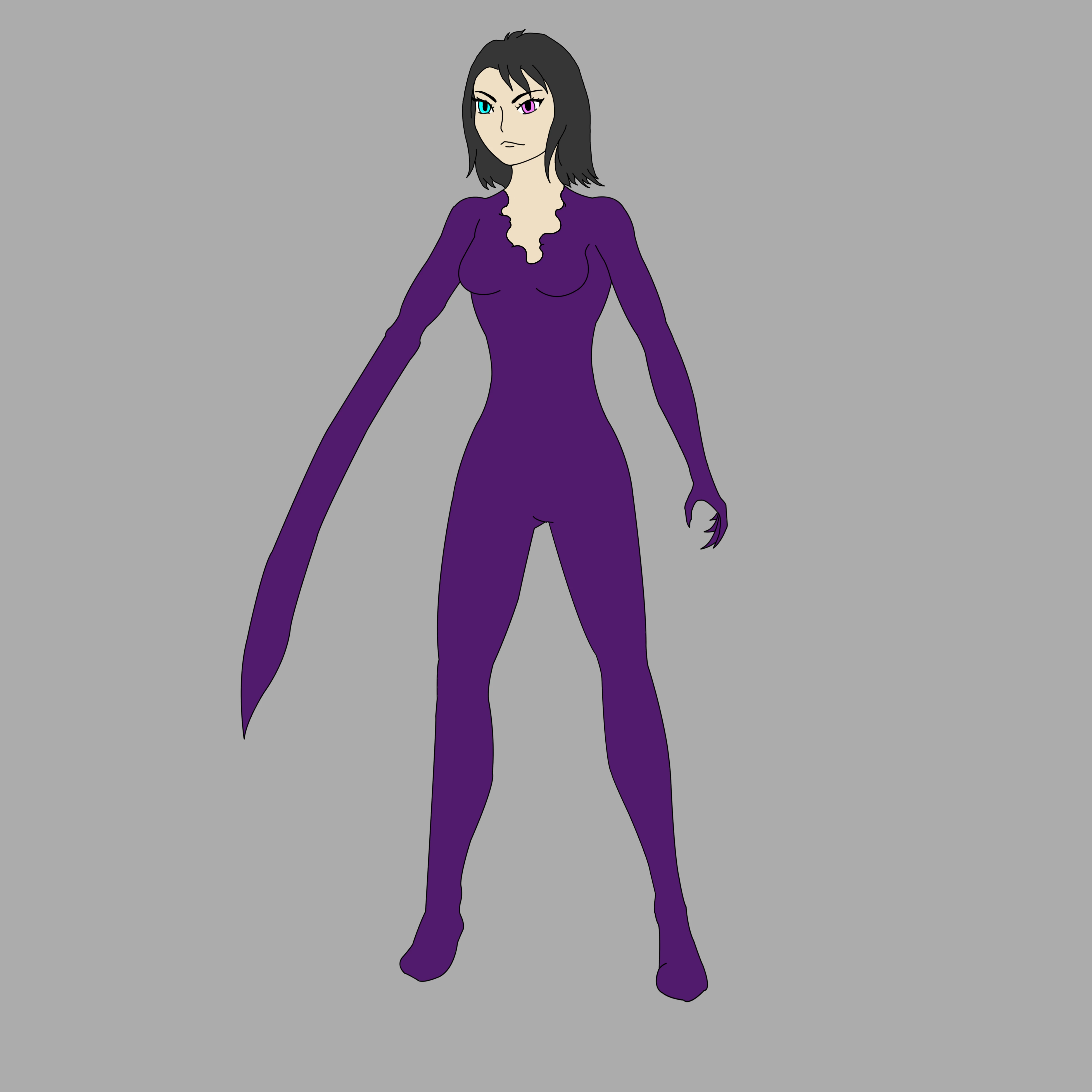
Above image done at 5000x5000 with dpi 300 using a hard brush set to 10px smoothing, shape dynamics, and spacing at 1% final outside lines created with the pen tool. When uploading to forum it said it would squish this down to 900x900 (I think ) but hopefully you can see what I am talking about.

Thanks in advance for taking the time to read and hopefully answer.

This topic has been closed for replies.
Correct answer davescm

Hi

I have just downloaded your image (5000 x 5000 pixels) and see no pixellation issues viewed at 100% zoom (which is 1 image pixel mapped to 1 screen pixel).

Of course zooming in further, pixels become visible but that is the way Photoshop works - at 200% zoom 4 screen pixels are used for 1 image pixel, at 400%, 16 screen pixels are used for 1 image pixel - etc

When checking quality - always view at 100% zoom

Dave

7 replies

Participating Frequently
March 11, 2020

Sorry if my reply is a year late. I ran into this post and just thought I'd reply because I think I know what you're talking about.

So I've dl your 5000x5000 picture and see that your brush is actually set on a soft edges. not to mention your lineart is very thin on a 5000px canvas.  when working on such canvas this huge, its more benficial to have weighted lines around 10-20px. Anywhos, because of this illusion, if you were to zoom out or to save it minimized, it will look undoubtly pixelated, with really rough edges. The fix to this is to actually use hard edge brush ( make sure your brush setting on hard edge is 100% no less!) and also to have thicker lines or weighted (but that is a choice).  Also make sure your lineart layer is always ontop of your coloring layer.  From the look of your drawing alone, it seem you just filled in the color in the lineart on the same layer.  Which you shouldn't.


Im also an artist, and I draw with photoshop. I hope this helps if not a little. 🙂 

ChemistX
ChemistXAuthor
Participant
February 25, 2019

Hello KShinabery, I really like your work and very nice web layout. Never thought of using illustrator, looks good though will give the trial a shot at some point see how it works for me. Always keen to try new art programs

KShinabery212
Community Expert
Community Expert
February 25, 2019

I tend to do my character designs in Adobe Illustrator. 

I either start out with a pencil sketch that is imported and turned into a template layer or I just start drawing in Illustrator. 

What I like about Illustrator is the designs are vector based.... so I never have to worry about pixelation.  And Illustrator works super well with Adobe Character Animator!  So if you ever want to animate your character and give it a voice then I would go with Illustrator.  Granted you can also import from Photoshop to Character Animator.

Think about it... and if you want to see my character art to see how I use Illustrator then here is my link. 

https://kennshinabery.myportfolio.com/digital-artwork-and-character-designhttps://kennshinabery.myportfolio.com/digital-artwork-and-character-design

Then you can also view my workflow as I try to share screenshots of how I create things.

Let's connect on LinkedIn. https://www.linkedin.com/in/kshinabery/
ChemistX
ChemistXAuthor
Participant
February 25, 2019

That is great to hear Dave thank you I will keep this in mind when creating images and make sure that the aspect ratios are correct before viewing I think this was the main trick I was missing here, relying to much on scaling algorithms. I will take this information and put it into practice and test results.

JJmack that price is much more reasonable than I thought, next month I should be able to afford such a purchase.

Thank you both very much for your time and patience, it has been very informative.

ChemistX
ChemistXAuthor
Participant
February 25, 2019

Hello again thank you both for the input it really helps, JJmack right now this is beyond my means just starting out hopefully in the future this will be an option so thank you I will save those specs as a goal to aim for.

Davescm thank you for checking the image, I am pleased that at least I am not running into any glaring errors.

However if I could just pick your brain a little more for some extra clarification that would be grand. Like I said my second (big screen) seems to pixelate the image when zoomed out rather than zoomed in this is true of a smaller scaled down image (1028) could this just be due to windows picture viewer trying to stretch the image to it's 'best fit' or more to do with the actual screen itself? Most of these images I will be working on are for a visual novel (using ren'py) which needs images to be either 1066x600, 1028x720 or 1920x1080 I will ideally be working in a 1920 or 1028 format. I was advised before to create images in a much larger format i.e 5000x5000 then scale down the image to appropriate size, but like I said any image viewer I run them through I seem to get pixelated lines, now if this is just due to the viewer doing it's best fit trick I can live with that knowing it will look good in its final finished stages. For obvious reasons I do not wish to create images that look good on my screen but horrible for the end user. Not exactly ideal to be creating inferior pictures for something you wish to eventually make a living out of.

Once again I thank you for any input, and taking the time to school my in the ways of the force... I mean photoshop as I am new to all this I understand this may be basic but we all have to start somewhere.

JJMack
Community Expert
Community Expert
February 25, 2019

The thing cost as much as two of my Dell workstation.  I when with a Dell 24" 4K IPS display $380 from Amazon.

Adobe zooming is done quickly for performance not for image quality. It just to give you some idea of your image scaled to that size. You are not viewing your actual image. At some zoom percentages the image quality is very poor.  You are not viewing your image. Photoshop performance would not be good  if Photoshop  interpolate your image for every zoom percentage.

JJMack
JJMack
Community Expert
Community Expert
February 25, 2019

The solutuin is simple but expensive.   Work on your actual image pixels not on a scaled version of your image.

You need to give up on 5000x5000px, settle for 7680x4320 a 16:9 Aspect ratio.

Tech Specs Device Type LED-backlit LCD monitor  / TFT active matrix

Dimensions (WxDxH) - with stand 28.4 in x 8.5 in x 24.3 in

Diagonal Size 32" Viewable Size 31.5" Panel Type IPS Aspect Ratio 16:9

Native Resolution 8K 7680 x 4320 at 60 Hz 280 PPI 33,177,600 pixels

Horizontal Viewing Angle 178 Vertical Viewing Angle 178

Screen Coating Anti-reflective, 2H Hard Coating

Brightness 400 cd/m² Contrast Ratio 1300:1

Response Time 6 ms (gray-to-gray) Color Support 1.07 billion colors

100% Adobe RGB color gamut, 100% sRGB color gamut, 98% DCI-P3, 100% Rec 709 color gamut

Features USB 3.0 hub Input Connectors 2xDisplayPort, Audio line-out, ENERGY STAR Qualified

Display Position Adjustments Height, pivot (rotation), swivel, tilt

3-Years Advanced Exchange Service and Premium Panel Guarantee

Dell UltraSharp UP3218K Price $3,699.99

Dell Video

better paired with a Wacom Intuos Pro then  an A610

For better performance 2% spacing should perform better than 1% brush spacing.

JJMack
davescm
Community Expert
davescmCommunity ExpertCorrect answer
Community Expert
February 25, 2019

Hi

I have just downloaded your image (5000 x 5000 pixels) and see no pixellation issues viewed at 100% zoom (which is 1 image pixel mapped to 1 screen pixel).

Of course zooming in further, pixels become visible but that is the way Photoshop works - at 200% zoom 4 screen pixels are used for 1 image pixel, at 400%, 16 screen pixels are used for 1 image pixel - etc

When checking quality - always view at 100% zoom

Dave