
Participating Frequently
September 8, 2023
Answered

Liquify and Filter Gallery not working.

  • September 8, 2023
  • 12 replies
  • 928 views

I too, can no longer use the Filter Gallery and the Liquify filter. When I call up Liquify this is what I see. 
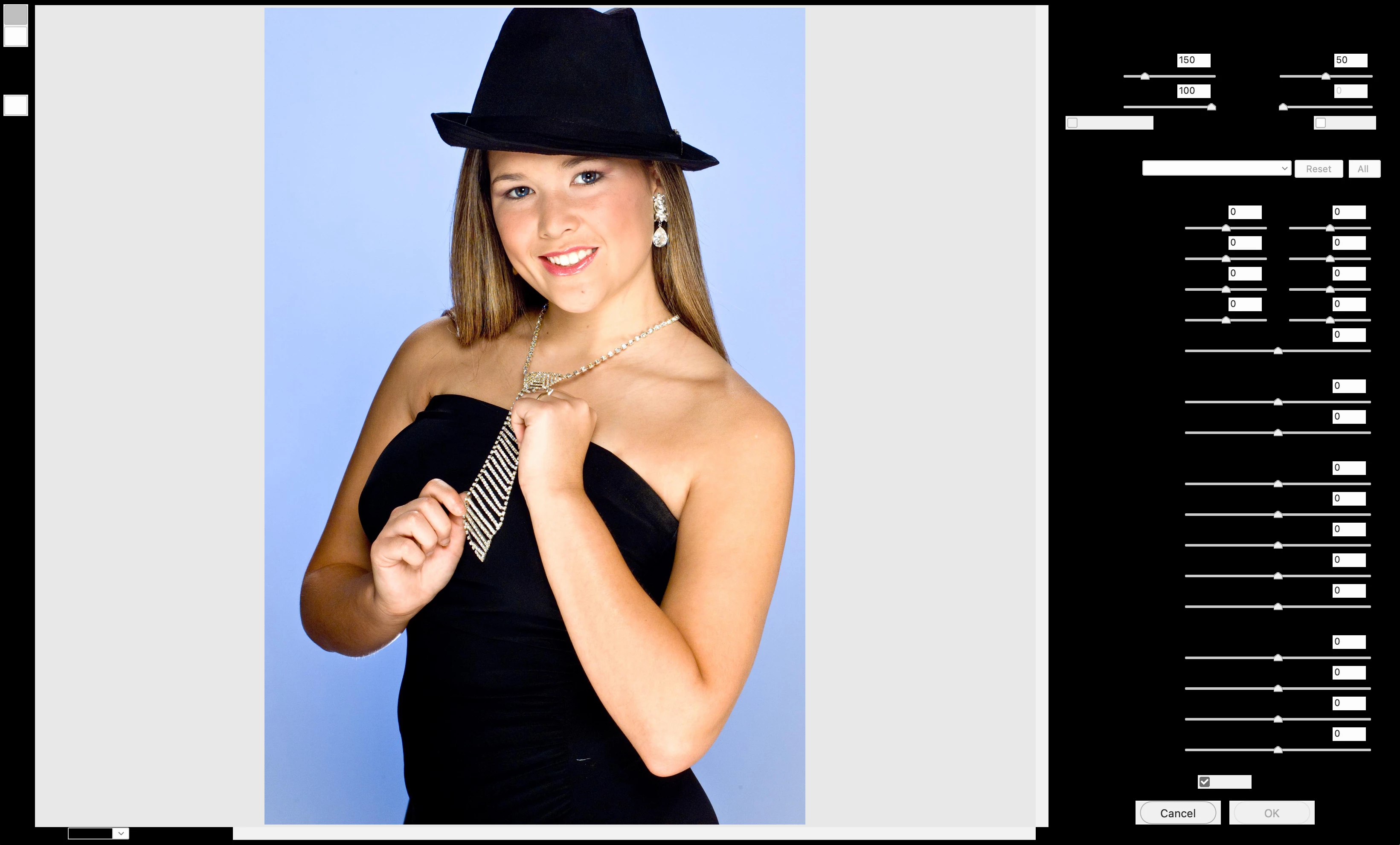
The tools menu on the left are not visible. On the right side the sliders are visible but the names of these sliders is not visible.


When I load the same image in the Filter Gallery this is what I see.

The image is an 8 bit RGB file.


My hardware is a 2 year old MacBook Pro which should not have any problem crunching this data.
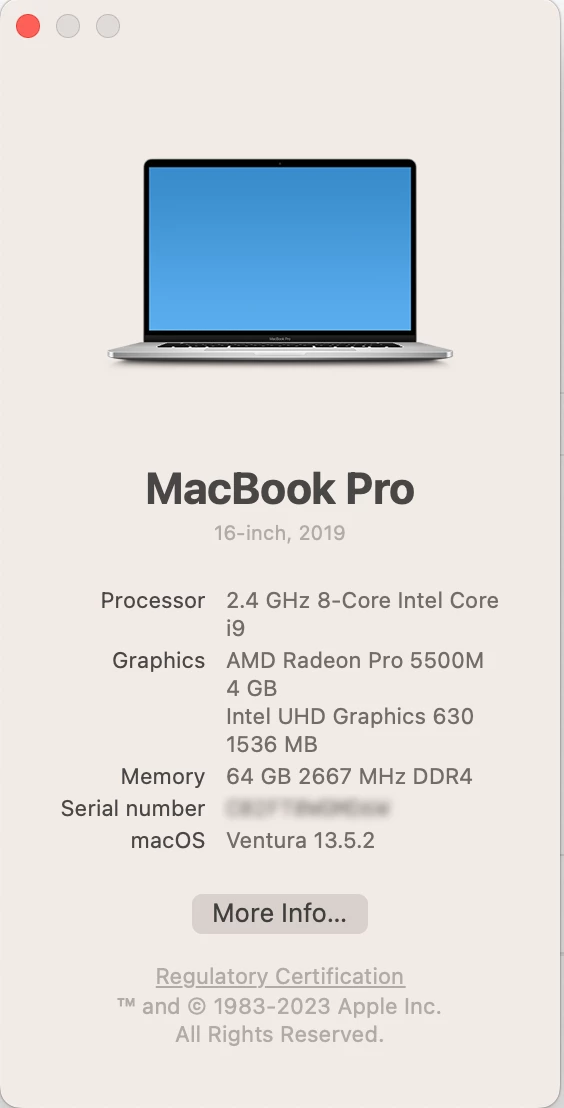
Is it possible that I may need to delete Photoshop and reinstall? Any assistance will be appreciated.

This topic has been closed for replies.
Correct answer Kevin Stohlmeyer

Woof! That is a lot of baggage. Definitely delete the old items using the Creative Cloud desktop app.


When you update - you have a choice to remove old versions or keep. It looks like you've had the keep on this whole time.

When I update, I keep the one previous verison in case of emergency/bugs. After a period of time though I remove.

12 replies

igot2n0Author
Participating Frequently
September 8, 2023

Thanks for your speedy reply. It is much appreciated. Under Technology Preview "Disable Native Canvas does not appear. What does appear is "Enable Preserve Detail 2.0 Upscale." I unchecked this and restarted Photoshop. Unfortunately, no changes. I also manually reset the Preferences. That did not solve the problems either. Do you have any other ideas?

Kevin Stohlmeyer
Community Expert
Community Expert
September 8, 2023

Hi @igot2n0 Try this first - go to Photoshop Settings/Technology Preview and check “Disable Native Canvas”. Restart PS.

If that does not work - Try resetting your Photoshop preferences manually. Note: Reinstalling does not automatically reset them so you could be installing over bad preference files:
https://helpx.adobe.com/photoshop/using/preferences.html#reset-preferences