Inspiring
November 20, 2021
Answered

Locate shapes and replace with dots. (Photoshop, After Effects, Illustrator or other software)

  • November 20, 2021
  • 2 replies
  • 1334 views

Hey All!

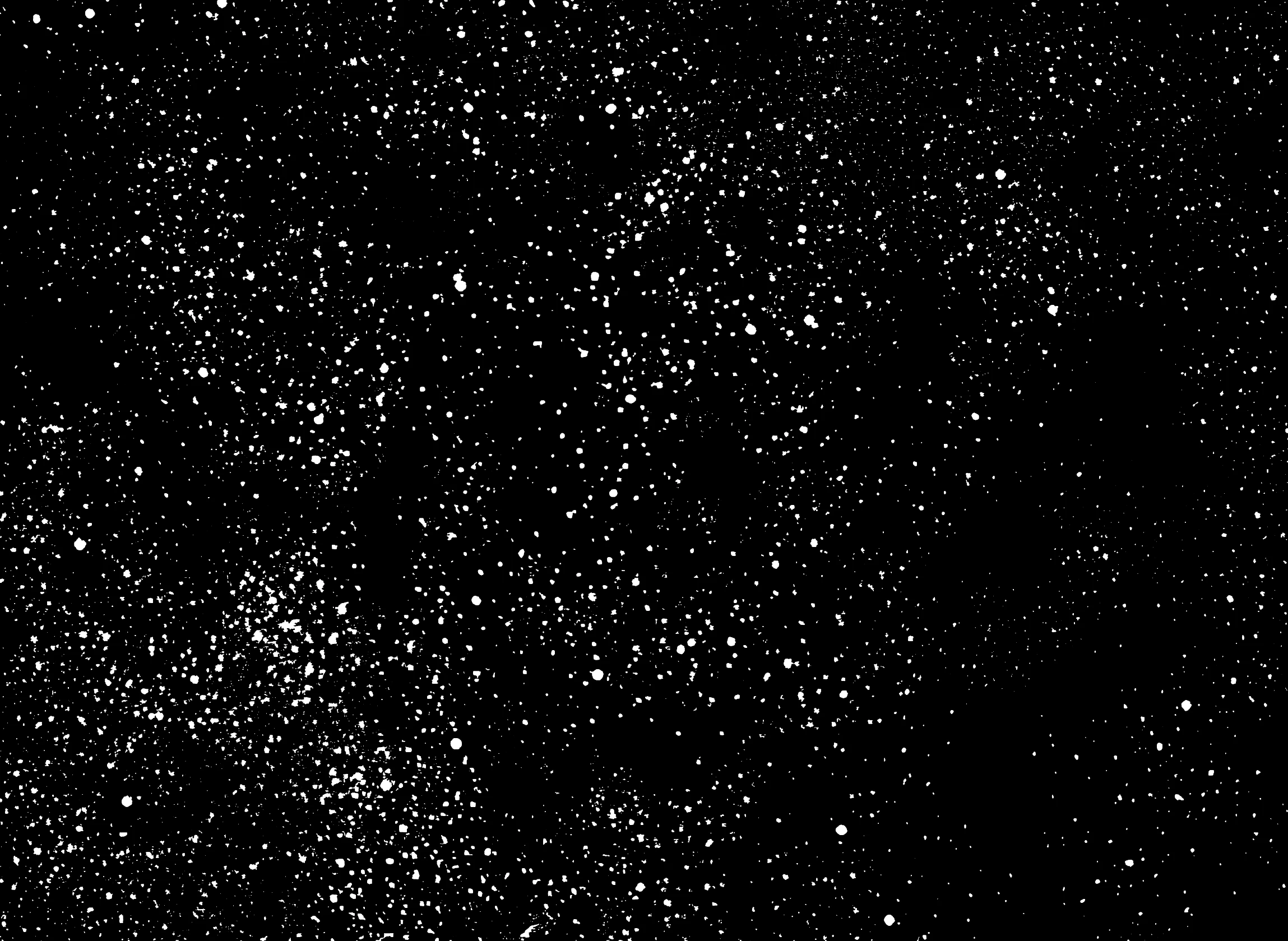
From time to time it comes up that I have an image of random shapes (in this case stars) that are not completely round, but more randomly shaped, which makes them in this case look more like snowflakes.


I'm trying to find a way to locate all the stars and place a dot on top of them with roughly the same size of the original star. Or find another way to make the existing stars completely round. I used edge detection to separate the stars from the background, so that they are 100% white to make it easier.


Has someone any ideas on how to do that with Photoshop, After Effects, Illustrator or any other software that may have a feature that can be used, or partially used to solve the problem?


If someone does not have a full solution, but just some thoughts, please still post them. Maybe it already helps. 🙂


I've attached an example image of what I'm talking about.

This topic has been closed for replies.
Correct answer helloitsme!

I wonder what keywords you used on 'google' when trying to find these scripts? btw the script you used is very short, is it everything what has to be done in Illustrator, run it on an image?


mySelection = activeDocument.selection

if (mySelection.length > 0) {
	if (mySelection instanceof Array) {
		goal = mySelection[0]
		centerPoint = goal.position[0] + (goal.width / 2)
		centerPointVert = goal.position[1] - (goal.height / 2)

		for(i = 1; i < mySelection.length; i++) {
			currItem = mySelection[i]
			centerPoint = currItem.position[0] + (currItem.width / 2)
			centerPointVert = currItem.position[1] - (currItem.height / 2)
			ratio = 100 / (goal.width / currItem.width)
			ratioV = 100 / (goal.height / currItem.height)
			newItem = goal.duplicate()
			newItem.position = Array((centerPoint - (goal.width / 2)), (centerPointVert + (goal.height / 2)))

			 if (ratio < ratioV) newItem.resize(ratio, ratio, true, true, true, true, ratio)
			 else newItem.resize(ratioV, ratioV, true, true, true, true, ratioV)

			 newItem.artworkKnockout = currItem.artworkKnockout
			 newItem.clipping = currItem.clipping
			 newItem.isIsolated = currItem.isIsolated
			 newItem.evenodd = currItem.evenodd
			 
			 if (currItem.polarity) newItem.polarity = currItem.polarity

			newItem.moveBefore(currItem)
			currItem.remove()
		}
	}
}


Oh true it is suprisingly short!

I tried many different keywords. I think something like "illustrator replace shape" got me to this result.

It got me to this thread where both scripts were linked to by other users:

https://community.adobe.com/t5/illustrator-discussions/replace-multiple-objects-in-illustrator/m-p/8572551


Here is everything I did in order. Also for me as a reminder since I don't use Illustrator much:

Preparation:

1. vectorize the image with Properties > Image Trace

2. play with settings to get it more accurate

Using the script:

1. create a circle (every selected shape will be replace with this circle)

2. select all objects that should be replaced

3. then select the circle (the replacement) last

4. go to file > scripts > zamena_size

(available here: http://illustrator.hilfdirselbst.ch/dokuwiki/en/skripte/javascript/zamena_size)
5. done! In my case it took a few minutes due to the thousands of stars.


The other script works the same way.

2 replies

pixxxelschubser
Community Expert
Community Expert
November 21, 2021

Try to use the "Illustrator way" with a Replace with symbol script.

Inspiring
November 22, 2021

That's a very good idea with the symbol replace script. Thanks a lot! While searching for that I found something similar that does exactly what I need here: http://illustrator.hilfdirselbst.ch/dokuwiki/en/skripte/javascript/zamena_size


I've also tried the "Find and Replace Graphics" script here: http://kelsocartography.com/scripts/#nvk

Also similar, but it's not quite what I need, since it strechtes in X and Y direction which results in ellipses rather than circles. But I've included it here in case someone stumbles across this thread and it works better for their needs.


Thanks a lot everyone in this thread!

Kukurykus
Legend
November 22, 2021

I wonder what keywords you used on 'google' when trying to find these scripts? btw the script you used is very short, is it everything what has to be done in Illustrator, run it on an image?


mySelection = activeDocument.selection

if (mySelection.length > 0) {
	if (mySelection instanceof Array) {
		goal = mySelection[0]
		centerPoint = goal.position[0] + (goal.width / 2)
		centerPointVert = goal.position[1] - (goal.height / 2)

		for(i = 1; i < mySelection.length; i++) {
			currItem = mySelection[i]
			centerPoint = currItem.position[0] + (currItem.width / 2)
			centerPointVert = currItem.position[1] - (currItem.height / 2)
			ratio = 100 / (goal.width / currItem.width)
			ratioV = 100 / (goal.height / currItem.height)
			newItem = goal.duplicate()
			newItem.position = Array((centerPoint - (goal.width / 2)), (centerPointVert + (goal.height / 2)))

			 if (ratio < ratioV) newItem.resize(ratio, ratio, true, true, true, true, ratio)
			 else newItem.resize(ratioV, ratioV, true, true, true, true, ratioV)

			 newItem.artworkKnockout = currItem.artworkKnockout
			 newItem.clipping = currItem.clipping
			 newItem.isIsolated = currItem.isIsolated
			 newItem.evenodd = currItem.evenodd
			 
			 if (currItem.polarity) newItem.polarity = currItem.polarity

			newItem.moveBefore(currItem)
			currItem.remove()
		}
	}
}


c.pfaffenbichler
Community Expert
Community Expert
November 20, 2021

I know no currently available method to truly and effectively achieve this. 

Overlapping »clusters« (see screenshot) make it difficult to determine individual objects/centers. 

Inspiring
November 20, 2021

Yes true the touching shapes are problematic, but if it would count them as one dot, that would already be better than nothing. Then I could manually adjust them later on if some happen to be to big.


Thanks for the input regardless!

c.pfaffenbichler
Community Expert
Community Expert
November 20, 2021

In that case I think there might be options, though not necessarily speedy ones. 

Illustrator or After Effects might offer better ones, but in Photoshop one could use a Script to create a Work Path based on the image loaded as a Selection, then evaluate all the subPathItems (approximate a center and a »width« if not an actual »radius«) and create a Path with circular supPathItems. 


Maybe someone else has a better idea?