
Participant
December 10, 2021
Question

lock canvas to landscape and add a portrait image

  • December 10, 2021
  • 3 replies
  • 293 views

Hi all - I'm assuming this is fairly easy to do:


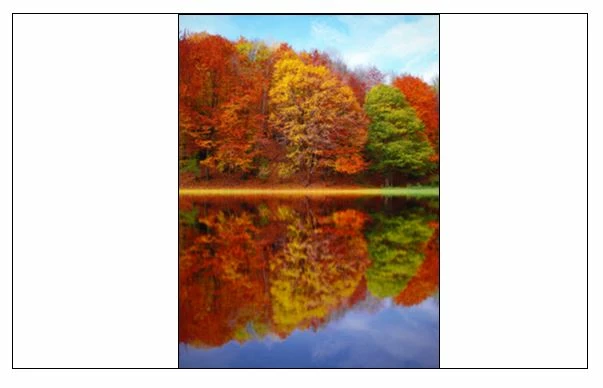
I'm looking to lock my canvas in a landscape position (4:3 ratio), and then add a portrait image into it, so that it sits in the centre with no cropping.


So when exported I'll essentially have a portriat image with white bars either side but it will be an actaul landscape file (if that makes sence, pls see picture).

Any help much appreciated!
This topic has been closed for replies.

3 replies

Conrad_C
Community Expert
Community Expert
December 10, 2021

The earlier replies should all work great, no need to “lock” anything.

It will probably center perfectly right away, if you bring in the image using File > Place Linked, File > Place Embedded, or simply drag and drop it in.


Participant
December 10, 2021

Thats great - thank so much! (i'm very new to PS, to still finiding my way around). So when I come to export, the file produced will have the white areas to the left and right and be in the 4:3 aspect ratio (once I've chossen that)in landscape?

Conrad_C
Community Expert
Community Expert
December 10, 2021

Yes, typically what exports is what you see inside the canvas border. The dimensions are what you see when you choose Image > Image Size.


If you export by choosing File > Export > Export As, or File > Export > Save for Web (Legacy), you see a preview of what and how it is going to export.

JJMack
Community Expert
Community Expert
December 10, 2021

You should have not problem placing in a portrait aspect ratio image into a document with at Landscape aspect ratio canvas. You can  select all and align the portrait image layer  to vertical and horizontal document canvas  selection center. Place will have scale a large image to fit within the document canvas size.

JJMack
Semaphoric
Community Expert
Community Expert
December 10, 2021

It would be easier to start with your portrait oriented image and add Canvas left and right.