

Keith_Keith
Participant
June 3, 2020
Question

M: Photoshop artboard greyed out when switch to another app

  • June 3, 2020
  • 9 replies
  • 11875 views

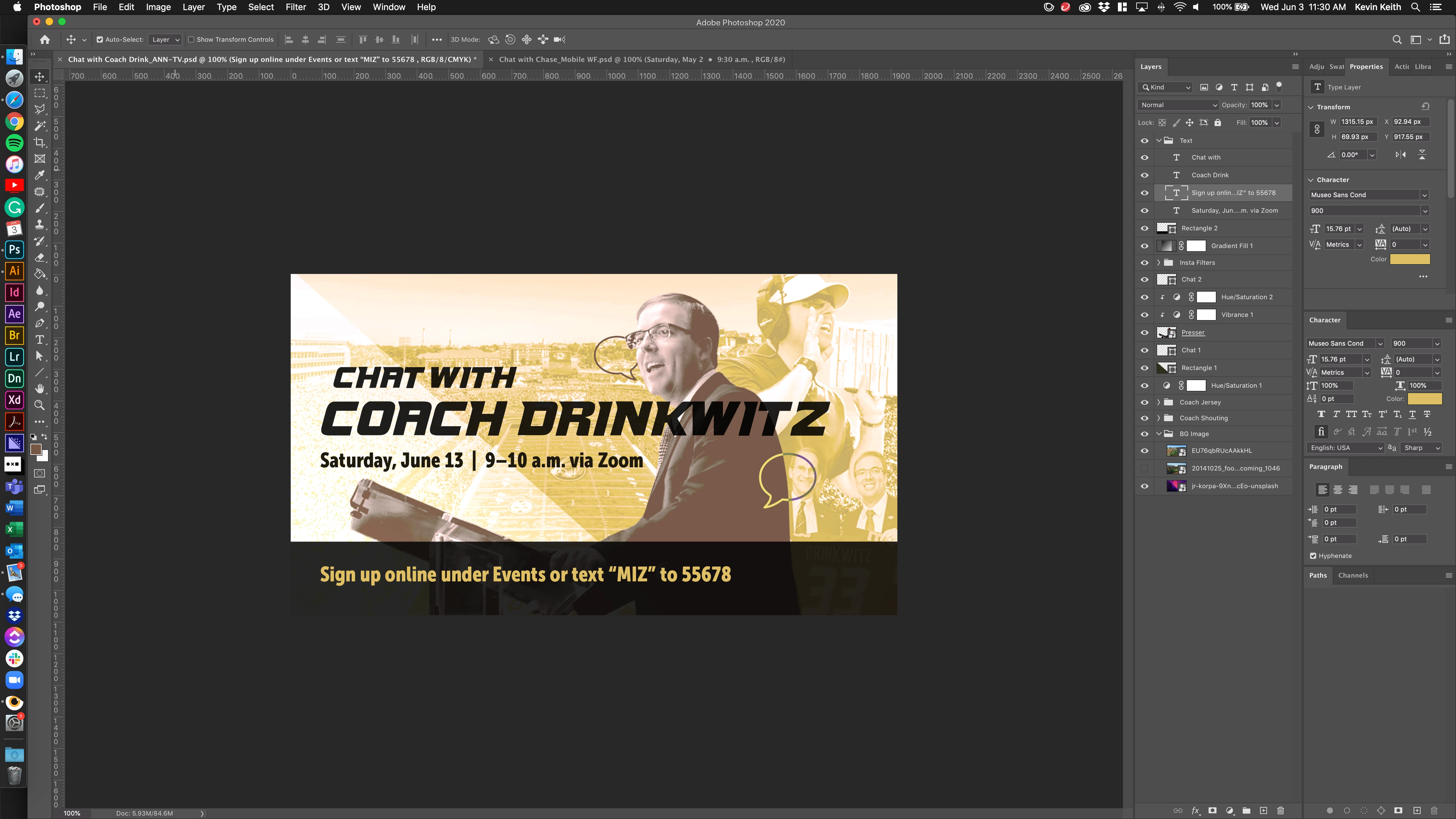
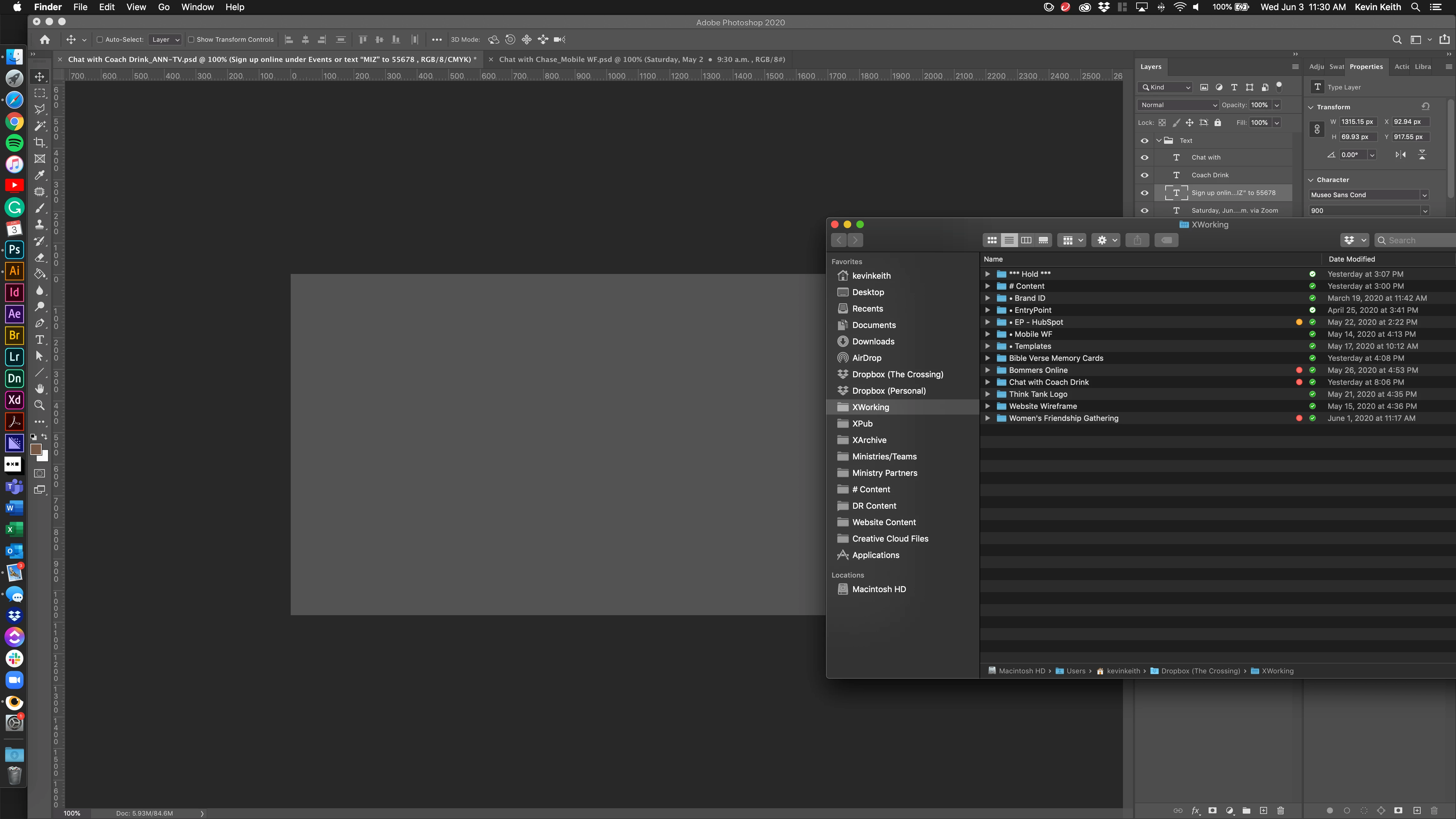
When working in Ps my artboard goes gray every time I make another program or window active. This is especially annoying when working with two screens. Every time I start working on my second monitor the artboard goes gray. The only fix is to click back into photoshop and zoom in or out a couple of times.

I'm having additional issues within photoshop where when moving photos or text boxes, the area around the selected object will go gray as well. And again, the preview is only restored to 100% capacity after zooming in our out a few times. Any help would be appreciated!


{Moderator note: Edited the thread title, PS-49172} 

9 replies

Participant
January 13, 2021

I'm having the same issue. When I use Photoshop on a dual monitor set-up, and then unplug and use my laptop without quitting Photoshop, I lose the artboard and zoom in/zoom out doesn't work, but all the tool palettes and windows are still visible. Super annoying! I just quit Photoshop and re-open it and that works, but really messes with productivity and workflow. This just started once I updated to Big Sur and Photoshop 2021 last week. Hoping for a bug fix soon.

Carola_BHG
Inspiring
January 19, 2021

I haven't had this problem in a while, I'm now using the latest version and hipe is gone for good! 🙂 

Carola_BHG
Inspiring
September 30, 2020

It started happening again after last update a few days ago, so I tried starting PS holding cmd+opt+shift and so far it seems to work. Thank you all for sharing what worked for you.

Carola_BHG
Inspiring
October 2, 2020

Hi all, after resetting my preferences and configuring all again, it just started again this morning, how can I fix this? Disappearing artboards are really a trouble to work with!

PapelMac
Participant
July 28, 2020

Same issue.  Making me NUTS!!!!

melissamarieb
Participant
July 28, 2020

AWESOME!!! works for me so far! thanks so much

melissamarieb
Participant
July 28, 2020

Same problem here.  When I click on a layer visability comes back, but super annoying.  Would love a solution other than going to a previous versions. 

PapelMac
Participant
July 28, 2020

This appears to have worked for me:

Resetting my Preferences (holding down Option+Command+Shift as Photoshop starting).

sergiob41351870
Participating Frequently
July 28, 2020

THIS WORKED! Thank you.

I hope it doesn't revert, but so far so good.

sergiob41351870
Participating Frequently
July 6, 2020

Hi Keith, I'm having the same problem. How did you resolve it?

Participant
June 25, 2020

I have reset my preferences, I have lowered history states, I've checked off Graphics Processor. None have worked. Please help.

War Unicorn
Community Expert
Community Expert
June 25, 2020

Did you try giving the CC Cleaner Tool a shot? (Note that it'll nuke everything; you'd have to reinstall and reconfigure Adobe apps.)


https://helpx.adobe.com/creative-cloud/kb/cc-cleaner-tool-installation-problems.html

Participant
July 6, 2020

I just downgraded back to the previous version and I'm back to loving life. I've turned off auto-update as well. Back to my update paranoia. Disappointed.

Erandine
Participant
June 25, 2020

Lowering the number of History States didn't worked for me but my solution was resetting my Preferences (holding down Option+Command+Shift as Photoshop starting).

Carola_BHG
Inspiring
June 16, 2020

Oops, I opened a topic about this same problem, maybe it should be closed to follow the same issue here. I disabled the Graphic processor also but still happens. I have to scroll up/down to see again the artboards, and this is very very annoying. Can't see where I'm dragging things, can't work on two documents opened side by side. I'll try to downgrade as a temporary fix <-- If anyone tries this, don't forget to export/backup your workspaces, or you'll lost them all.


This problem happens to me and to my work colleague. I'm using an iMac 27, 2017, 10.14.6 and he's using iMac 21, 2015, 10.14.6.

Carola_BHG
Inspiring
June 16, 2020

Hi all,

After upgrading Photoshop, when I'm working on a document in PS and I switch to another app, the document 'hides' the artboards in it.

I can't drag anything from a different app because I can't see where is it going to land.

I can't swith to a different app keeping an eye on what I'm doing in PS, because it disappears.

I have to switch to PS and scroll a bit to make my artboards appear and this is very inconvenient. I made a video while composing this post to explain the problem.

Basically, I can't see my document if I'm out of Photoshop.


Participating Frequently
July 13, 2020

Hi there,


We're sorry for the artboards issue. Please make sure the graphics processor is turned on in Photoshop preferences. Go to Photoshop preferences > Performance tab > Put a checkmark on "Use Graphics Processor" > Restart Photoshop.


Let us know the results.

Thanks,

Mohit


This is happening for me as well. Regret updating now as it makes it an incredibly frustrating experience. The solve proposed does not work.

War Unicorn
Community Expert
Community Expert
June 3, 2020

My first thought is it might be video driver/graphics acceleration-related. If you disable it, does it go away? (Photoshop > Preferences > Performance > Graphics Processor Settings. Uncheck, "Use Graphics Processor.")


That's great artwork, by the way.  🙂

Keith_Keith
Participant
June 3, 2020

No change, unfortunately. 

War Unicorn
Community Expert
Community Expert
June 6, 2020

It does sound like a video adapter and/or driver issue dealing with redraw. Did you try other resolutions and refresh rates?


Unfortunately, you guys in the macOS world are at the mercy of Apple when getting video driver updates. The only thing I can suggest is to contact Apple to see what they say.