Inspiring
November 21, 2019
Answered

M: Where did my basic custom shapes go

  • November 21, 2019
  • 12 replies
  • 36201 views

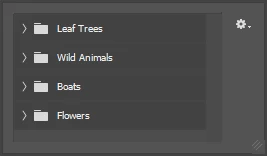
I'm on the latest version of Photoshop CC 2019.  I select custom shape (I want to create a talk bubble) but my basic shapes seem to be gone.  All I get is Tree Leaves, Wild Animals, Boats and Flowers...what gives? I tried to reset default shapes and it just gave me the same choices.


Correct answer Chuck Uebele

 I used to have several shapes with the shapes tool, even basic ones such as arrows, stars etc... but in

Photoshop 2020, I don't find them anymore.


​Are they still there? and how can I get them back?


I check the panel and there is no options to load.

Also, I tried to reset to default but it loads several times the same folders and can't even delete them?


Do you have a link to download them again (for free) so I can import them back?


And how can you delete a shape folder if the option is grayed out?

thank you


[Thread merged by moderator.]


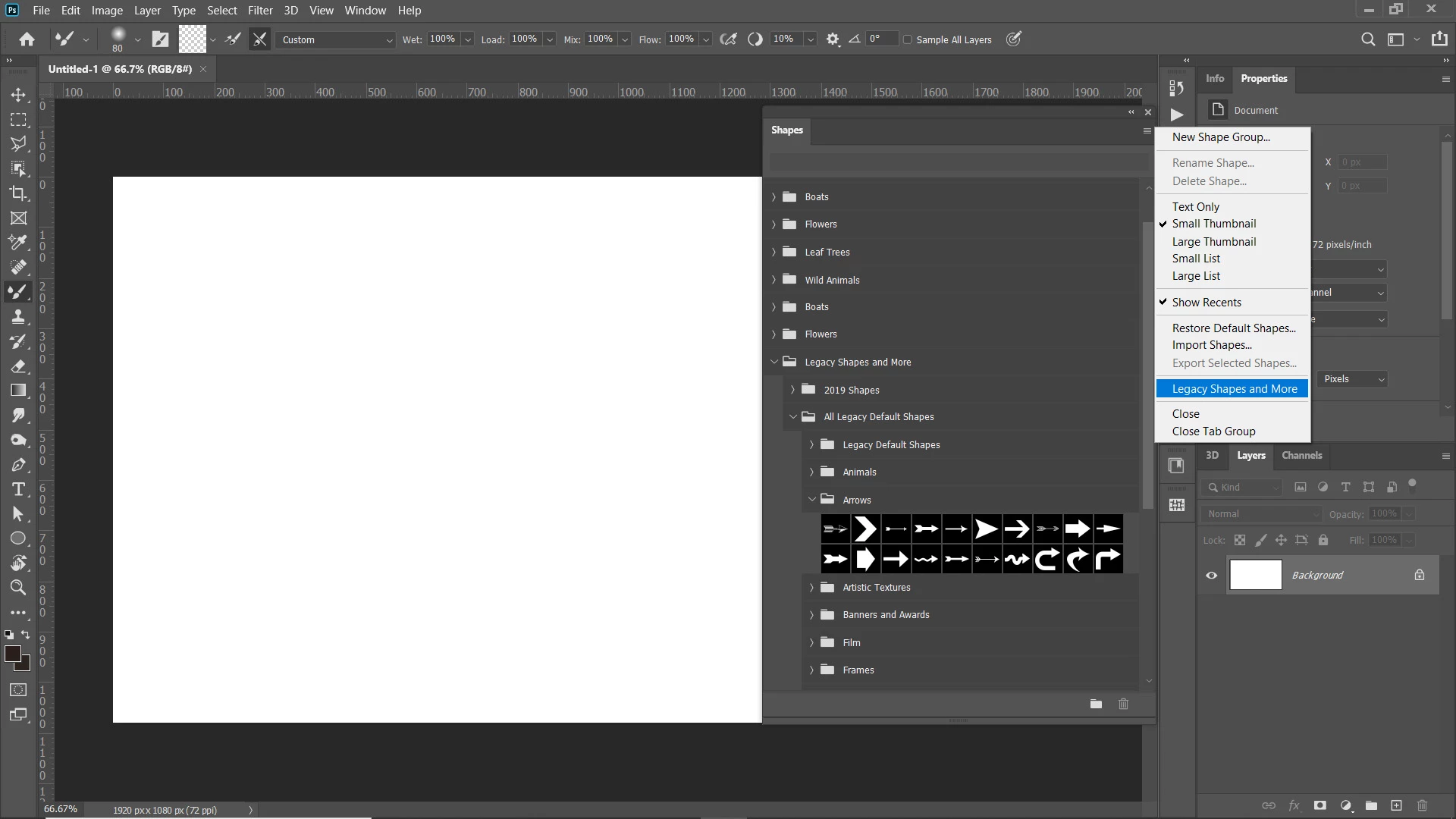
Click on Window in the main menubar, then select "Shapes." In the flyout menu, select "Legacy shapes and more." Find the folder where the shapes that you want are in, and select them from there.

12 replies

Inspiring
November 21, 2019

To follow-up, this is the shape picker I cannot find:

November 21, 2019

As Dave mentioned

Participating Frequently
March 31, 2022

Help. I've done everything mentioned and can not find an option for "Legacy Shapes and more" What am I missing. I am using Photoshop 2022 and I'm tired of wasting my time looking for things that used to be there for the past 10 years.


davescm
Community Expert
Community Expert
November 21, 2019

Hi

Open the Shapes panel (Window >Shapes). Click at the top right of the panel and in the drop down menu choose "Legacy Shapes and More"


Dave

Inspiring
November 21, 2019

Thanks Dave, seems to have done the trick...funny thing in PS 2020, but you gave the solution