

bellevue scott
Inspiring
February 15, 2019
Question

Mac OS - Finder icons broken

  • February 15, 2019
  • 14 replies
  • 13886 views

On my mac, OS 10.13.6 (although this has been happening for years now), icons appear broken. Instead I get the generic "tif" icon. This is more than just an annoyance. It has a significant impact on productivity as a graphics professional, and I'd like to understand how to fix it. And pardon me if this is an old issue, but it's been forever that this is happening, and solving this problem would really help my business work flow.

I showed this image in a Mac forum, and was immediately treated like a newbie and told by several people that this is not an Apple issue, but an Adobe issue. But I reset the default program for tifs to be "preview" and restarted, and that does not solve the issue. I've also on several occasions, if not more, gone and deleted the finder plst file and rebooted, as well as relaunching finder, and nothing helps.

How can I fix this issue? Any ideas?
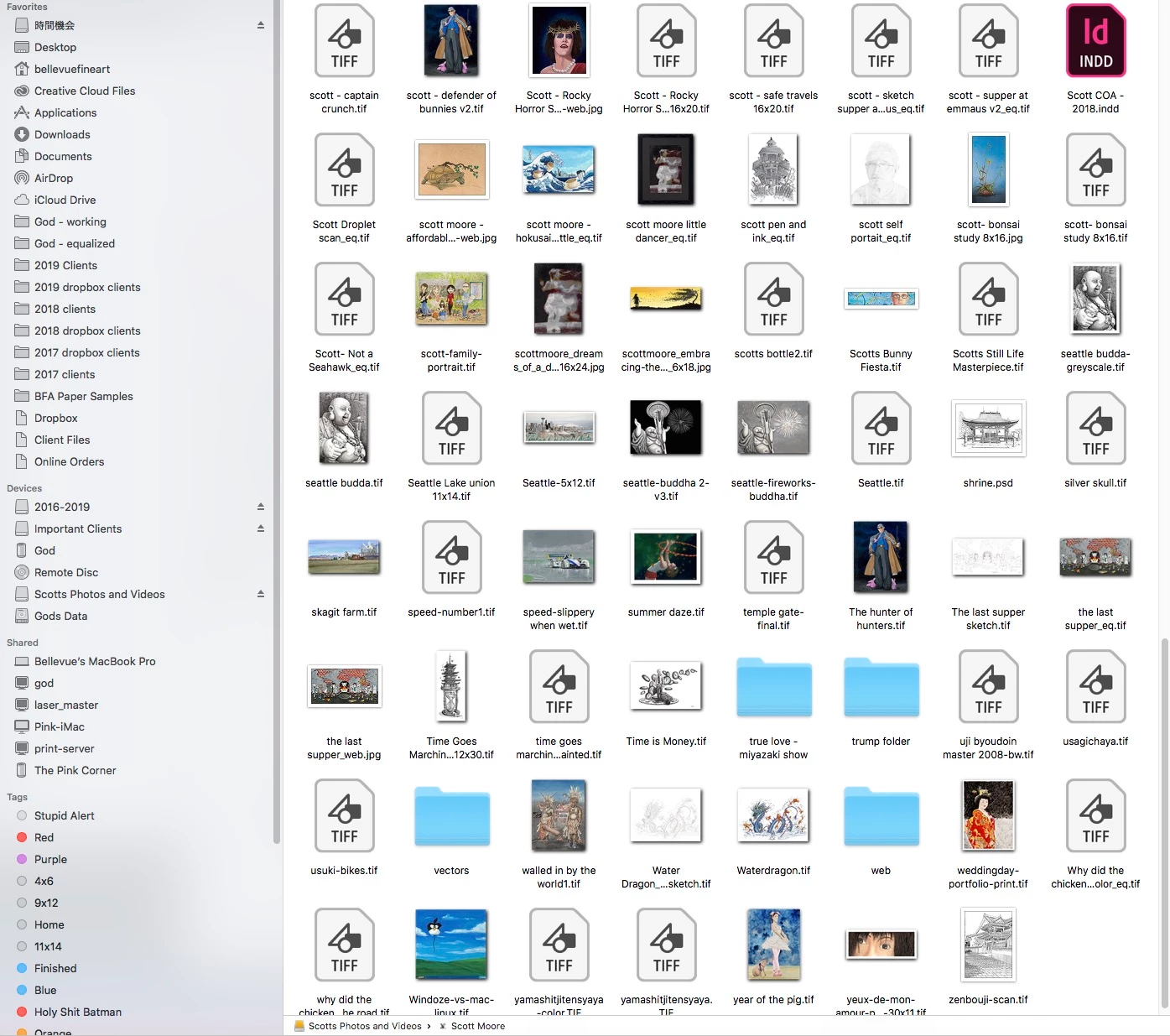
This topic has been closed for replies.

14 replies

New Participant
February 24, 2020

I'm using Mac OS Majave. Here's what fixed my missing finder icons:

"Reset NVRAM or PRAM on your Mac" https://support.apple.com/en-us/HT204063

New Participant
January 28, 2020

I have a workaround that might possibly work so your icons at least look like the correct ones.

The app called Image2icon will take almost any image and convert it into a ICNS file. Once you have the new ICNS file open the information window and drag the icon over the tiff image you see at the top of the window. 

It's not a proper fix but its the quick fix and aesthetically it will look right.


I have a similar problem and have tried a few things but to no resolve.

Good luck if you try this.

rafaellondon
Participating Frequently
January 15, 2020

I solved the problem by deleting/moving to the harddrive some files and restarting my MacBook Pro. I think this happens when the computer is on the limit of space. It makes load os sense as the CPU cant copes with  creating the previews of the files so just cancel them all.
I hope this helps.

bobb84012647
New Participant
November 11, 2019

I recently aquired the same problem on my MacOS High Sierra version 10.13.6, arising seemingly out of the blue. None of the previous replies helped, but here's how I fixed it:


Right click (or control click) on a malfunctioning icon, and select Show View Options from the menu. I unchecked Show Icon Preview, then I immediately re-checked that box and all of my icon previews reappeared.


Hope this helps you too.

Participating Frequently
November 21, 2019

Adobe Indesign 2020 files still only show a generic icon in OS 10.15.1. The workaround of using ID UTIL is not compatible with Catalina. Apple refuses to address this issue. Very frustrating as it signficantly increases time to find files.

rafaellondon
Participating Frequently
January 15, 2020

I think is being ages since InDesign previews don't show. It was nice before.


New Participant
August 14, 2019

I had this issue on macOS Mojave (10.14.5) - I solved it by deleting Google Drive Stream, one of their drive products intended to sync drive folders without actually downloading their content.

I used an app called AppCleaner to remove the app, because removing only the app the first time did not remove all of its contents.

As soon as I used AppCleaner to remove Google Drive Stream my .ARW Sony RAW files immediately previewed normally again.

Hope this helps.

SarsparillaGro
New Participant
July 6, 2019

Hi Bellevue scott,

I've had this same problem and have been searching the interwebs for fixes that actually work. I found one that is different from everything else that is normally suggested.

I hope it works for you!

Basically for me it had something to do with having dropbox installed. Which is weird because I've had dropbox installed for a while and the problem only emerged recently. But then I followed the directions to remove the droop box file and it fixed it.

That being said - it doesn't seem to work for everyone but I hope it does for you.

I've cut and pasted the text from the fix and then included the original link below:

Any chance you have DropBox installed?

If so try this:
Go to /Users/youruser/Library/QuickLook/ and if there is a DropBoxQL.qlgenerator move it to the trash.
Then wait 5-10 seconds, and open a folder where previews weren't working.

DropBox will create a new DropBoxQL.qlgenerator when you login next (either logout/login or on restart) so if you want to prevent DropBox from screwing with your previews again then you'll need to put a dummy file in place.

In terminal run:

sudo touch ~/Library/QuickLook/DropBoxQL.qlgenerator 

This will create an empty file owned by root that DropBox can't overwrite (since DropBox is running as your user when you log in).

This hasn't caused any issues I can detect on my Mac Pro (10.11.6) or MacBook Pro (10.12.2) but as always YMMV.

The link is https://apple.stackexchange.com/questions/182536/why-cant-i-see-thumbnails-in-the-finder

New Participant
July 6, 2019

This started happening on a folder I'm using with Google Drive Stream. It's the worst.

Participating Frequently
May 16, 2019

Hello there,

Any news about solving this issue. I loose hours and hours of working time on this ridiculous issue as a professional photographer trying to look for a specific files from external hard drives without seeing the thumb nails...

Letś really try to find a solution... ;  )

Participating Frequently
May 16, 2019

I found there was a setting in ID Util that enabled me to see the InDesign thumbnails. So, if you're using MacOS Mojave, download the ID Util from the App Store, and you should be back in business! On a side note, my latest note from apple is that they have no plans to include this fix in an update.

Participating Frequently
May 16, 2019

I downloaded it.

Did NOT make any difference. Still can NOT see my thumbnails. Makes my work impossible.

Am I missing something ?

Participating Frequently
May 14, 2019

I have the same issue. I worked with 2 higher-end apple reps and was told there seems to be no support for indd files in Mojave, but to try ID Util. ID Util is NOT a fix, as you still have to open the InDesign file to view it (vs. browsing in Finder to view files). I agree that this is totally unacceptable. I had no problem in the older OS finder app, and it has seriously impacted my workflow. I'm desperate for help on this.

By the way, you should know that Apple Engineering collected my system files twice to look into this issue. Initially they said the bug was fixed in an update, but it wasn't. Because the engineers concluded there's no support for indesign files, it's not an adobe issue.

Inspiring
March 1, 2019

Having only recently upgraded to Mojave, I've encountered this problem too.

Not sure if there's been any updates since the original post, but I've found if you 'Force Quit', and then relaunch the Finder, it corrects it - not fixes, but helps!

sharp_hands16B8
Community Expert
Community Expert
February 15, 2019

Hi Scott,

sorry you're going through this. I'm curious, do you have "save previews" set in the preferences for Photoshop? I'm wondering if these files are all coming from a PS Save? Is there something that correlates int he ones that show no preview? Like are they 16bit or are they over a certain pixel dimension? I'm just looking for anything that's a root target we can look at.

There are some comments online about deleting a .PLIST file.

See here.

TIFF icons won't display - Apple Community

Good luck!

bellevue scott
Inspiring
February 16, 2019

Hi Mark-heaps,

These files have all been saved in PS. For some history, this started a few years ago, it's been a long time, but it's a thing that sometimes really really gets to me. It happened at the same time that the icon preview in the title bar turned into a generic blank icon (not just for tifs but all files). Apple blamed it on Adobe, and Adobe blamed it on apple, and after a couple of years the subject went away. This is why I'm asking here again. And I wonder if others have seen it. It happens on 5 machines in my office, so surely I can't be the only one.

To answer your question: Tifs are generally 8 bit, and I do recognize that changing a graphic file from 8 bit to 16 bit does in fact cause preview issues, especially for files over 500mb. I can live with that, although seriously, 16 bit image files have been around for decades now.

So, all files are created in PS, although I've saved files in GIMP after making a non destructive change to see if that makes a difference, and although the icon preview may come back, and often does, after some time it will revert to a generic icon. It's as if the OS is generating the icon every time you open the directories, so even fixing them isn't permanent.

I think the one common denominator is that all the tif files are large. I have a 4x5 scanback camera that generates very large files, and final flattened files will be from 200MB to 1.xGB. Although generally in the 200 to 500 mb range. Mostly 8bit in their final form. And all files live in the Adobe 1998 color space.

Every single file in question is generated like this:

Mac Pro, garbage can model 2013, 3.5GHz 6-core Xeon, 64GB RAM, 18666 DDR3, 2x AMD FirePro D700 6144MB

4x5 scanback camera outputs Tif file at 16 bit with custom camera profile

file is edited PS CC, converted to Adobe 1998 color space, pared to 8bit,

saved @ 300ppi at the original size of artwork photographed

Saving options "image previews: always save checked: Thumbnail checked"