
Participating Frequently
February 19, 2024
Answered

Make background of a pattern transparent
  • February 19, 2024
  • 2 replies
  • 2064 views

Hi.

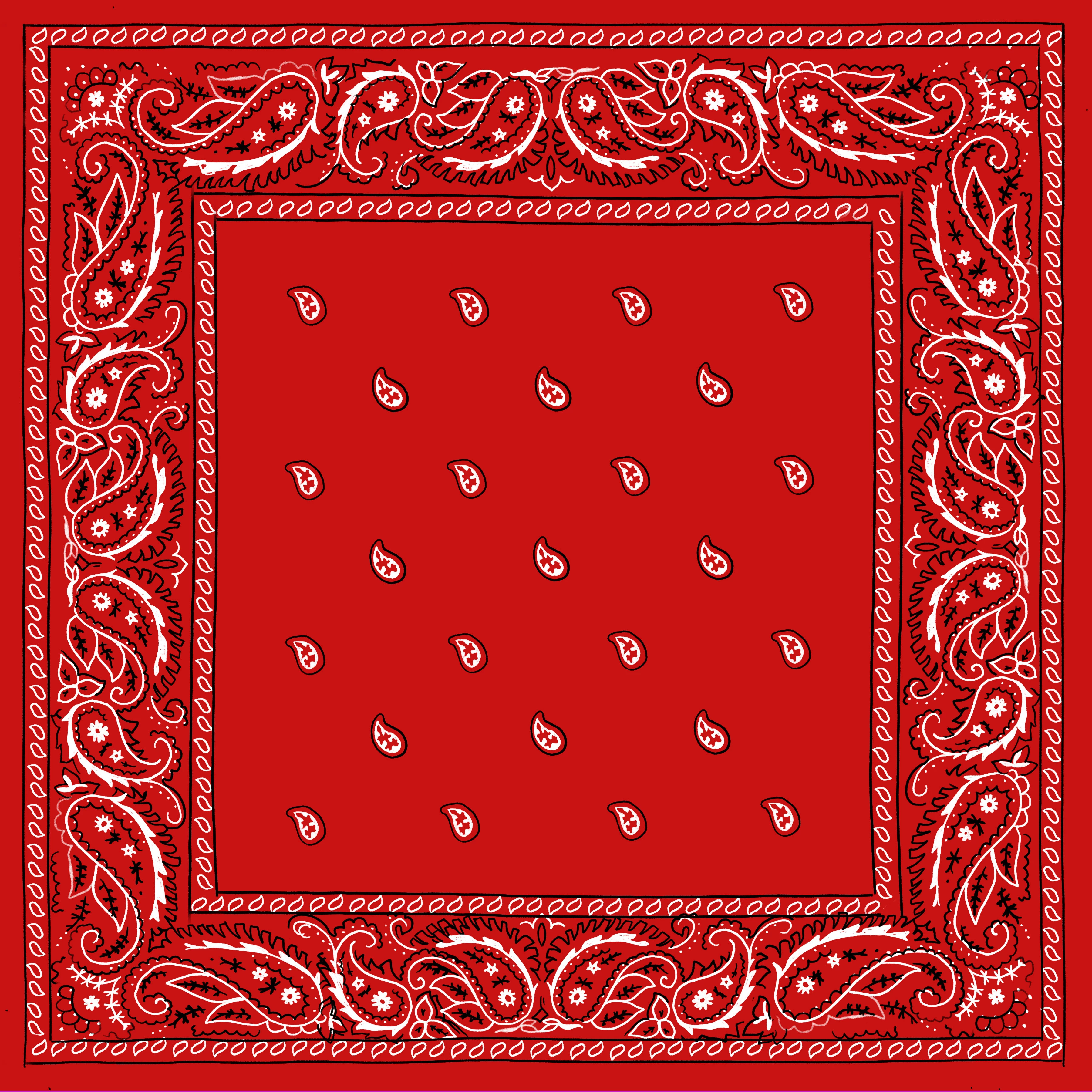
I have accquired a license for the image above and I want to remove the red entirely, and make the background transparent. I want to only end up with a black and white pattern on a transparent background, so I can then put the transparent image on to any color background I like.


So far, instead of trying to create a transparent background, I tried replacing the background color to navy blue for example, but that ended up with faint red lines from the original which didn't match the color I replaced. So from there I went back to this original file, and converted it to b&w. The idea behind that was that all of the color on the image would be converted to grey scale, I would then replace the grey background to whatever color I wanted the background to be, and the leftover lines that were red in the first example wouldn't matter as they'd be in greyscale and either invisible or barely detectable, unlike the red lines that were showing up on my navy blue background. However, this didn't work. Once I changed to b&w, I lost the ability to replace the color, or rather, I had the ability to replace the color, even the preview would show the correct example, but once you confirm the change, the image stays in grey scale. Can someone please help me?


Ideally I would like a transparent background.

Thank you,
 

This topic has been closed for replies.
Correct answer Bojan Živković11378569

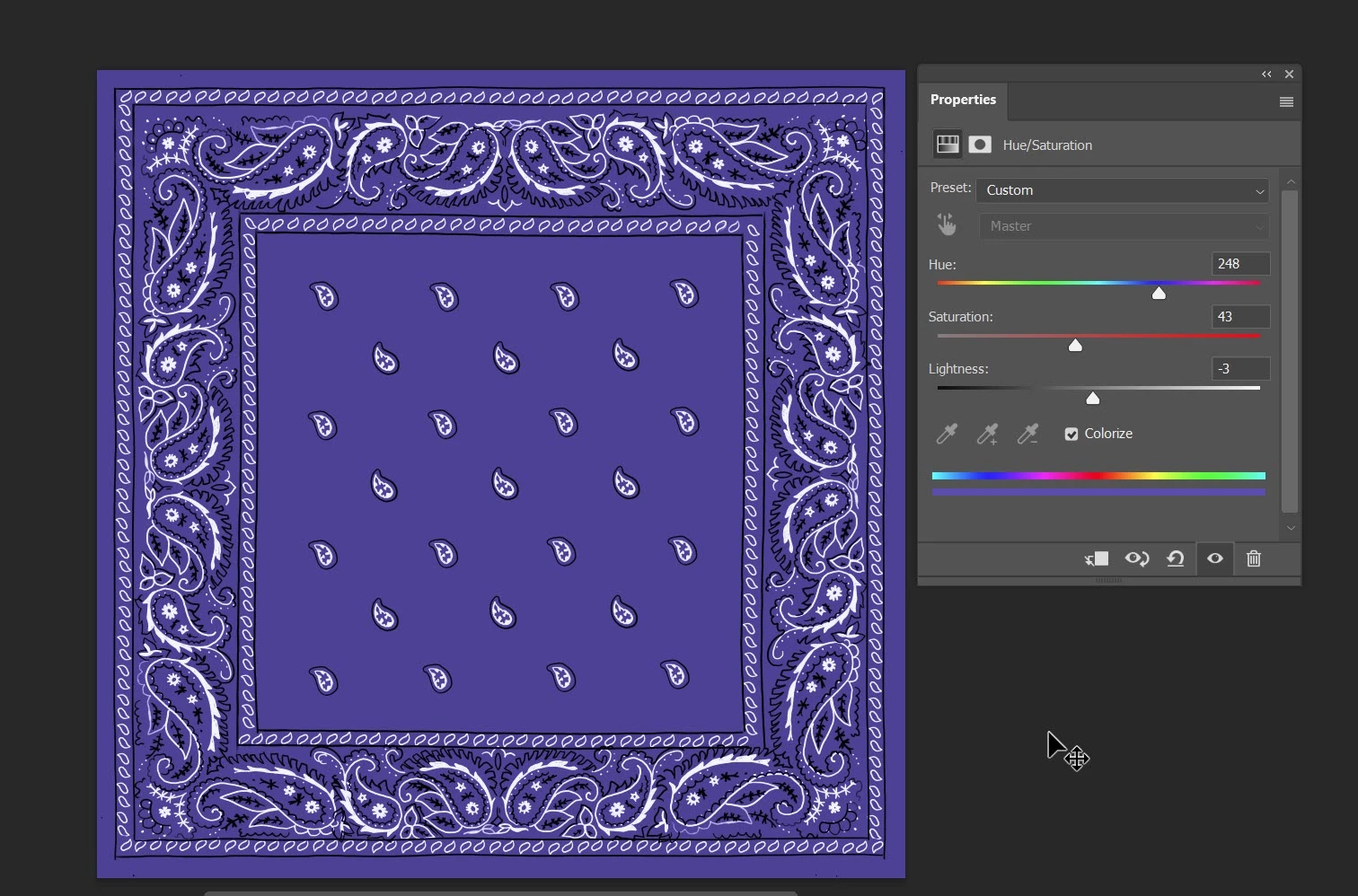
A possible way to change color is to use Hue/Saturation adjustments. You can experiment with the Colorize option on and off. This is a simple method that might work for you.

2 replies

Bojan Živković11378569
Community Expert
Community Expert
February 19, 2024

A possible way to change color is to use Hue/Saturation adjustments. You can experiment with the Colorize option on and off. This is a simple method that might work for you.

Participating Frequently
February 19, 2024

Thank you, I've achieved what I need, but your suggestion seems more simple, and a good solution to the replace color method. I'm learning so I'll give your response a go to see if I still get the desired outcome thank you

Semaphoric
Community Expert
Community Expert
February 19, 2024

I would do it like this: since the Red channel shows the black lines, make a duplicate channel of it, and use Image > Adjustments > Levels to clean it up. Do the same for either the Green or Blue channels, for the white areas.


With this document still open, File > New, and from Document Type, choose your original doc from the list (near the bottom), and transparent contents. In this doc, Select > Load Selection, with Source Document set to your original doc, and the Channel to the copy of the red channel, with the invert box checked. Fill this selection with White.


Similar for the other saved channel, only the invert un-checked. and fill with black. Save this as a .PNG, and you should be good to go.

Participating Frequently
February 19, 2024

Excellent thank you for your time. I'm unsure about the first instruction, but the rest seems easy enough to follow. With the first instruction, after creating the duplicate, and getting to adjusting the levels, you say "clean it up". What am I cleaning up here, or what do my input/output levels need to be to get the desired outcome?

Cheers

Participating Frequently
February 19, 2024

Also are the duplicates created in the same document or a new one, sorry cheers.