

Pariah Burke
Community Expert
Community Expert
July 11, 2018
Question

Make Font Match Work Better?

  • July 11, 2018
  • 2 replies
  • 733 views

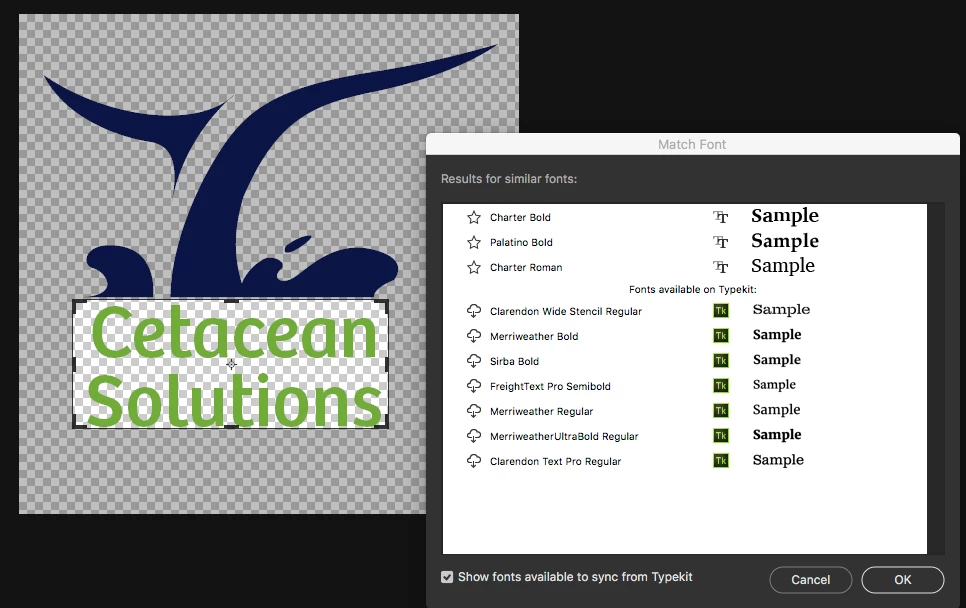
I was trying to do a video lesson on how to use Font Match, but I can't get it to work even with the clearest samples and actual TypeKit fonts. Is there a way to improve the matches? See the attached example (one of many I tried), which is Bree Regular.

PS. I've tried using white fill layers beneath the text and flattening the image so that the text is part of the background layer. It's the same mismatched results as with the transparency grid showing.
This topic has been closed for replies.

2 replies

melissapiccone
Community Expert
Community Expert
September 24, 2020

Font Match sucks. I show my students Adobe Capture and then I point them to What the Font. I know that doesn't help - but I feel ya. It's garbage. 

Melissa Piccone | Adobe Trainer | Online Courses Author | Fine Artist
@mj
Community Expert
Community Expert
September 24, 2020

Hi,


Here is what Adobe suggests:


Best practices for selecting text for font matching

  1. Match Font, font classification, and font similarity features currently work only for Roman/Latin and Japanese characters.
  2. Including two to three lines of text in the selection box give better results as compared to a single line of text.
  3. Closely crop the selection box to the left and right edges of the text.
  4. Use Match Font on a single typeface and style. Don't mix typefaces and styles inside the selection box.
  5. Straighten or correct perspective on the image before using Match Font.


One more thing is choosing Roman under type option.


Here's the link to the full resource


https://helpx.adobe.com/ca/photoshop/using/fonts.html


hth

mj