
Known Participant
May 9, 2017
Answered

Make Hard Edge of Border

  • May 9, 2017
  • 1 reply
  • 4940 views

I'm trying to make a simple rectangular border.

• I create a rectangle with the Rectangle Tool, and select it
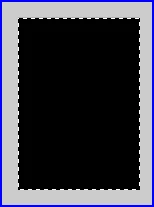
• Select > Modify > Border . . and enter a pixel width
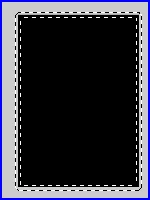
•  Alt-Backspace to fill the border with current foreground color
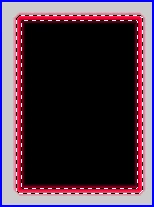
• Ctrl-D > Magic Wand select shape > Delete

and the outer edges of the remaining empty rectange are feathered.

What is causing the feathering of the outer edge? It's as if some style has already been applied to it.

What parameter, where, must be changed to make it un-feathered?

I'm running CS2 Windows

This topic has been closed for replies.
Correct answer Jeff Arola

Hi,

The origin of the Select>Modify>Border or Select>Fringe as it was known in the first couple of photoshop versions was mainly used for blending pasted or floating selections into the content below. In the first several versions of photoshop 1, 2 and 2.5 there were no layers.

One could select the edges of a floating selection with Fringe which as you have seen put a sort of feathered border around the existing selection and apply blurring with say Gaussian Blur to better blend in the floating selection with the content below before Defloat which made the content merge down into the area below.

Of course there are numerous creative uses for Select>Modify>Border including making some pretty interesting frames combined with layer styles.

Anyway, you could make your selection with the Rectangular Marquee Tool, click on the Quick Mask Mode icon at the bottom of the toolbox and then go to Filter>Other>Maximum and enter the desired size of the stroke.

Then Exit Quick Mask Mode, which leaves a selection and go to Edit>Stroke and use Inside and enter the same amount you used in the Minimum filter.

1 reply

Jeff Arola
Community Expert
Jeff ArolaCommunity ExpertCorrect answer
Community Expert
May 10, 2017

Hi,

The origin of the Select>Modify>Border or Select>Fringe as it was known in the first couple of photoshop versions was mainly used for blending pasted or floating selections into the content below. In the first several versions of photoshop 1, 2 and 2.5 there were no layers.

One could select the edges of a floating selection with Fringe which as you have seen put a sort of feathered border around the existing selection and apply blurring with say Gaussian Blur to better blend in the floating selection with the content below before Defloat which made the content merge down into the area below.

Of course there are numerous creative uses for Select>Modify>Border including making some pretty interesting frames combined with layer styles.

Anyway, you could make your selection with the Rectangular Marquee Tool, click on the Quick Mask Mode icon at the bottom of the toolbox and then go to Filter>Other>Maximum and enter the desired size of the stroke.

Then Exit Quick Mask Mode, which leaves a selection and go to Edit>Stroke and use Inside and enter the same amount you used in the Minimum filter.

Known Participant
May 10, 2017

Excellent! Thanks R_Kelly