
designi70858274
Participant
July 20, 2017
Question

Make one color of an image transparent

  • July 20, 2017
  • 3 replies
  • 98218 views

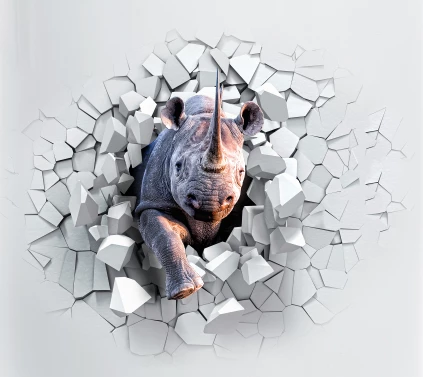
I am designing a mug and would like to put a graphic on it. Since there is no way to match the background color of the image to the mug, how can I make it transparent while still seeing the cracks of the rocks breaking? I've already tried color range and magic eraser and those methods are not producing the look I am going for. I simply just need the black lines and the rhino to show.
3 replies

JJMack
Community Expert
Community Expert
July 20, 2017

You can also punch up from the bottom of the stack.

adjust the crack shading some

JJMack
Participant
February 3, 2020

Hi, very nice problem. I think I achieved what you wore trying to do:


I created a black and white image where the background is white and the cracks aren't to bright or to dark.

Now I set this picture as a new Alpha- channel and loaded the channel to the selection. Afterwords I just created a new Layer and filled the selection with black.

As an alternative you could insert the black-white image into the Layer-Mask of an new Black layer. (

  • Invert and copy the black-white image with Ctrl+a (Mac: Cmd+a) and Ctrl/Cmd + c 
  • Create black layer
  • add Layer-Mask
  • press Alt and click at the layer-mask (you will see the mask)
  • insert the image with Ctrl/Cmd + v


Finally just Ad the rhino in a new layer with an layer-mask in full color.


I found the solution here:  https://graphicdesign.stackexchange.com/questions/57528/photoshop-gradient-map-to-transparent (03.02.2020 14:50)

He wrote : "

Here's how I would achieve that effect:
1) Create a BW Effects layer, and select the mode that gives the most pleasing effect.
2) Edit>Copy Merged, then paste that into a new alpha channel
3) Invert the alpha channel
4) Delete or disable the bw effects layer
5) Select the active pixels (Control key (PC) or the Command key (Mac) while you single click on the alpha channel in the channels panel)
6) Create a new solid color layer using the purple you used above

The active selection of the alpha channel will automatically be applied as a transparency mask. That SHOULD do it. Good luck.

"


Participant
July 15, 2020

Hi, I am trying to do just that but I am a photoshop beginner, I turn my image b&w and I am trying to then make the white transparent, but I am failing miserably.
Your answer seem to do what I am after but I need a few more steps. any change I could get that from you ?
many thanks

Jon

Norman Sanders
Legend
July 20, 2017

One last suggestion: you may be able to hold that detail if you split the Blend If slider. Hold down the Option key, click and drag the left slide of the slider for a less abrupt break from tones to transparent. It just may work.

Norman Sanders
Legend
July 20, 2017

Since there are tones within the image that are lighter than the surround, you may want this method.

1. Open the file and if the Background layer is locked, drag the lock to the trash.

2. Cmd+J  to dupe the layer, turn off the eye on the layer and return to the bottom layer.

3. Double click to bring up Layer Styles and in the Blend If section, gently move the top right slider to the left until the background is transparent. It ail impinge on areas within the image,  but don't be upset.

4. Choose the top layer, turn on the top layer eye and Option click on the mask symbol at the bottom of the Layers panel to produce a black mask. Paint with white on the mask with a soft edge brush to bring back any part of the illustration that you want to retrieve.

Norman Sanders
Legend
July 20, 2017

One more thing you may consider: Depending upon the method used to put the image on the cup, you may have the option to paint on the mask along the outer rim if the image with a brush set to less than 100% opacity so that the illustration vignettes even more gently than a soft edge brush alone. Good luck.

designi70858274
Participant
July 20, 2017

Thanks for the answer but this method didn't really work either. Since the cracks are so thin and fine, it is difficult to show them without showing the white part of the rocks which is what I want to avoid.