Known Participant
August 26, 2022
Answered

Making an automated path

  • August 26, 2022
  • 3 replies
  • 602 views

Hi,

My job is to compile individual pictures to combined pictures and make paths to them(i use a script), but i cant seem to find a way to make a perfect path with pictures with too much whites in them as shown below. I've tried choosing object and the color scheme(not sure what it is in english).
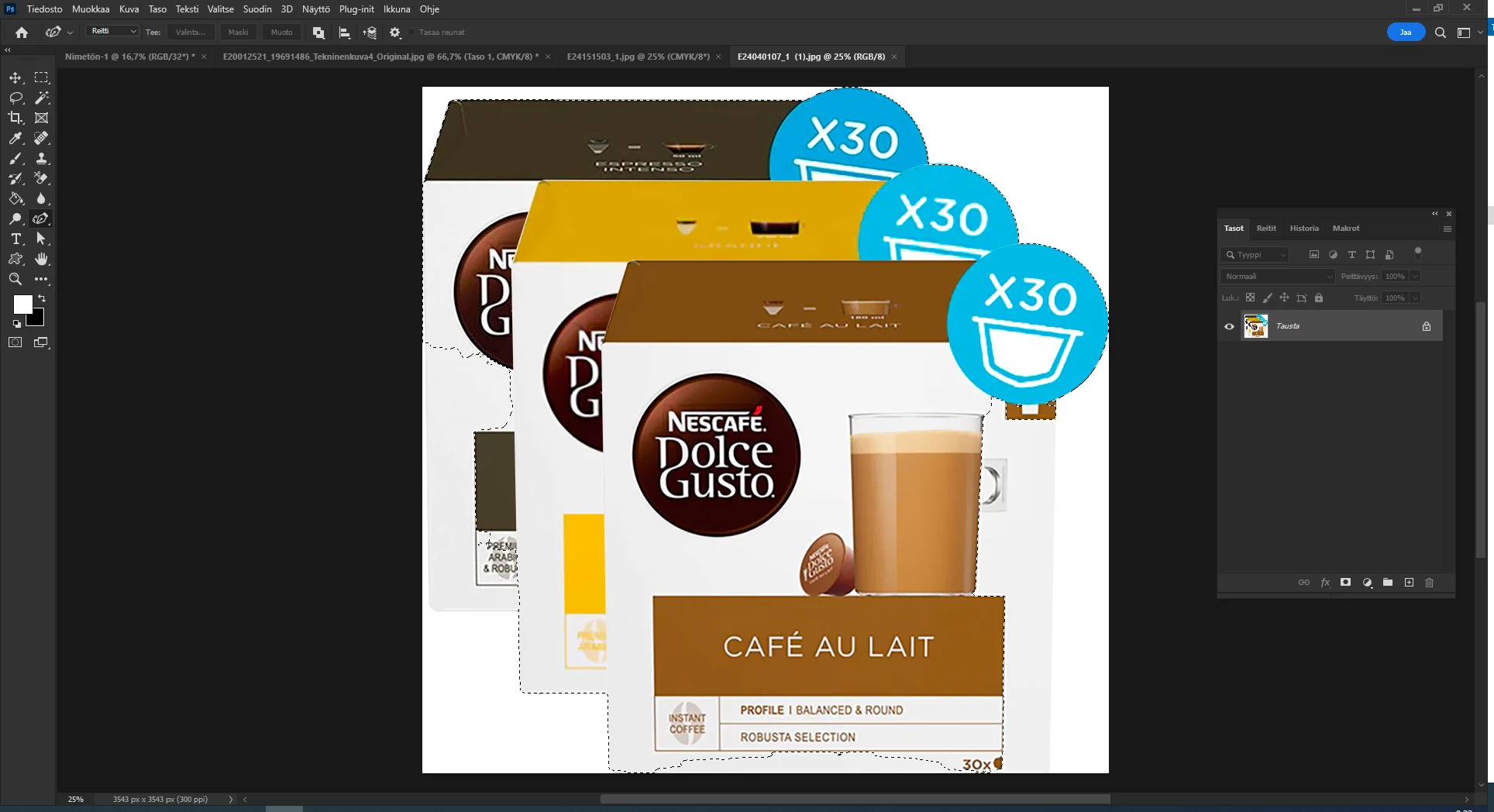
Feel free to try with pictures below (the pictures i combine have premade paths and are on a white background if that matters) 


This topic has been closed for replies.
Correct answer jazz-y

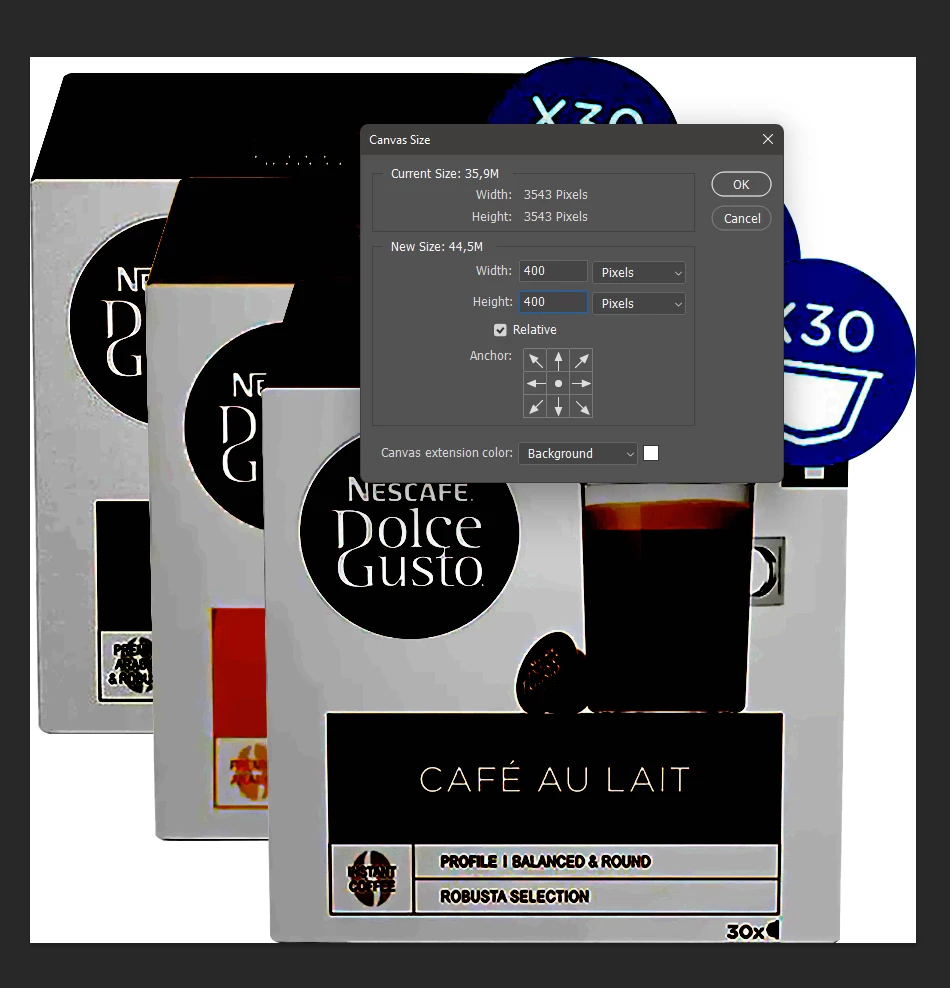
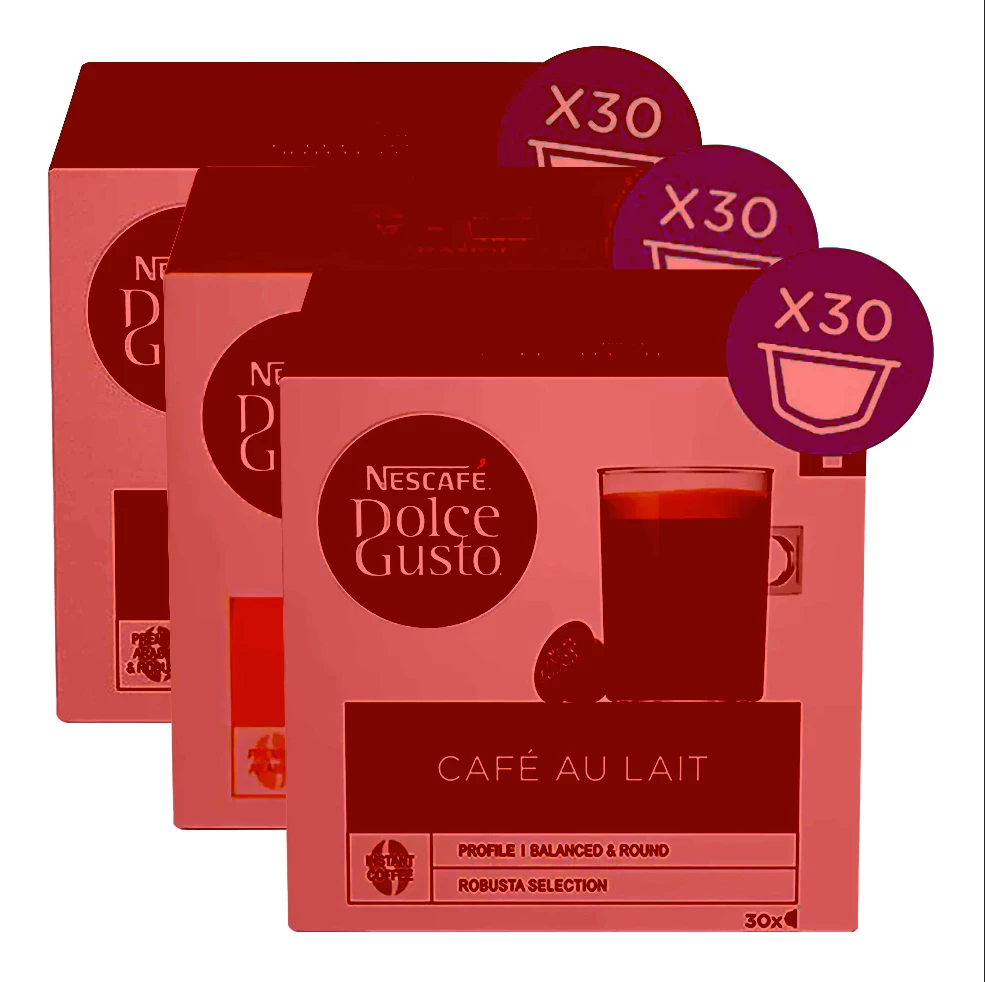
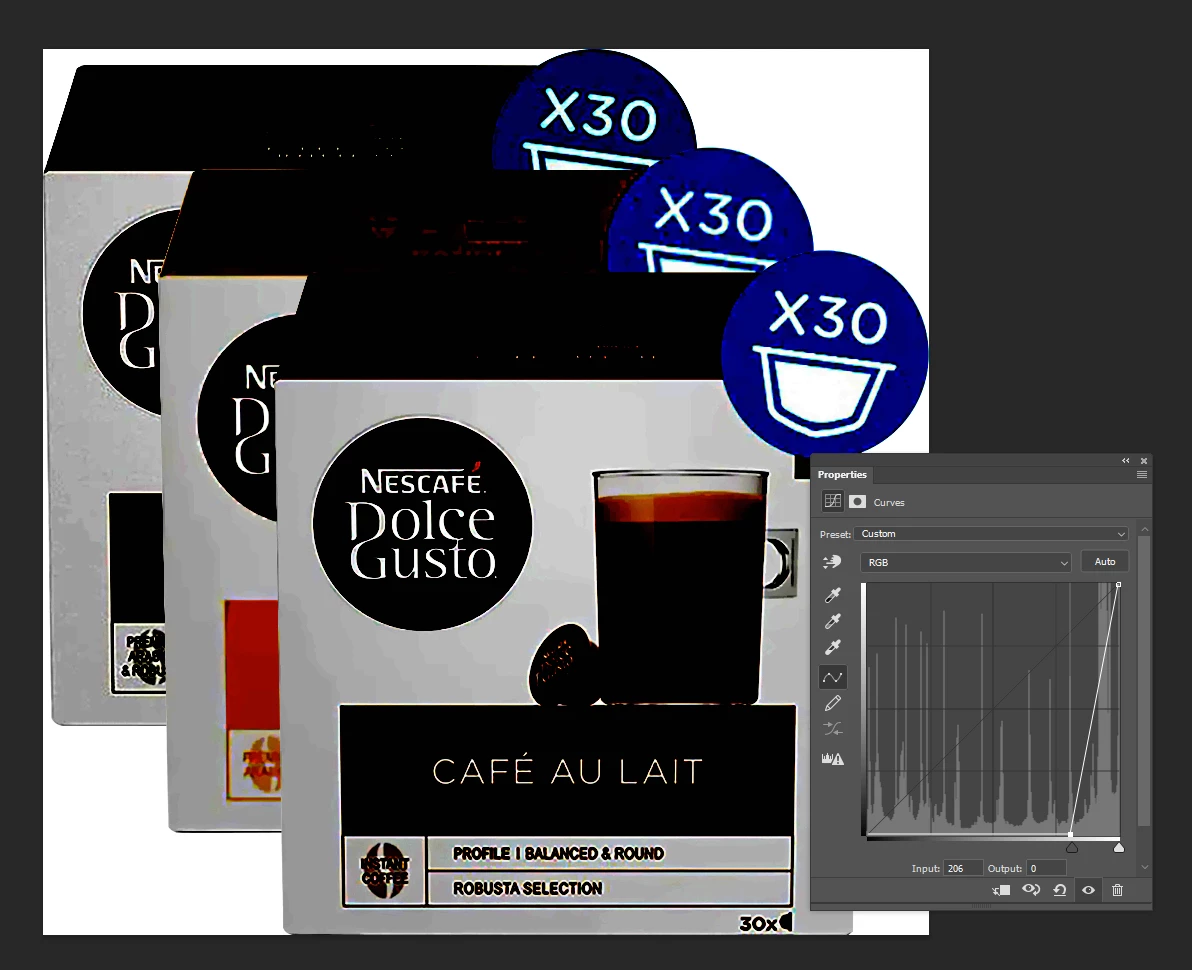
It looks like you are using the select -> subject command. Note that this command builds a selection based not only on the contrast of objects, but on the AI prediction system. To improve the result of the automatic selection - a) adjust the contrast of the image to make the borders more pronounced (I used an adjustment layer that can be removed) b) increase the size of the canvas so that the object's borders become more pronounced compared to the surrounding space (in the next step you can return to its original size). This works for your example and will most likely work for other files as well.


P.S. If you're combining these images yourself, what's stopping you from creating a path before layers merge?

3 replies

Stephen Marsh
Community Expert
August 26, 2022

My first thought would be to use the existing paths and then do a pathfinder on them to combine them... But until I test this it may be easier said than done!

Conrad_C
Community Expert
August 26, 2022

@Aleksi24982164dyvs wrote:

(the pictures i combine have premade paths…) 


In Photoshop, the Paths panel shows that your sample JPEG image contains a clipping path called “Reitti 1”. If you select that path in the Paths panel, and you click the Load Path as a Selection button at the bottom of the Paths panel, the path is immediately converted into a selection.


When the path is selected, another option is to choose Layer > Vector Mask > Current Path, which creates a vector mask so that you can edit the mask as a path, instead of as pixels. You can adjust the vector mask Density and Feather values using the Properties panel.


jazz-yCorrect answer
Brainiac
August 26, 2022

It looks like you are using the select -> subject command. Note that this command builds a selection based not only on the contrast of objects, but on the AI prediction system. To improve the result of the automatic selection - a) adjust the contrast of the image to make the borders more pronounced (I used an adjustment layer that can be removed) b) increase the size of the canvas so that the object's borders become more pronounced compared to the surrounding space (in the next step you can return to its original size). This works for your example and will most likely work for other files as well.


P.S. If you're combining these images yourself, what's stopping you from creating a path before layers merge?