June 20, 2020
Répondu

Making text transparent

Hi sorry if someone already posted about this. 

Ive a problem with making text transparent in photoshop. I have followed several video tutorials on transparent texts but still im not getting it. 

This is what I have done:

1. I place embed an image (of a beach) in photoshop

2. Layer > new > background from layer.

3. I type in text, i.e. beach- in black colour. 

4. hold down press command and click on text.

5. I go to the image layer, then go to Layer mask > hide selection

6. I delete the text 

and this is the result. 
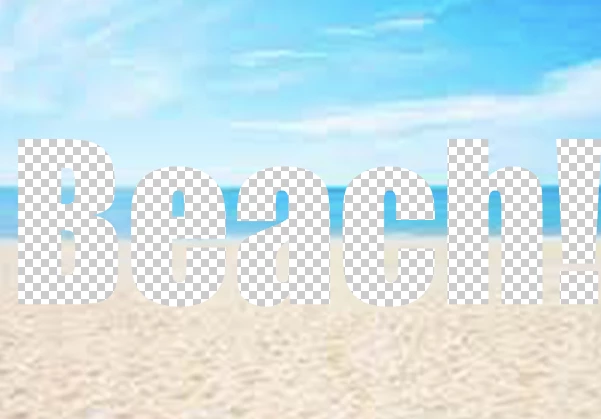


I wanted to have the image in the background showing through the text like this



Im a newbie at this so its possible I could have missed a step or something?


Thank you!


Meilleure réponse par davescm

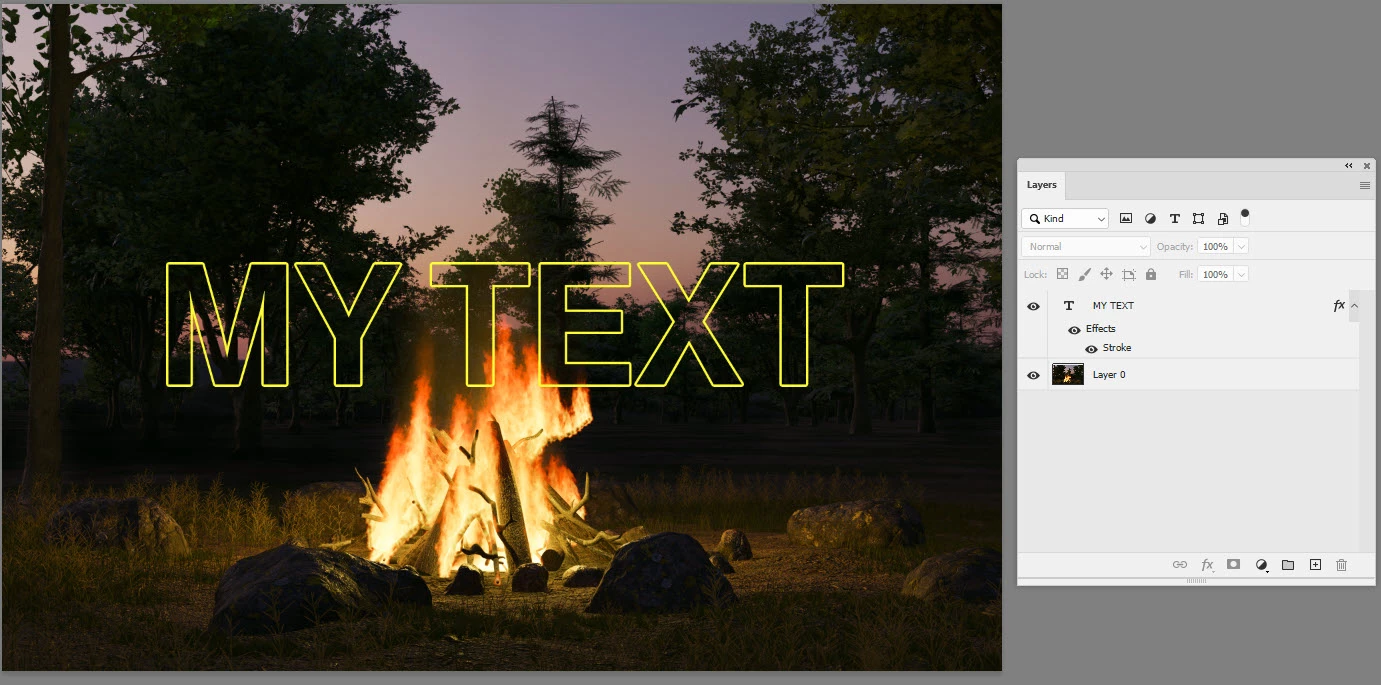
The white rectangle is only needed if you wanted the white rectangle as shown in your original example. If you just want outlined text then it is much simpler.

This time forget the "knockout - shallow" step - that was just to punch through the white rectangle


So start with your image layer at the bottom

Add your text layer above it

Right click on the text layer and select Blending options

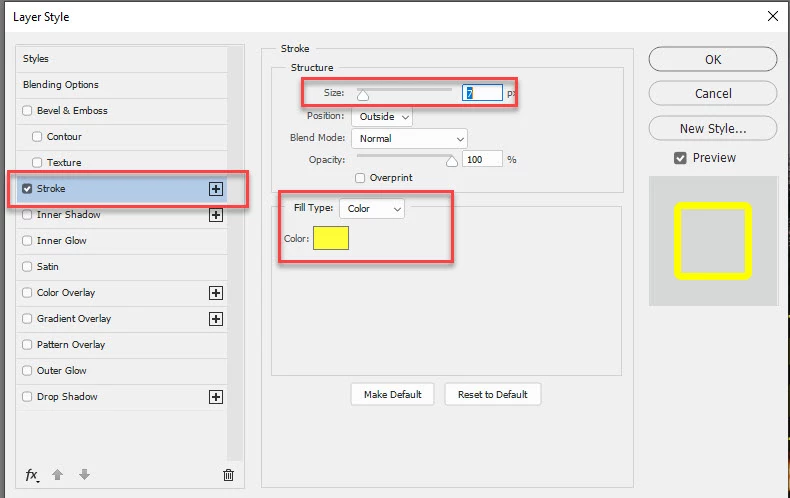
Set Fill to 0% as before (but leave knockout as none)

Then tick "Stroke" and click on the word stroke.

Set the stroke colour and size


Click OK - Job done


It might be worth mentioning the difference between fill and opacity. A stroke around a layer is known as a layer style (one of various available layer styles). Reducing opacity makes both the layer, in this case your text, and the layer style(s) transparent   Reducing fill just makes the layer (text) transparent but leaves the layer style visible.

Dave

2 commentaires

davescm
Community Expert
Community Expert
June 20, 2020

I would do that like this:

Add your image as a bottom layer (background or Layer 0  it doesn't matter

Use the rectangular shape tool to make the white rectangle (so in the options bar - no stroke  but white fill)

Add your text above that

So so far we have this:


Next, click on the text layer and shift click on the rectangle layer so both are selected

Right click and in the menu choose "Group from layers"

Your text and rectangle layers are now in a group


All that remains is to use the text to knock a hole through the white rectangle so

Select the text layer and right click.

Choose blending options

Change Fill opacity to 0% and knockout to shallow. Shallow knockout cuts a hole through the layers below that are in the group (in this case the rectangle) but not through the layers outside the group


Click OK Job done.


The advantage of this method is that the text remains editable.

If you also want the white to be semi-transparent just click on the rectangle layer and , in the layers panel, reduce the opacity


Dave


JoanaPhotoshopSupply
Participant
June 29, 2020

I really didn't know that you can still keep the text editable. I use the text as mask to make transparent text effect but the text was no longer editable. I wonder if the Knockout Shallow option was always in Photoshop or was recently introduced?

davescm
Community Expert
Community Expert
June 29, 2020

Always is a long time, but it has been there at least back to Photoshop 7.0 when I started using it.

Dave

jane-e
Community Expert
Community Expert
June 20, 2020

Hi

You didn't post a link to the tutorial, so we don't know what it says. Your mistake was to go to the image layer and delete the pixels from that layer. Some other things you said don't make sense, such as when you made the beach layer a background layer, it shouldn't have transparency as it does later.


Can you post a link to the tutorial? You might also go through it one more time, checking your steps.


In the NYC image, it looks like they have a white box with opacity that you don't have. The text may have been rasterized. The deletion of the text would have been done on the layer with the white box, not on the background layer.


~ Jane