
Known Participant
March 21, 2018
Question

Marching Ants Emulate Edge of Selection - Rectangular Marquee Tool

Hi all. I'm having an issue with the rectangular marquee tool. I have been using it all day without incident to select and fill in (with the paint brush) sections of a graphic so as to achieve crisp straight lines. Now suddenly when I select a section I notice that the marching ants, rather than adhering to the straight line of the rectangular shape, emulate the edge of my selection (pic below). Is there any reason why my ants might be marching a drunken line? When I initially make the rectangle they are marching in straight lines; it's only when I use transform selection so as to position the rectangle over the graphic that they begin to emulate the edges of the graphic. Any suggestions would very much be appreciated. Thanks!
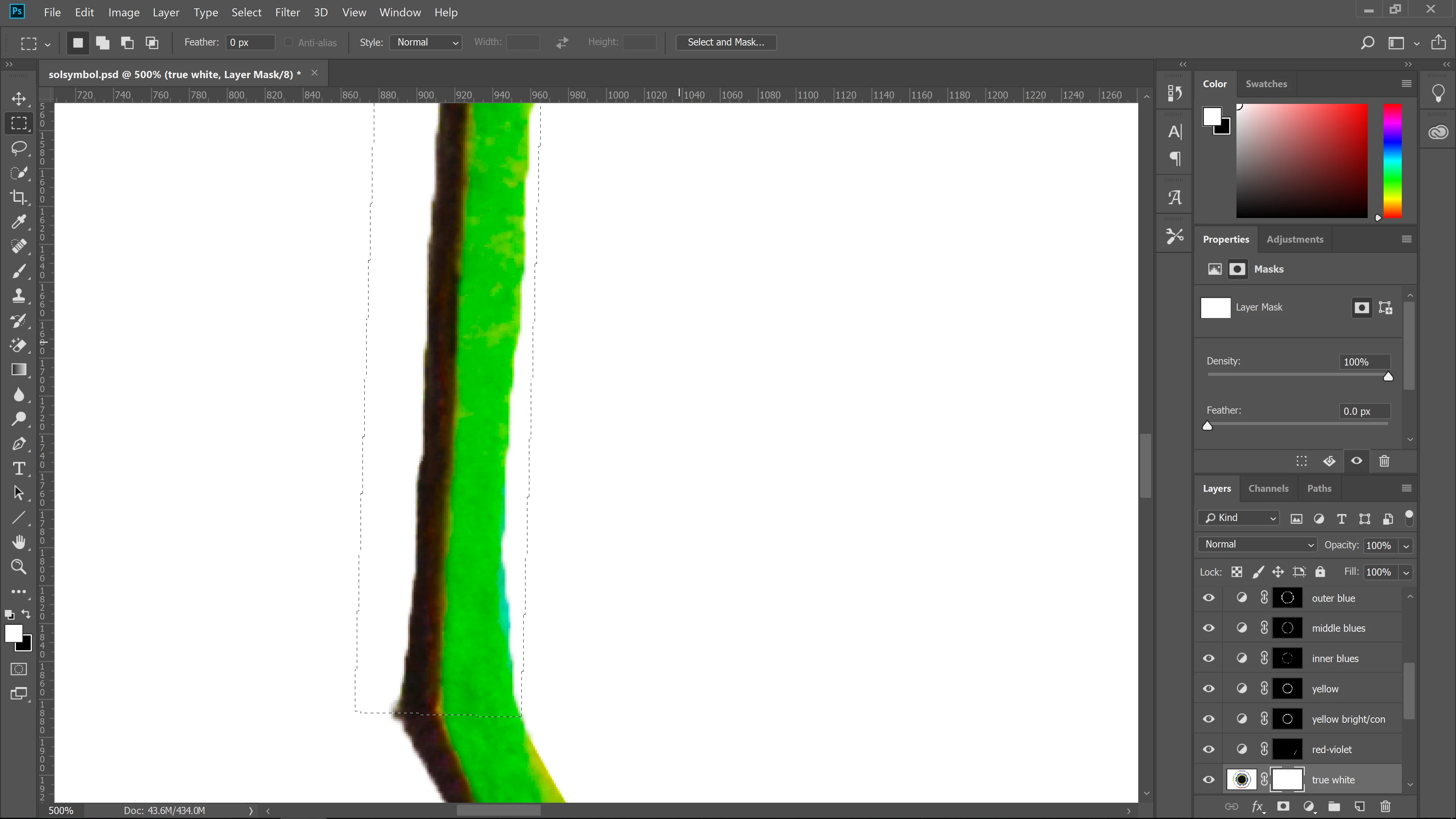
Ce sujet a été fermé aux réponses.

3 commentaires

Known Participant
March 21, 2018

Perhaps I need to ask a different question. If what I wish to do is fill in the section circled in red (pictured below) with the paint brush or clone stamp and I need to ensure that the paint is contained and the edge that it creates is perfectly straight, what is the best way to do it? Thanks in advance for any and all suggestions.

c.pfaffenbichler
Community Expert
Community Expert
March 21, 2018
When I initially make the rectangle they are marching in straight lines; it's only when I use transform selection so as to position the rectangle over the graphic that they begin to emulate the edges of the graphic.

Maybe I misunderstand but when you transform the rectangular Selection what do you expect but having a transformed Selection as a result?

And Selections being pixel-based anti-aliasing on originally »binary« edges should not be unexpected (in accordance with the Interpolation settings).

Might you not be better served using Paths and Vector Masks?

davescm
Community Expert
Community Expert
March 21, 2018

I just notice that the original poster selection had been transformed !.   If that is the case the only way Photoshop can show lines at a very slight angle is to step them pixel by pixel. So your post is absolutely correct and should get the "correct answer"

Dave

davescm
Community Expert
Community Expert
March 21, 2018

Is the canvas rotated slightly? To check, press R  and check the angle in the options bar

Dave

Known Participant
March 21, 2018

Hi there, thanks for the reply and suggestion! I checked and my canvas is not rotated even slightly. I wonder if you wouldn't mind elaborating on your follow up post about lines being shown at a very slight angle being stepped pixel by pixel? I admit I am quite new to Photoshop and so I am unfamiliar with this terminology. Thanks!