
Inspiring
May 16, 2025
Answered

Marquee tool issues

  • May 16, 2025
  • 2 replies
  • 1026 views

I have a circle in a scanned drawing that I am trying to select with the Ellipitical Marquee Tool.


1) When I click and drag to make the marquee (holding Shift to make it a true circle), the marquee only increases in size if I drag on the diagnols. Horizontal or vertical does not work. Is this the way the tool is supposed to work?


2) Trying to select the drawn circle with the circular marquee tool, I click on the upper left of the circle and drag to the lower right across the diagnol diameter of the circle but the marquee eillipse does not follow the cursor. It doesn't start at the exact upper left nor follow the cursor down. It lags behind. So when I drag from upper left to lower right of the circle, I end up with a circular marquee much smaller than the circle. I cannot get a marquee the exact size of the circle I wish to select. Am I doing something wrong or is there a setting that needs to be changed?


BTW, if I try this with the rectangular marquee tool—also dragging on the diagnol— the rectangle follows the cursor, starting exactly at the upper left and ending at the lower right.
Correct answer Trevor.Dennis

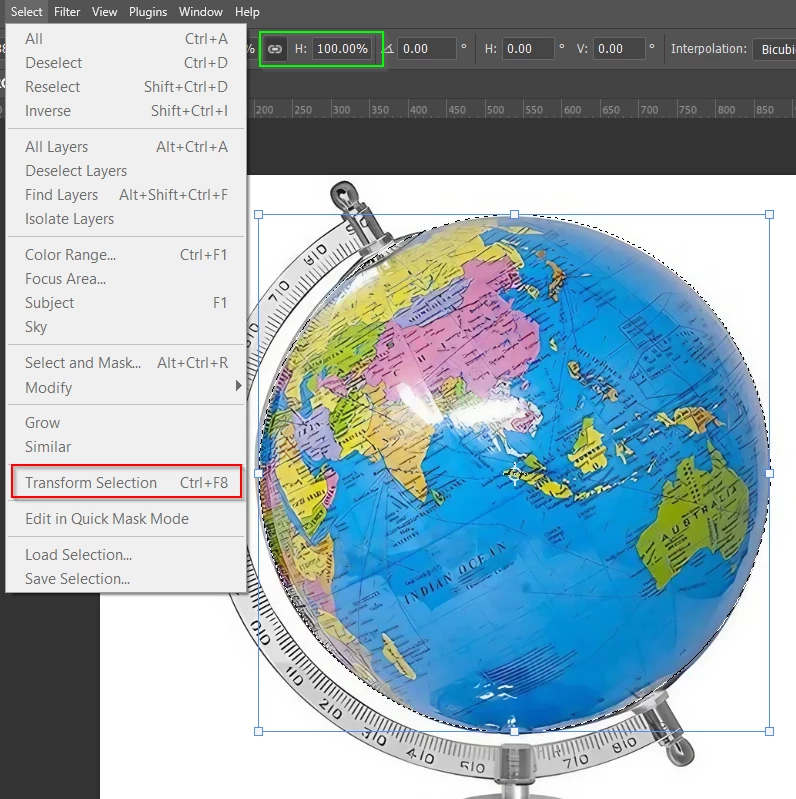
You really should have a look at Select > Transform Selection

You could even give it a shortcut as it is so useful (I just gave it the Ctrl F8 shortcut to demonstrate)

You can nudge the selection with the cursor keys in one pixel increments.

You can resize either by draging handles, or with much more control, from the W: H: percentage values in the Options bar.  That's way more accurate than you get by dragging. 


2 replies

Trevor.Dennis
Community Expert
Community Expert
May 16, 2025

Yes, that is the way it works, and the fact that you can't drag from the top left corner, and remain conforming to the position you thought you were selecting, can be annoying. No matter how many years you have been doing it!


You have two options.

1. Start from the centre and Opt Shift drag.  The circle will then expand consentric to your starting point.

2. Start where the heck you like, and keeping Shift held down, use the Space Bar to move the selection into place.

3.  (This is turning into Monty Python's Spanish Inquesition sketch) Make your eliptical selection, and use Selection > Transform Selection to move, size, and shape as required.  You can drag corner handles using the Cmd key, or right click and chose one of the options.  I doubt any experienced users right click unless they need to Warp.  OK.  I guess we should be worrying about those comfy cushions.


mpkadobeAuthor
Inspiring
May 16, 2025

I suppose Option 1 is the most likely although it is hard to find the exact center of an exisiting circle.

Trevor.Dennis
Community Expert
Trevor.DennisCommunity ExpertCorrect answer
Community Expert
May 17, 2025

You really should have a look at Select > Transform Selection

You could even give it a shortcut as it is so useful (I just gave it the Ctrl F8 shortcut to demonstrate)

You can nudge the selection with the cursor keys in one pixel increments.

You can resize either by draging handles, or with much more control, from the W: H: percentage values in the Options bar.  That's way more accurate than you get by dragging. 


Jeff Arola
Community Expert
Community Expert
May 16, 2025

Apologies that i misunderstood your question


Trevor is on the right track.

mpkadobeAuthor
Inspiring
May 16, 2025

Hello Jeff

 
When I right-click on the Marquee Tool icon I only get a popup window to select Elliptical or Rectangular. There is no Reset option.
 
I'm using a macbookair M3 OS Sonoma 14.7.1
 
Marc