
Esteban.Vasco
Participant
August 18, 2018
Question

Mask Problem when Exporting

  • August 18, 2018
  • 1 reply
  • 2406 views

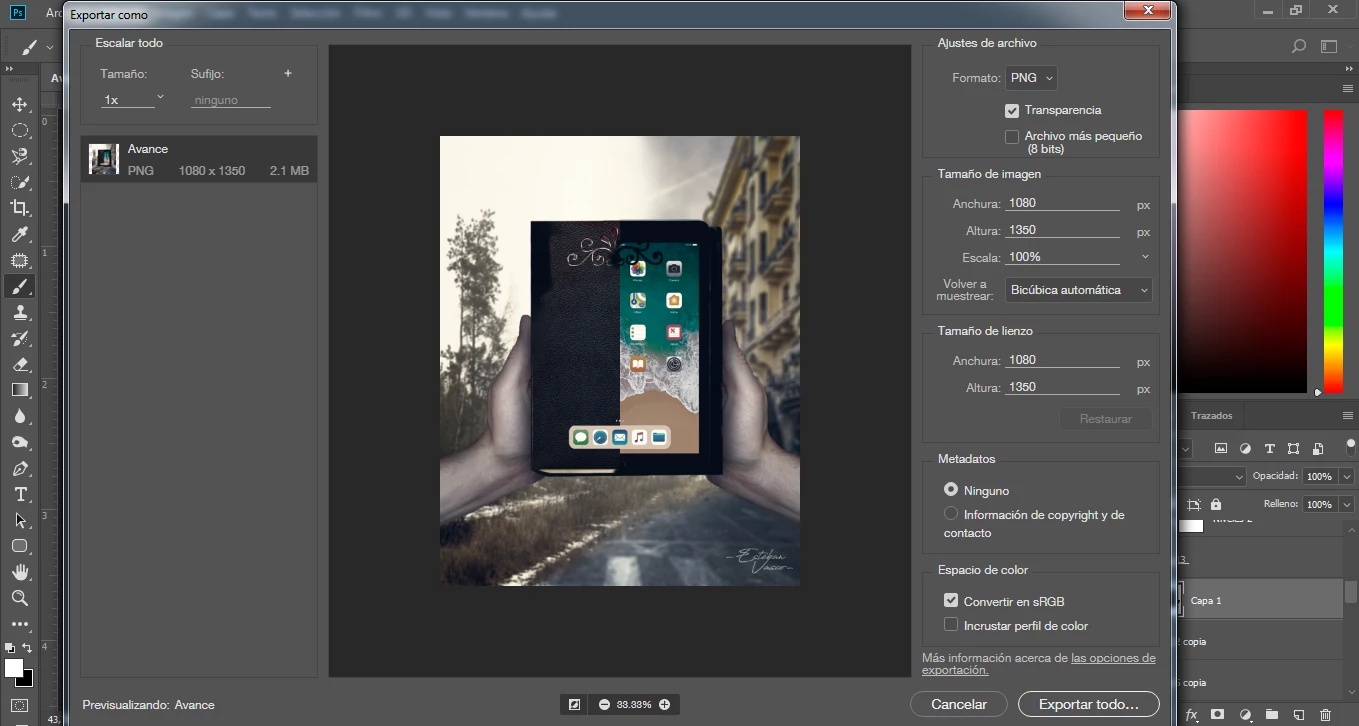
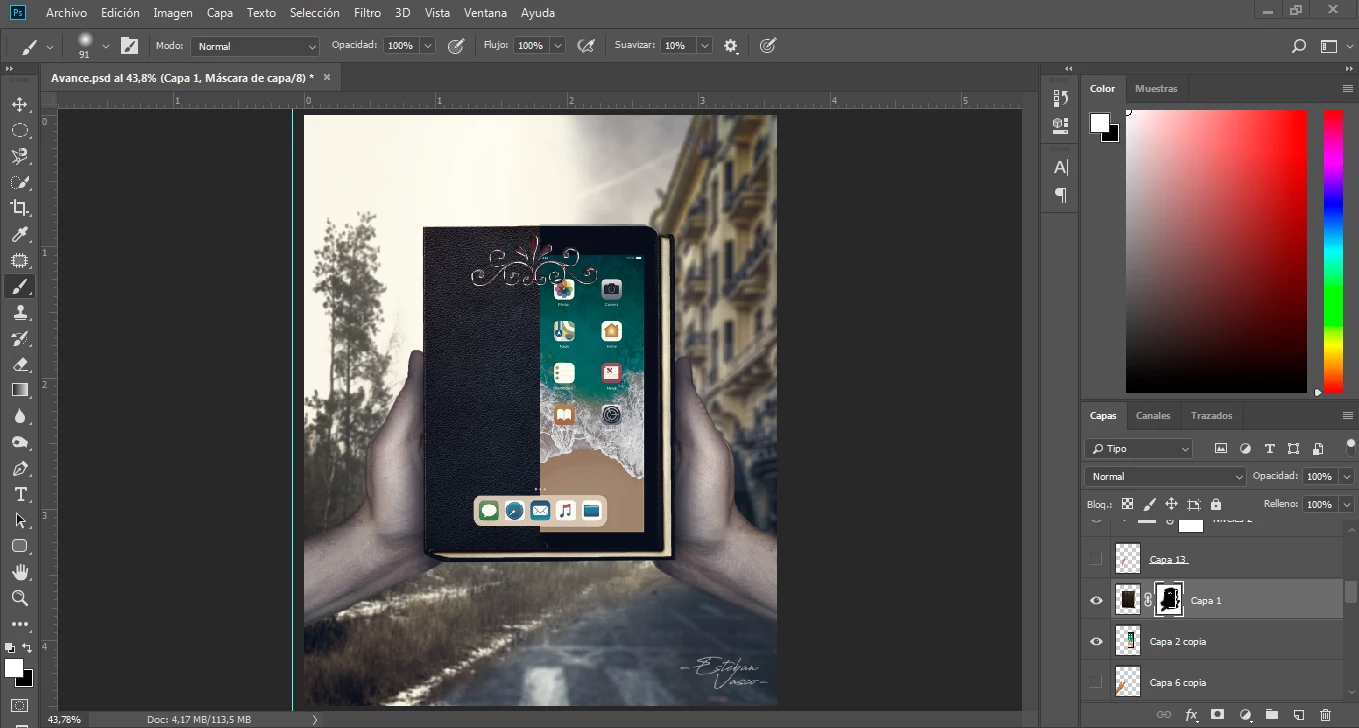
Hi, I made a photo manipulation and looked all ok in the workspace but at the moment of exporting I noticed that one area where I did a mask ,(not the only one in the project), appeared with black color, (the one I painted with), instead of showing the photo that was supposed to. I would really appreciate an answer if someone knows what is going on and how to solve it. Thank you.
This topic has been closed for replies.

1 reply

Esteban.Vasco
Participant
August 18, 2018

EDIT: I am sorry. there is a mistake, I did not paint with black that part, it was painted with white, and it is not a complete black color that shows up in the "Export As" panel, it is just a dark color. Anyways, if anyone knows how to solve this, please let me know. Thank you.

JJMack
Community Expert
Community Expert
August 18, 2018

We can not see your layer mask well in the small layer mask thumbnail in the layers palette, It look like it may be hiding just about all the is in that layer but a little spotty  middle section above the center of the layer and that area that is showing may be black from the looks of the layer's content thumbnail.

Atl+Click on the layer mask in the layers palette  so the mask is displayed in the image area and post a screen capture.

Export may also have issues  try using "Save As" to save your png file.

You could also Shift Click one the Layer  Mask to disable the the layer mask  all of the layer should then show. See how export works.   The Preview export is displaying looks wrong to me in your screen capture half of what shows in the layer seems to be inverted in the preview.  Does the file save look the same way when opened in Photoshop.   Photoshop is not bug free there are quit a few bugs in Photoshop.

JJMack
Esteban.Vasco
Participant
August 18, 2018

Thanks for the reply.

This is Alt+Click capture:

Here is the layer mask disabled:

And here is the Export As:

When opening Photoshop everything looks normal: