Participating Frequently
May 24, 2016
Answered

measuring tool / scale bar

  • May 24, 2016
  • 5 replies
  • 21816 views

Hello,

I am currently using CS5 to enhance microscope images of otoliths (fish earbones).  In previous versions of Photoshop I could add a scale bar by going to Image>Analyze>Place Scale Marker.  I require a scale bar with 0.75, 0.85 and 1.0 mm increments.  The image below shows a scale bar with these increments in red, yellow and blue made using an older version of Photoshop.
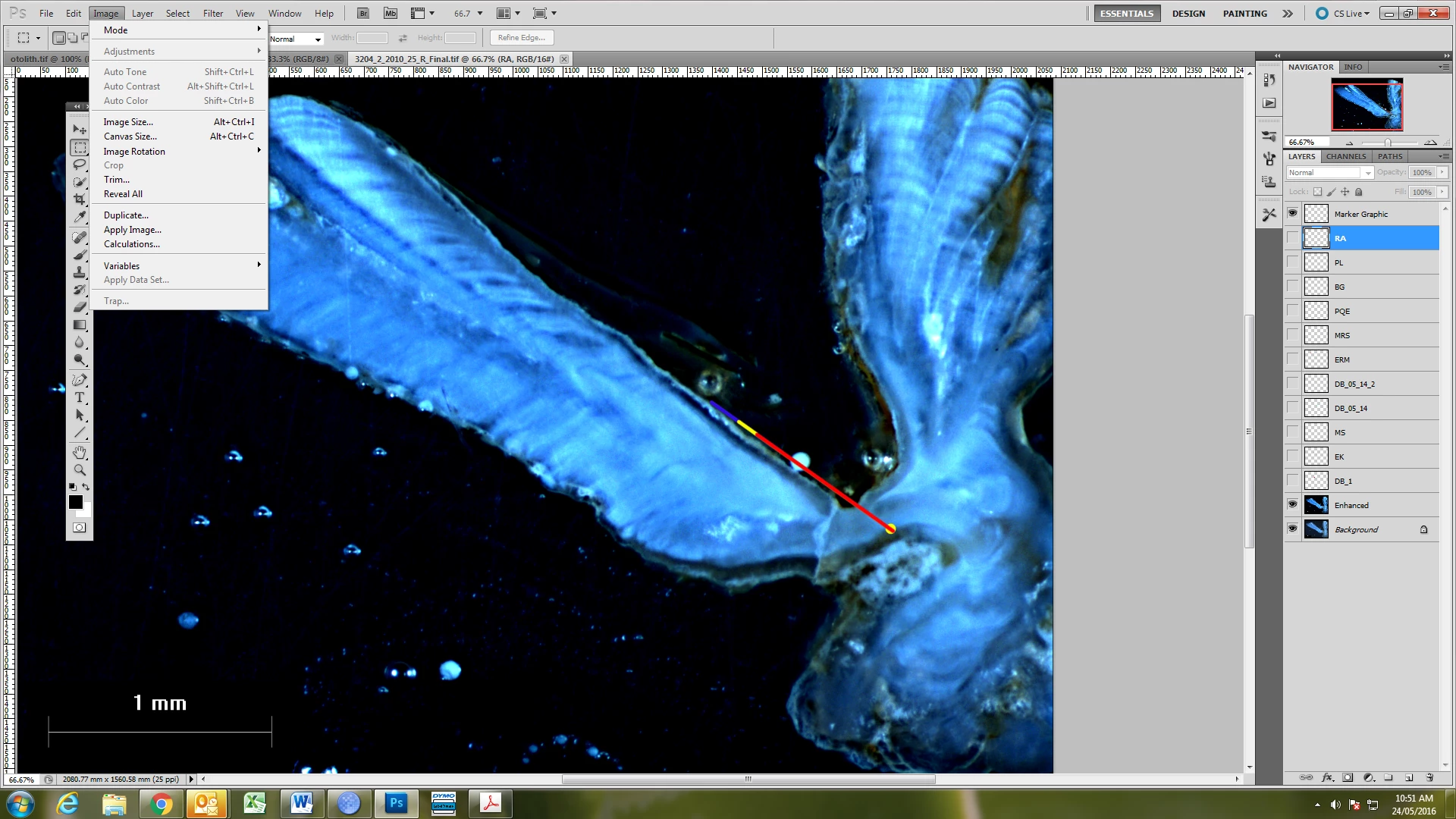
I also have Photoshop Elements and Lightroom at home and have not found a measurements option with those version either.  Does anyone know how this is done using CS5?

Thank you.
    This topic has been closed for replies.
    Correct answer Chuck Uebele

    5 replies

    Chuck Uebele
    Community Expert
    Community Expert
    May 24, 2016

    I used to do a lot of small scall measurements in some photos. I created my own custom scale that I could place and size according to the scale of the image. Make it big, put it in a smart object, then place it in your image and scale it to size.

    Participating Frequently
    May 24, 2016

    I'd be interested in learning how to make a similar custom scale like the one you show above.  Can you give me some how-to information please?  I'm not familiar with what a smart object is.

    Chuck Uebele
    Community Expert
    Community Expert
    May 24, 2016

    Create a new document. 5000-6000 px is a good size. Size really doesn't matter at this point, as you will be scaling the final ruler.

    Draw a shape line using either the rectangle tool or the line tool. for the markers on your scale:

    Duplicate the marker and move the new layer to the other end of the canvas, then duplicate that layer for how many divisions + 1 that you want. So if you want a 1 mm scale with 10 divisions, make 11 markers total.

    Select all the marker layers and with the move tool selected, click on the distribute centers icon in the menu bar.

    Select all the layers where you want the major divisions. In this case it's the two end markers. Press ctrl/cmd-T and scale those markers taller:

    Add whatever text you want:

    Delete the background layer and then select all the layers and press ctrl/cmd-E. The will merge everything into one vector layer that can be scaled to whatever you want. Save this file for future use. To use it. open you image file and your scale file. Drag the scale file onto your image file. You can then scale the scale to whatever size you need. For this, you don't want to use a smart object, as this is a vector image, and works better outside a smart object.

    Michael J. Hoffman
    Community Expert
    Community Expert
    May 24, 2016

    It's in the latest version of Photoshop CC 2015 under Image > Analysis (for CS6 and earlier, as noted, you had to have the "Extended" version of Photoshop to access this capability):

    Participating Frequently
    May 24, 2016

    Okay, I can do it using the Transform tools.  Thank you for your help!

    Chuck Uebele
    Community Expert
    Chuck UebeleCommunity ExpertCorrect answer
    Community Expert
    May 24, 2016

    Chuck Uebele
    Community Expert
    Community Expert
    May 24, 2016

    Also that feature might have been removed in newer version of PS. I don't have CS5, but I don't see in in PS 2015.

    Barb Binder
    Community Expert
    Community Expert
    May 24, 2016

    It is still in C 2015:

    ~Barb at Rocky Mountain Training
    Chuck Uebele
    Community Expert
    Community Expert
    May 24, 2016

    BarbBinder, yes, it still has that scale, but not a scale where you can add subdivisions at angles to your subject. It's been a while since I've used anything before CS5, so I don't remember if that was an included feature.

    Chuck Uebele
    Community Expert
    Community Expert
    May 24, 2016

    Do you have the standard version or extended version of CS5? The analytics are only available in the extended version.

    Participating Frequently
    May 24, 2016

    It must be standard. Version 12.1X64.  Is there anything at all I can do to create a line of those lengths?  The image already has a 1mm scale bar added by the image capture software.

    Chuck Uebele
    Community Expert
    Community Expert
    May 24, 2016

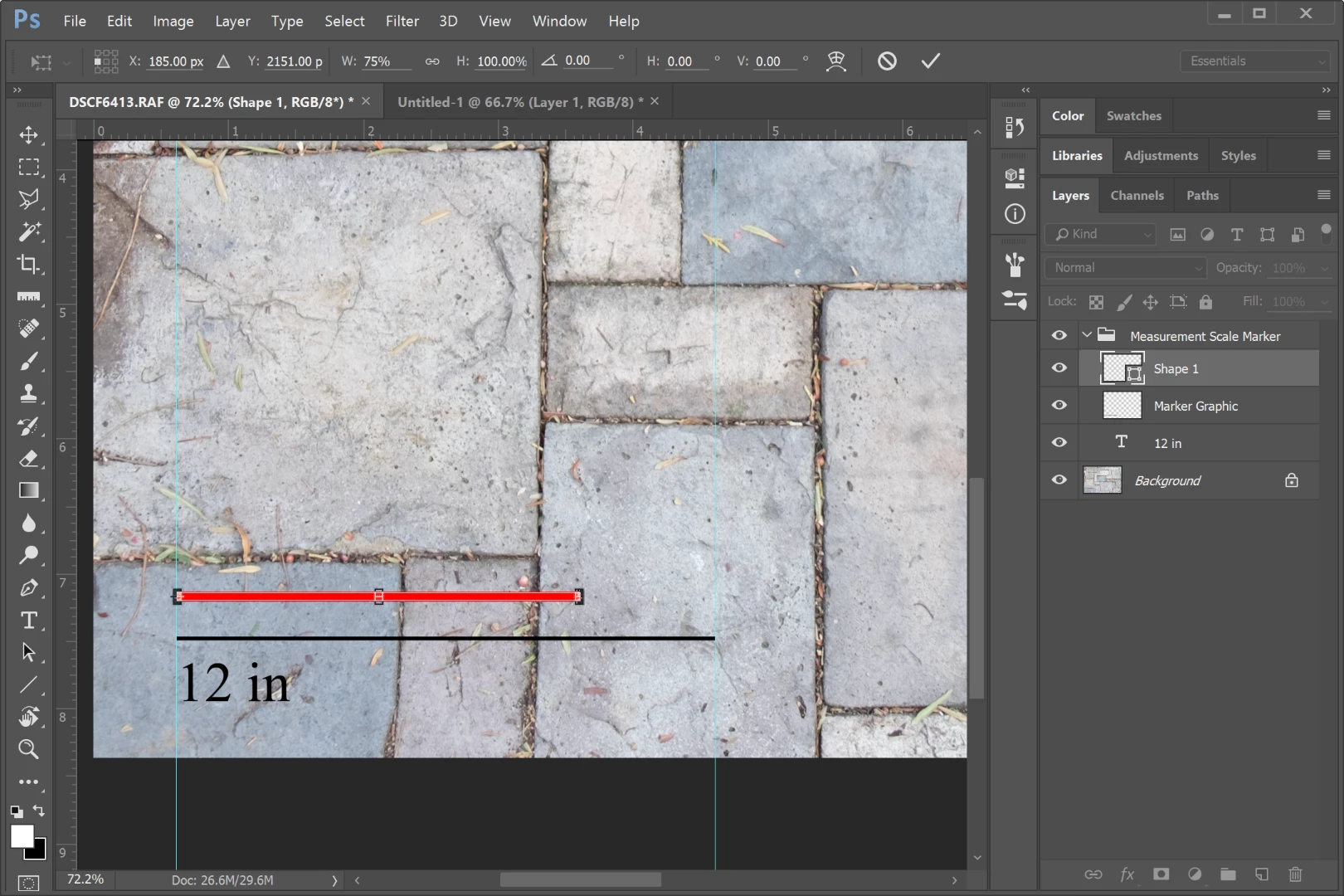
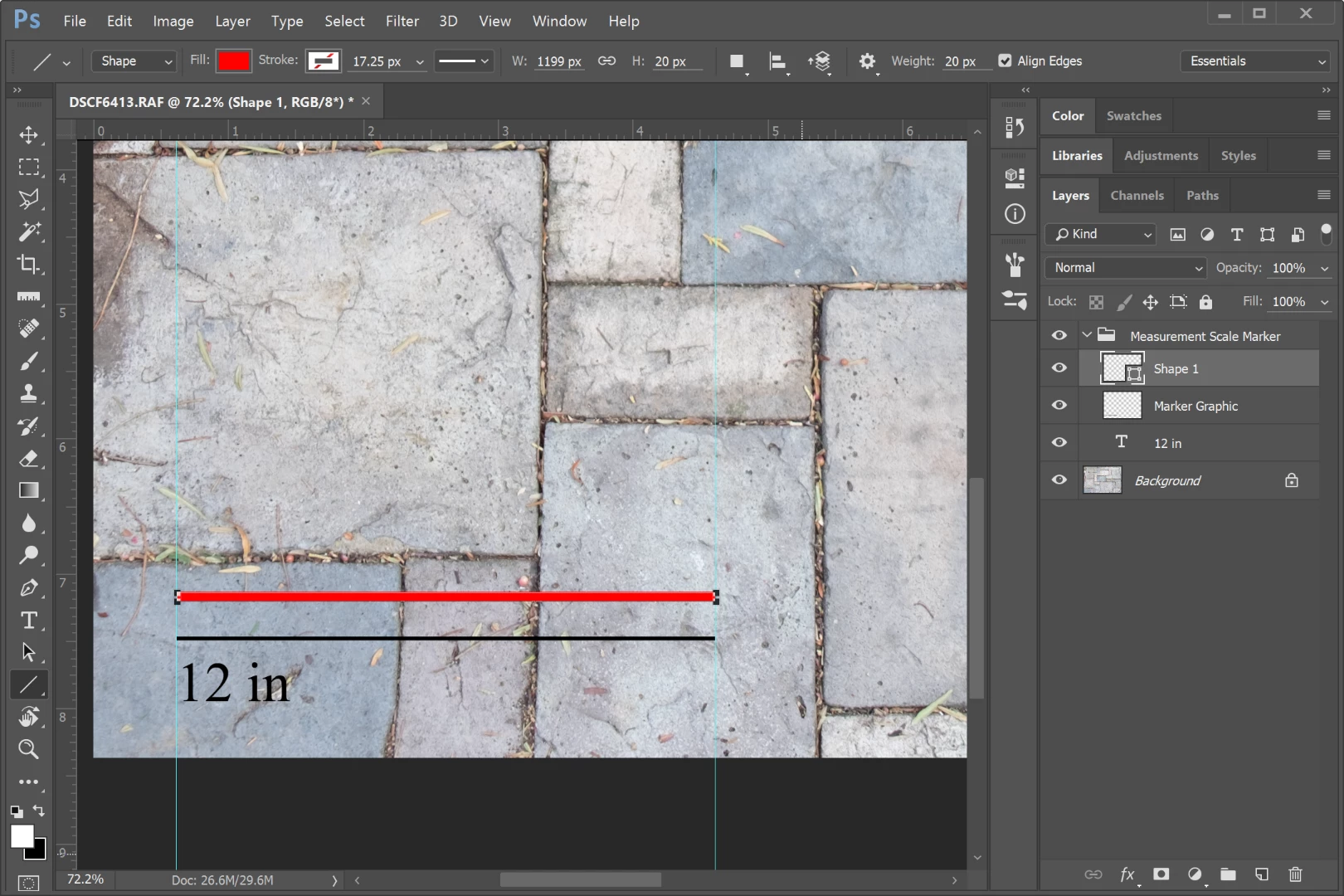
    If you have the scale bar in the image, you can create a shape layer or several shape layers of different colors and group them. Draw a shape layer the size of the 1mm scale, then transform it and plug in the size you want, say .75 etc. Then you can move and place the marker where you want.