Participant
December 8, 2018
Question

merging photos automatically and getting the background to match it.

  • December 8, 2018
  • 5 replies
  • 636 views

Hi there,

I am an absolute novice when it comes to Photoshop. I am currently trying my hand at making a stop motion video, using photos I took of cutouts, dancing to the children's song "head, shoulders, knees and toes".

My problem is this:

1. I have about 180 photos, which needs to be combined as shown in the below screenshots.
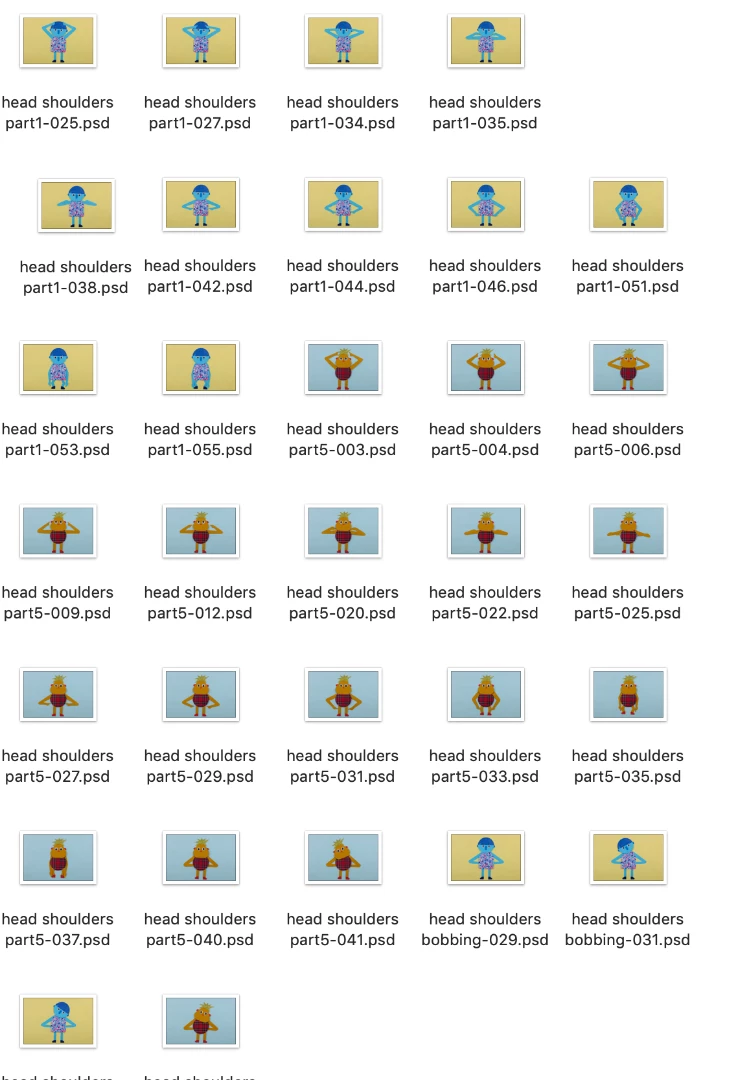
As it will be a stop motion, each photo needs to be the exact same size every time I combine it. Is there an easier way to do this, instead of dragging the photos in and adjusting them manually one by one (I have 180 photos which needs to align seamlessly when played as a video)?

2. I don't want the characters to be this big in the final product, but rather the size as shown in the screenshot below. To do this, I literally just made the entire photo smaller, but then I get the white background into the frame, which I obviously also don't want.
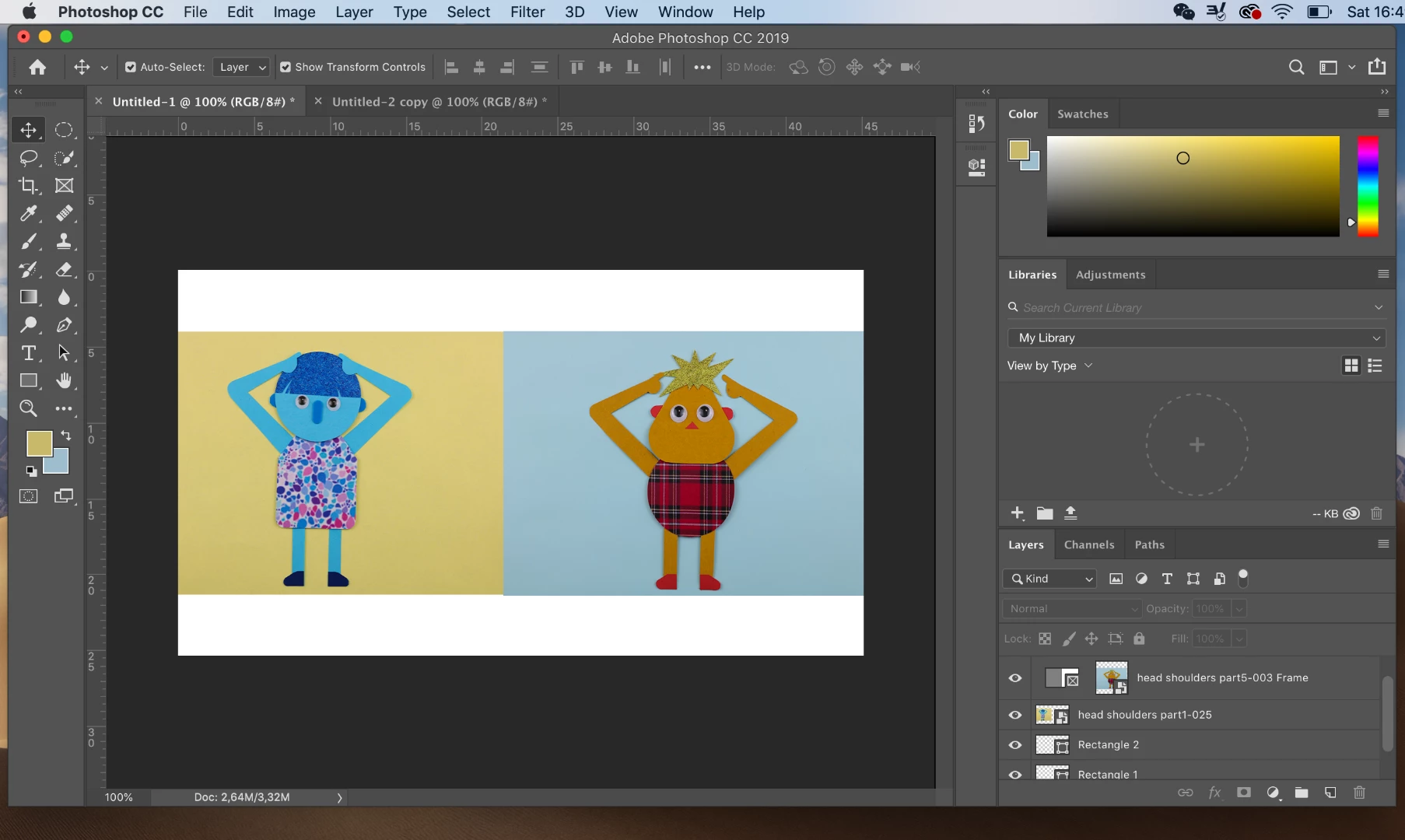
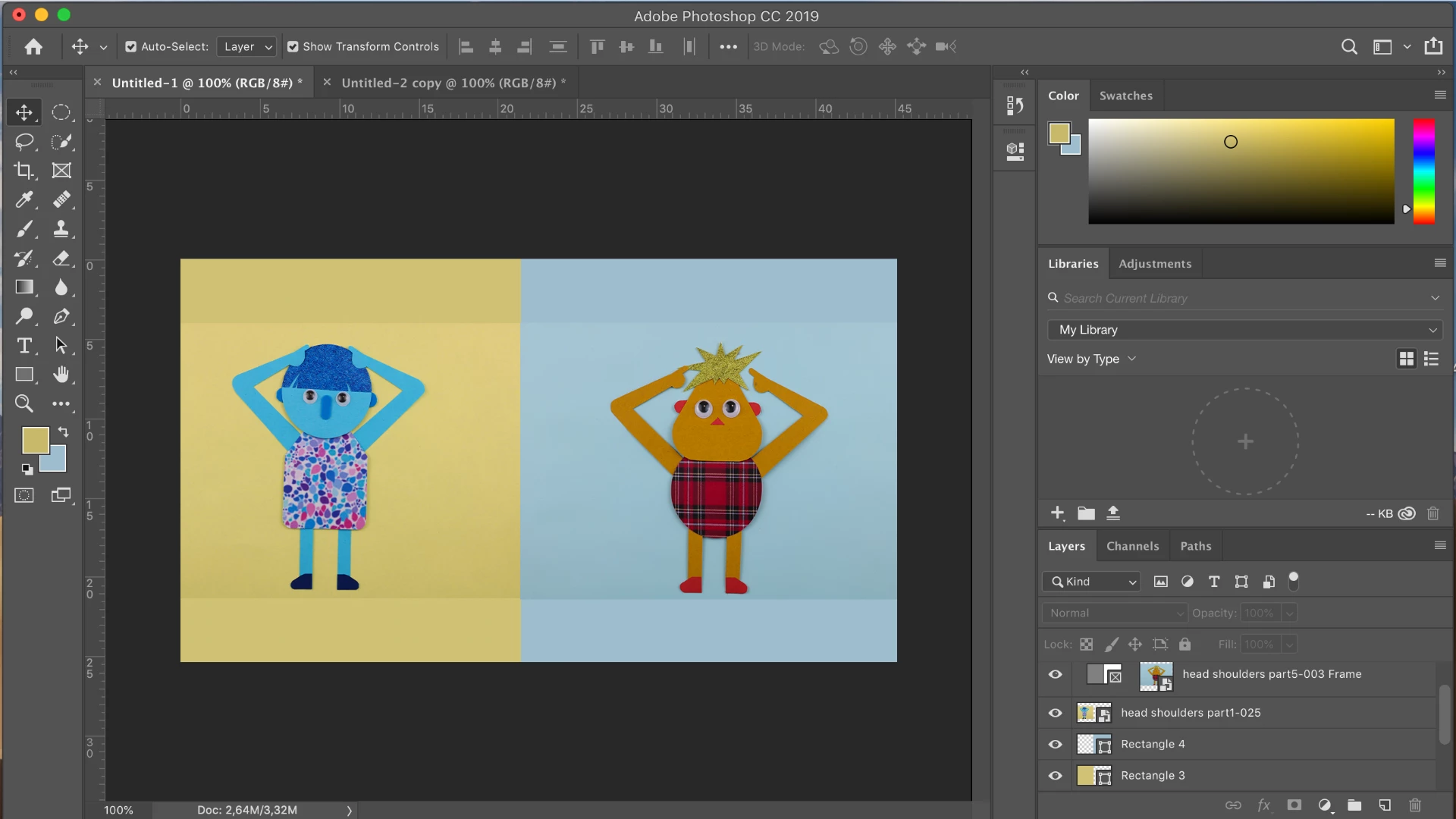
To get rid of the white background I tried using the rectangle tool - to draw a background in the same color as my photos, but the colors do not match up (even if I use the eyedropper tool). I have no idea how to actually do this, so I need expert advice in how to fully utilise this powerful program.
I look forward to hearing from anyone with more knowledge than what I have.

Thanks in advance.

    This topic has been closed for replies.

    5 replies

    Community Expert
    December 9, 2018

    To extend the background colour, you can use Content Aware.

    As below, I selected the white area above and below the characters, then went to Edit > Fill and in the window, selected Content-Aware, then click OK. The result is in the second image below.

    For more on Content Aware, see
    Content-Aware Fill workspace in Photoshop

    As mentioned by others, the lighting may be different between pictures so even if you extend colours as above, you could get a flicker when making the video. That could be solved in other ways. One option is to mask out the background.

    Derek Cross
    Community Expert
    Community Expert
    December 8, 2018

    I would add, that as an "absolute novice", this is not the best project to start your Photoshop journey on!

    Participant
    December 9, 2018

    @DerekCross thank you for the link, but I am not really planning on making the stop motion in photoshop. I just want to use photoshop as a means to get the images combined and the background corrected, after which I will move into Premiere Pro (Which I have more experience using).

    Derek Cross
    Community Expert
    Community Expert
    December 8, 2018
    c.pfaffenbichler
    Community Expert
    Community Expert
    December 8, 2018
    To get rid of the white background I tried using the rectangle tool - to draw a background in the same color as my photos, but the colors do not match up (even if I use the eyedropper tool). I have no idea how to actually do this, so I need expert advice in how to fully utilise this powerful program.

    Your images’ backgrounds are not »flat«, they probably have noise and show some of the structure of the original material and they are apparently not lit perfectly evenly but are lighter at the top edge than at the bottom edge.

    Maybe you need to mask the subjects, how easily that can be automated is hard to tell just yet, can you provide a few of the images?

    c.pfaffenbichler
    Community Expert
    Community Expert
    December 8, 2018
    As it will be a stop motion, each photo needs to be the exact same size every time I combine it. Is there an easier way to do this, instead of dragging the photos in and adjusting them manually one by one (I have 180 photos which needs to align seamlessly when played as a video)?

    You could try

    File > Scripts > Load Files Into Stack (to get the whole bunch into one file as Layers)

    Edit > Auto-Align Layers (to align the selected Layers, though this may not work out perfectly)

    Participant
    December 9, 2018

    @cpfaffenbichler thank you for your advice! I tried this, but when I try to auto-align the images I keep getting a pop-up telling me it can't be done unless the images overlap more... which I don't know how to fix

    Here are a few of my images that needs to be combined:

    head shoulders part5-003.psdhead shoulders part1-025.psdhead shoulders part5-020.psdhead shoulders part1-035.psd

    Thank you for your help thus far!

    c.pfaffenbichler
    Community Expert
    Community Expert
    December 10, 2018

    when I try to auto-align the images I keep getting a pop-up telling me it can't be done unless the images overlap more

    If only one Layer is selected it can naturally not be aligned. One needs to select several Layers that belong together subject-wise.

    Here are a few of my images that needs to be combined:

    They don’t seem to work for me.