
Known Participant
August 17, 2025
Answered

Merging those two pictures together proves a lot more difficult than I expected it to be

  • August 17, 2025
  • 3 replies
  • 1019 views

Folks,
any ideas?
I am looking to merge elegantly the sea/lava picutre with the sunset and I am failing at providing a photo realistic result.
I tried creating masks using alpha channels (the one attached looking not too bad, created by first using camera raw to accentuate constrast), played with gradients on layer masks etc, pinged ChatGPT extensively.
Still, it is not yet convincing.
Thoughts on how to proceed? Do I miss something?
best,
Dan

Correct answer Conrad_C

The biggest problem isn’t masking. The composite might not be convincing because of differences in lighting between the two photos. They look so different because the sky in the lava picture has no warmth at all, it has a lot of cold cyan as if photographed in the early morning or after sunset. Something has to be done to explain to the human eye why those two lighting conditions can exist in the same picture. I don’t think the lava picture can continue to be so cyan if you want its content to be color-consistent with a picture of a very warm sunset. If composited as is, the brain won’t accept the way one picture’s color balance clashes with the other.


If you study how the Edit > Sky Replacement feature works in Photoshop, you’ll find that their automatic sky mask is intentionally not a solid edge. Their mask lets part of the sky color bleed into the foreground. This helps unify the color between the two layers.


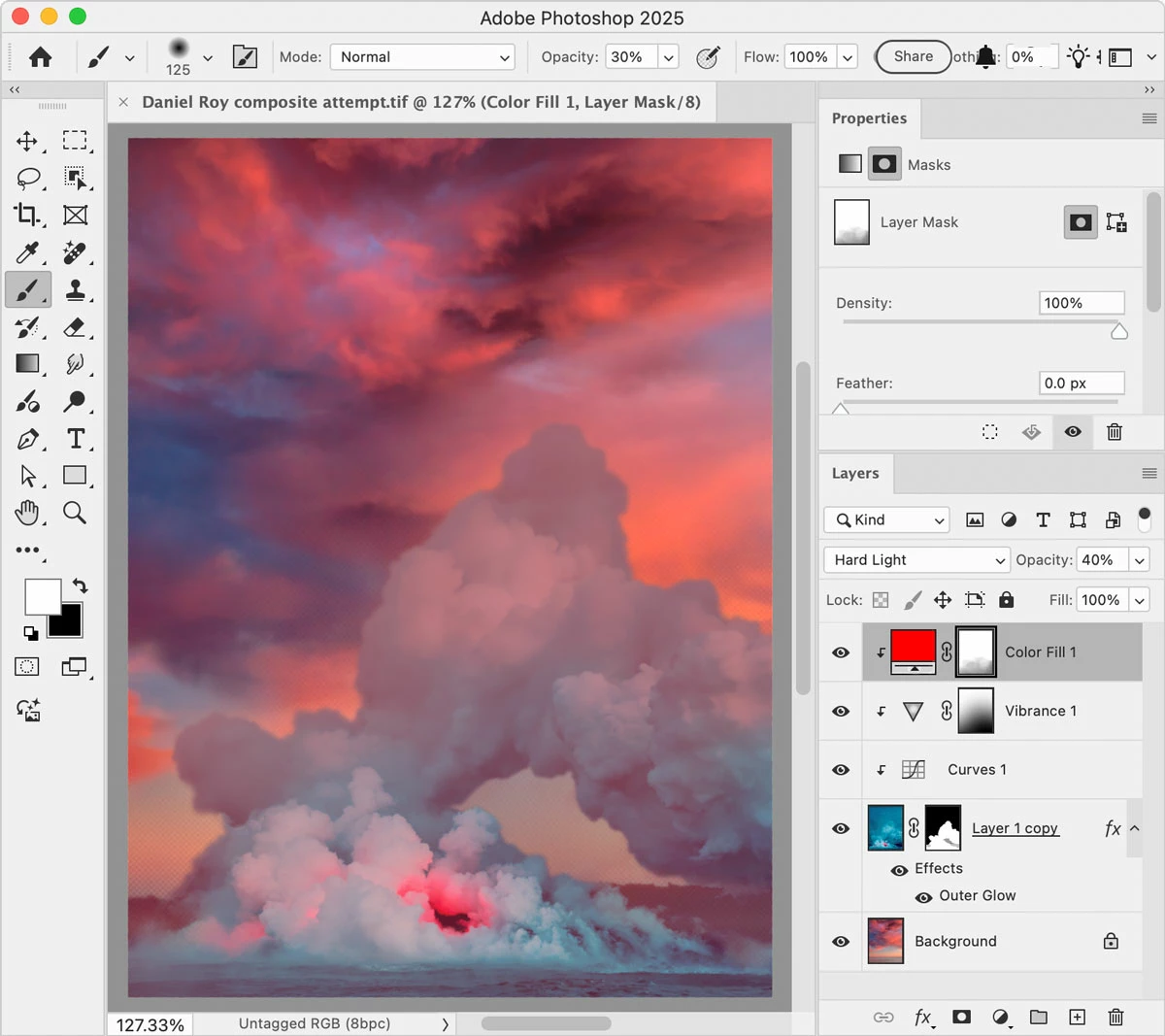
My quick attempt below uses a Solid Color Fill layer to warm up the masked blue lava image. My Color Fill mask tries to control where the warmth would show up more and less. It should be more warm when the foreground cloud is exposed to the sunset light, including around the edge. I’m still questioning whether any part of the lava image should be as blue as the original when composited with the sunset. The lighting strategies and color theory needed aren’t new, they’re taught in classes teaching classical representational painting (traditional, not digital). Those skills are very useful for photo compositing.


 No, I don’t think mine is perfect. Maybe the mask edges need to be blended better.


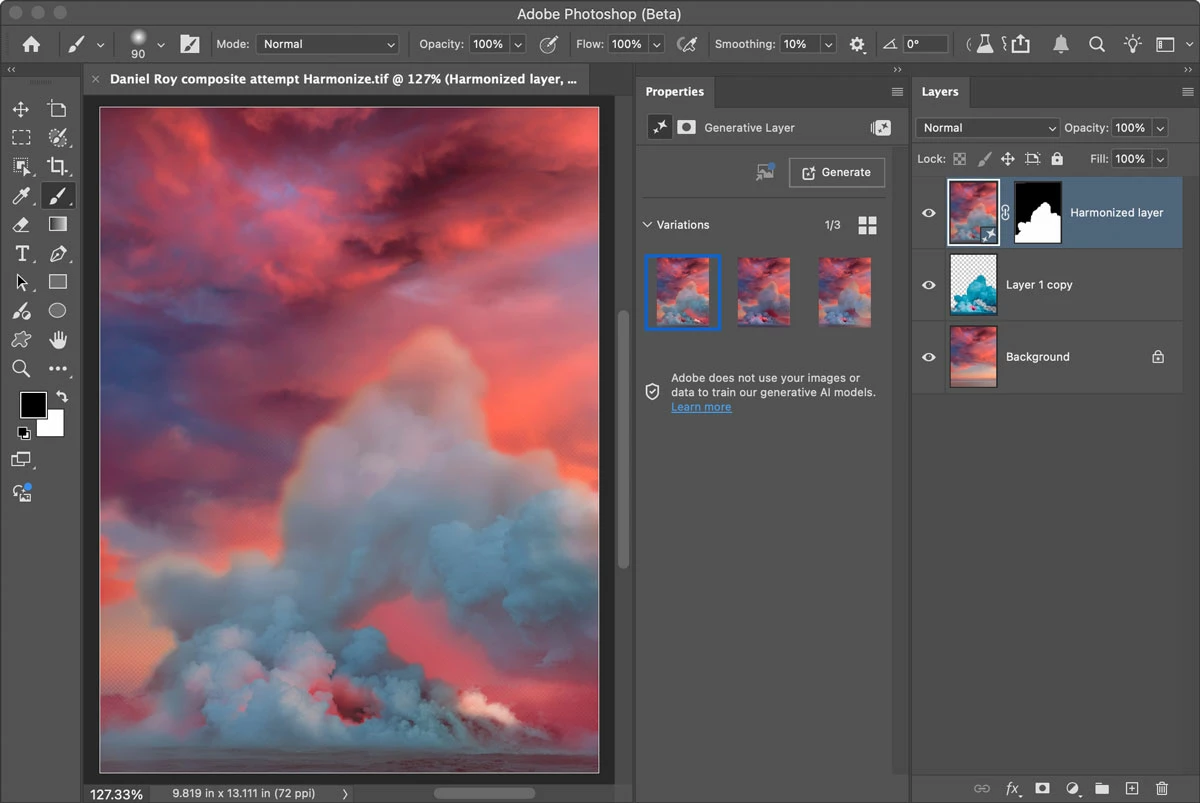
In the future, this kind of thing might take fewer steps. The public beta of Photoshop now includes a new AI-powered feature under testing called Harmonize, shown in the picture below. After removing the background from the lava layer, compositing the images took just one click on the Harmonize icon in the Contextual Task Bar. You can see how Harmonize is trying to unify the colors across the images, because it knows that so much of making a convincing composite is matching up the lighting, both tonal distribution and color palette.
 

3 replies

Conrad_C
Community Expert
Conrad_CCommunity ExpertCorrect answer
Community Expert
August 18, 2025

The biggest problem isn’t masking. The composite might not be convincing because of differences in lighting between the two photos. They look so different because the sky in the lava picture has no warmth at all, it has a lot of cold cyan as if photographed in the early morning or after sunset. Something has to be done to explain to the human eye why those two lighting conditions can exist in the same picture. I don’t think the lava picture can continue to be so cyan if you want its content to be color-consistent with a picture of a very warm sunset. If composited as is, the brain won’t accept the way one picture’s color balance clashes with the other.


If you study how the Edit > Sky Replacement feature works in Photoshop, you’ll find that their automatic sky mask is intentionally not a solid edge. Their mask lets part of the sky color bleed into the foreground. This helps unify the color between the two layers.


My quick attempt below uses a Solid Color Fill layer to warm up the masked blue lava image. My Color Fill mask tries to control where the warmth would show up more and less. It should be more warm when the foreground cloud is exposed to the sunset light, including around the edge. I’m still questioning whether any part of the lava image should be as blue as the original when composited with the sunset. The lighting strategies and color theory needed aren’t new, they’re taught in classes teaching classical representational painting (traditional, not digital). Those skills are very useful for photo compositing.


 No, I don’t think mine is perfect. Maybe the mask edges need to be blended better.


In the future, this kind of thing might take fewer steps. The public beta of Photoshop now includes a new AI-powered feature under testing called Harmonize, shown in the picture below. After removing the background from the lava layer, compositing the images took just one click on the Harmonize icon in the Contextual Task Bar. You can see how Harmonize is trying to unify the colors across the images, because it knows that so much of making a convincing composite is matching up the lighting, both tonal distribution and color palette.


D Fosse
Community Expert
Community Expert
August 18, 2025
quote

The biggest problem isn’t masking. The composite might not be convincing because of differences in lighting between the two photos.


By @Conrad_C


Indeed, and that's pretty much how you spot any composite image. It's a dead giveaway.

Legend
August 17, 2025

Daniel, my understanding of Ps tools is so hilariously less than Gans'; my attempt was old-fashioned.

Select Subject, Feather the selection, then create a mask. I'm not happy with the transition.

Setting Blending mode = Exclusion looked a bit better than Normal.


Larry
S_Gans
Community Expert
Community Expert
August 17, 2025

I'm not certain exactly what you're going for, but the issue I see is the stark color demarcation between the smoke and the sky. The smoke is dense, but then... it just ends. I'd think a mask on the smoke portion of the lava layer, with soft variations in the gray area, might help you. To add a mask on an already masked layer, you can turn it into a smart object (https://helpx.adobe.com/photoshop/using/create-smart-objects.html) and put your mask over that. If we could see the red through parts of the blue- very little at the bottom, but increasingly as it goes up and the smoke dissipates, you may get a more grounded feeling. I personally would also extend the smoke up. You may try generating some more similar smoke going upwards towards the clouds (https://helpx.adobe.com/photoshop/using/generative-fill.html or https://www.adobe.com/products/photoshop/generate-image.html), and also masking them until they have a more natural view of the red sky behind them. 

Additionally, I feel like some of that red sky might be showing at least at the edges, if not on the rock edges of the volcano.

Mixing the hues among selected parts of the image, and allowing more interaction between the layers, may give you the effect you're seeking.

Adobe Community Expert / Adobe Certified Instructor