Participant
July 31, 2023
Question

moire issue

  • July 31, 2023
  • 2 replies
  • 1846 views

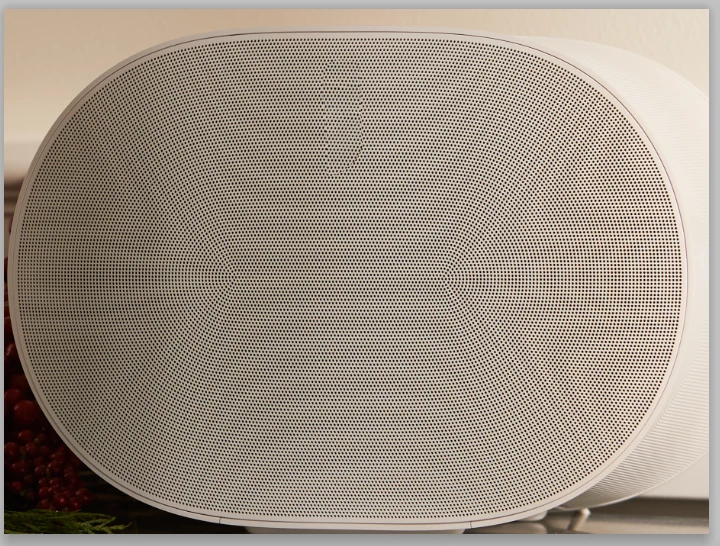
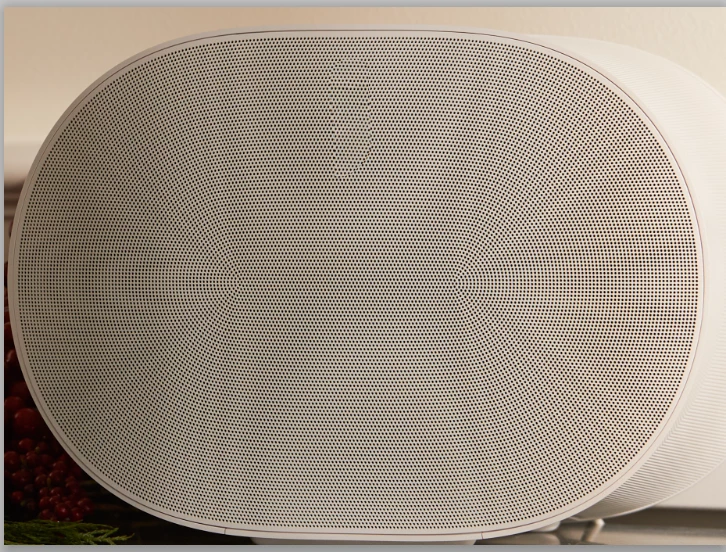
Some of our products show moire in the pattern. in front of the speaker. I can't remove this type of moire, not color moir.

Could you please give a solution for that?
I have attached  files could you please check 
 

2 replies

davescm
Community Expert
Community Expert
July 31, 2023

Hi

I would use frequency separation to separate the high frequency dots from the low frequency moire. To do that:


1. Make 2 duplicates of your image layer
Name the lower - "Low frequency"
Name the Higher - "High Frequency"
2. Select the Low frequency layer and use Filter Gaussian Blur until the dots just say disappear (on your screenshot that was around 1.6 px)
3. Select the High frequency layer
Go to menu Image > Apply Image
Set the source layer to Low Frequency
Set the blending mode to Subtract
Set Scale to 2 *
Set offset to 128 *
Click OK
4. Change the blending mode of the high frequency layer to Linear Light
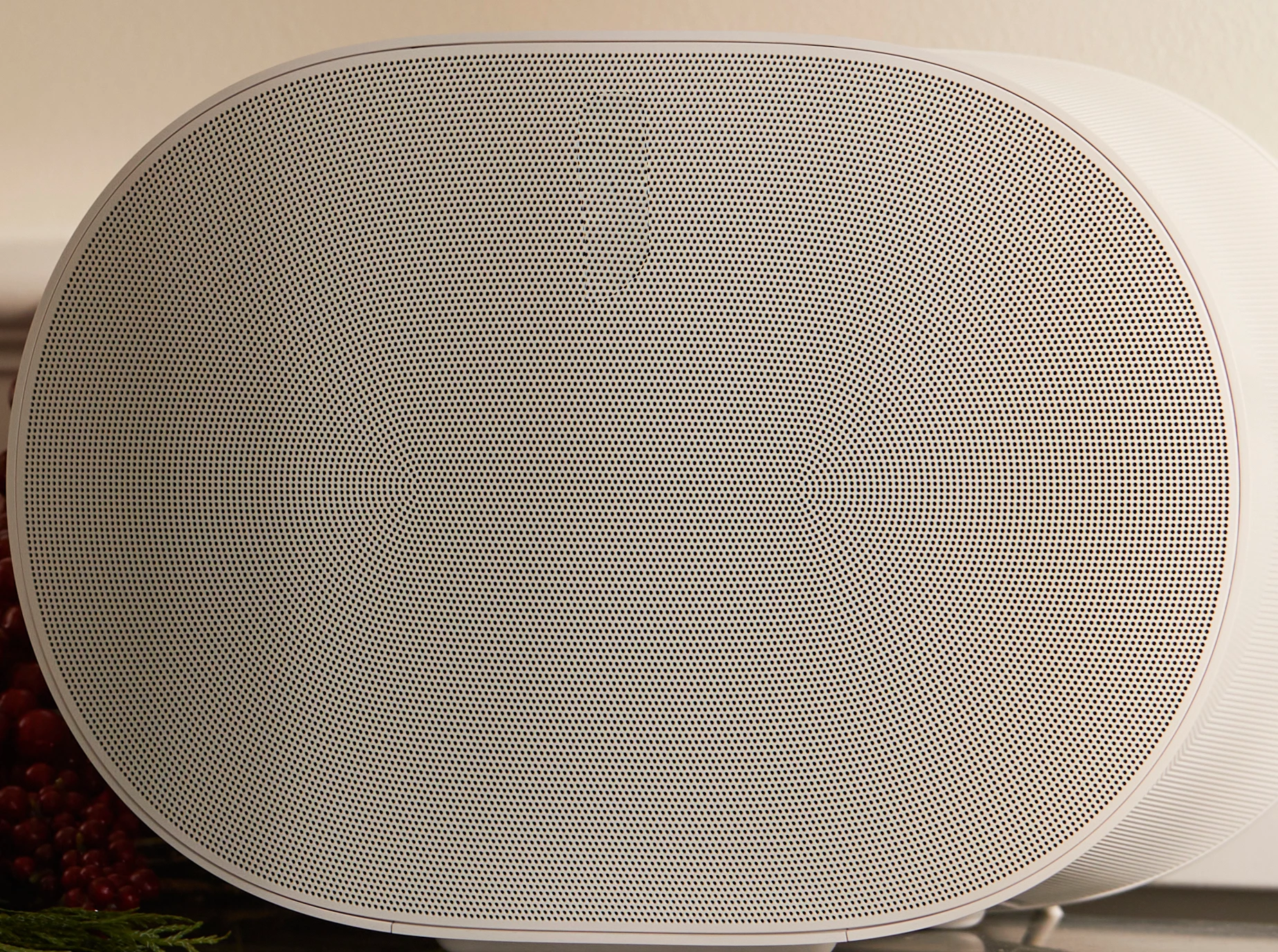
5. Now use a soft brush on the low frequency layer to paint out the moire using colour picked up from the image. I made a selection first to restrict the brush strokes to  front of the speaker.

[Edit click the image to see the result - without doing that, the forum software introduces more moire in its resizing of the post]


Dave


* Note - the above steps are for 8 bit/channel images. For 16 bit/channel step 3 changes slightly

3. Select the High frequency layer
Go to menu Image > Apply Image
Set the source layer to Low Frequency
Check "Invert" next to channel

Set the blending mode to Add
Set Scale to 2
Set Offset to 0
Click OK

Now carry on with step 4 above

Participant
July 31, 2023

This step is I already used but not work
This issue occurs while in between zooming in and zooming out. I blurred this to make it less visible, but I lost the details


davescm
Community Expert
Community Expert
July 31, 2023

Frequency separation does work for moire (as shown above) but you must first prepare the image at final viewing size in pixels and ensure that you view at that size. Zooming in/out will always introduce new moire with such a pattern of dots (as demonstrated when the forum software resized).

Dave

Trevor.Dennis
Community Expert
Community Expert
July 31, 2023

Are the screen shots all 1:1 100% zoom ratio?  I am wondering if it is a monitor thing and depends on zoom ratio. When we used to use flatbed scanners, the trick with them was to scan twice with the image rotated a wee bit for the second scan, and merge them in Photoshop.  That's not helpful in this case though. 


This article has some interesting tips and I think they might even have an Action, which is always welcome when they work.


https://design.tutsplus.com/tutorials/how-to-fix-moire-pattern-in-photoshop--cms-41614


I'd be interested in how you get on if you try it.

Participant
July 31, 2023

This issue occurs while in between zooming in and zooming out. I blurred this to make it less visible, but I lost the details.


Stephen Marsh
Community Expert
Community Expert
July 31, 2023
quote

This issue occurs while in between zooming in and zooming out. I blurred this to make it less visible, but I lost the details.


By @Avinash31398683l3tl


What do you mean by that?


If you are just 'zooming' onscreen in Photoshop at different zoom levels, ignore it, it's not 'real'.


If you are resizing, such as image > image size or scaling the layer and the final 100%, 1:1 zoom shows the unwanted pattern, then it is real.